



Teleprompter for Virtual Meetings: Keep Eye Contact
A teleprompter for virtual meetings places your notes directly in line with your camera, so you can read talking points while looking straight at the other person on screen. If you've ever caught yourself glancing down at notes during a Zoom call and watched the other person's engagement vanish — that's the problem this solves. The EyeMeeting Prompter uses a beam splitter positioned over your monitor so your webcam or camera sits right behind it, capturing your face at natural eye level. I've set up hundreds of these for coaches, corporate teams, and remote consultants, and the difference in perceived connection is immediate.

Over the past three years, roughly 20% of our 50,000+ shipped orders have gone to coaches, consultants, and corporate teams who use TeleprompterPAD gear specifically for live video calls and webinars. I've personally troubleshot eye-contact setups for hundreds of virtual meeting workflows — adjusting camera heights, monitor placements, and app overlay settings until everything clicks.

Why does eye contact matter so much in virtual meetings?
Because your camera and your screen are in two different places. You're either looking at the person's face on your monitor — which means your gaze drops below the lens — or you're staring at the camera, which means you can't see their reactions. There's no winning.
Research published in Frontiers in Psychology found that standard video calls create what researchers call "skewed visuality" — a physically restrained ability to make eye contact that disrupts the interaction for both parties. A 2025 study in the Journal of Vision confirmed that most video conferencing technologies simply do not support natural eye contact. This isn't a minor cosmetic issue. It's structural.
And virtual meetings aren't going away. According to Owl Labs' 2025 report, employees now attend an average of 5 remote meetings per week. Meanwhile, 49% of remote professionals report significant video call fatigue on a weekly basis. Part of that fatigue comes from the constant cognitive effort of trying to "perform" eye contact by looking at a camera lens — which feels deeply unnatural.
How does a teleprompter work for virtual meetings?
A beam splitter teleprompter places a semi-reflective glass panel at 45 degrees in front of your camera or webcam. The glass reflects text (or your meeting notes) from a screen below or behind it, while your camera shoots straight through. The result: you read your notes while appearing to look directly into the lens.
For virtual meetings specifically, the setup differs from a traditional recording teleprompter. You don't need a full tablet or DSLR rig — you need something that sits on or near your desktop monitor and works with your existing webcam or USB camera. That's exactly what the EyeMeeting Prompter was designed for.
The unit includes its own 10.1-inch inverted monitor that connects to your computer via HDMI as a second screen. You position it at eye level using the included monopod stand, place your webcam behind the beam splitter glass, and your call app appears on your main monitor while your notes appear on the prompter. The TeleprompterPAD app's Meeting Mode creates a transparent text overlay, so you can even see your call participants through the text.

EyeMeeting Prompter vs. EyeMeeting Webcam: which one do you need?
TeleprompterPAD makes two products for virtual meetings, and they solve different problems. Picking the wrong one is the most common mistake I see.
| Feature | EyeMeeting Prompter | EyeMeeting Webcam |
|---|---|---|
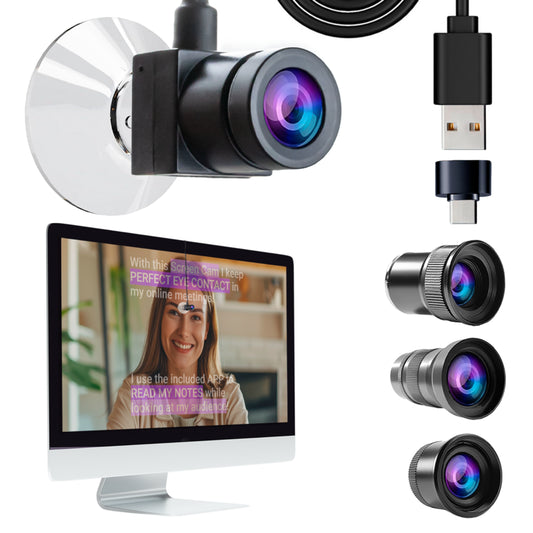
| Type | Beam splitter + 10.1-inch monitor | USB webcam + suction mount |
| Best for | Live calls + recording + streaming | Live calls only |
| Camera | Use your own (webcam/DSLR) | Built-in 8MP + mic |
| Screen | 10.1-inch HDMI second monitor (included) | None (uses your monitor) |
| Lenses | N/A (bring your own camera) | 3 included (wide, natural, telephoto) |
| Remote control | Included | Not included |
| Livestreaming | Yes | No |
| Price | €229 | €99 |
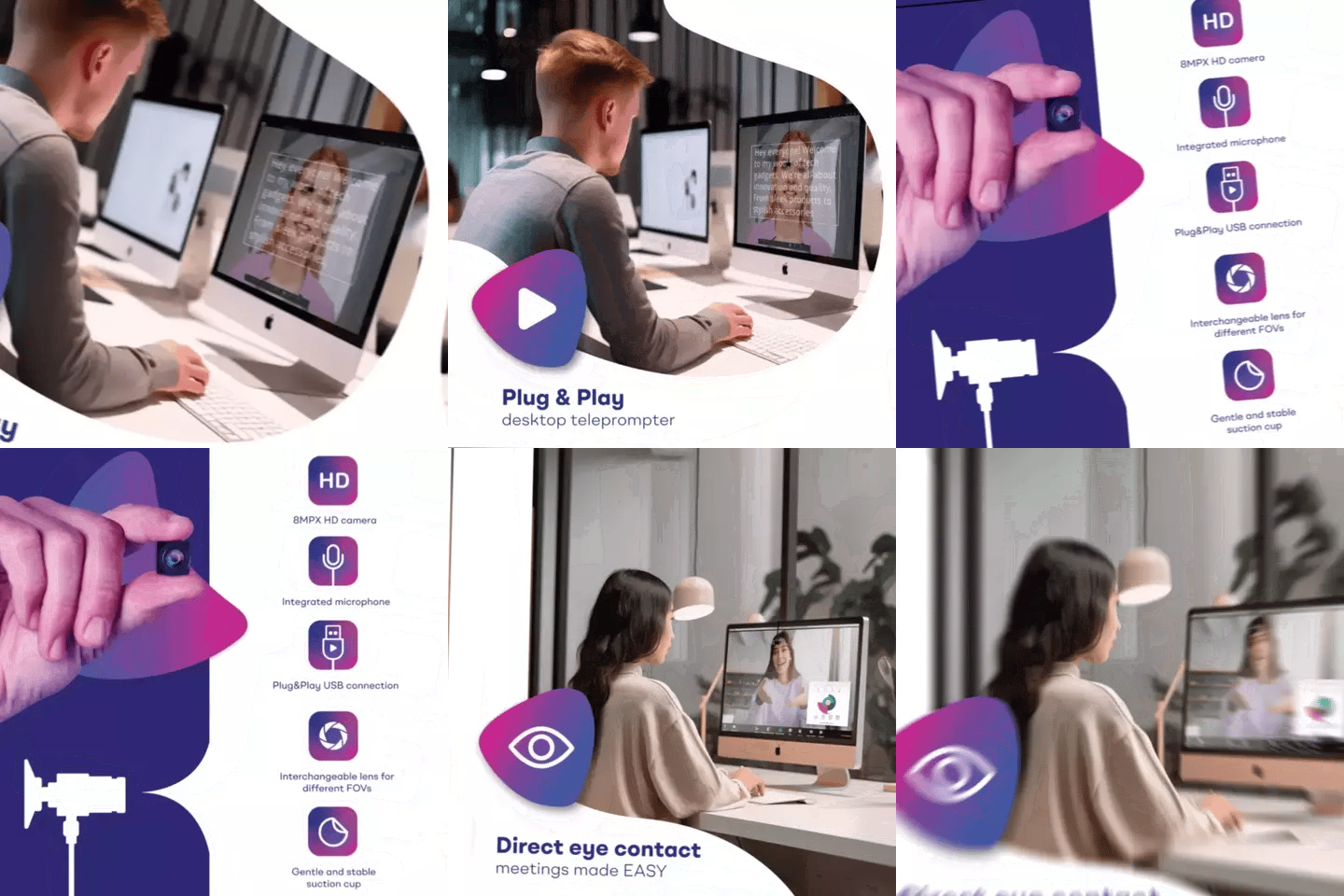
Here's my rule of thumb: if you only do live calls — Zoom, Teams, Google Meet — and you want the simplest possible setup, the EyeMeeting Webcam at €99 is a solid pick. Plug it in via USB (directly, not through a hub), select "USB Camera 2" in your call app, and you're done. It has a built-in mic and three interchangeable lenses.
But if you also record content, run webinars, or livestream — the EyeMeeting Prompter is the better long-term investment. It works with any webcam or camera you already own, has its own dedicated 10.1-inch screen, and the included Bluetooth remote lets you control scroll speed hands-free. That versatility is why I recommend it as the primary option for most virtual meeting users.
Step-by-step: setting up the EyeMeeting Prompter for a virtual meeting
- Position the monopod stand on your desk. Adjust the height so the beam splitter glass sits at your eye level when you're seated normally. Don't crane your neck — that defeats the purpose.
- Connect the HDMI cable from the EyeMeeting's 10.1-inch monitor to your computer. Your OS should detect it as a second display. Set it to "Extend" (not mirror).
- Place your webcam or camera behind the glass. The lens should point through the center of the beam splitter. If using an external webcam, a small tripod or clamp keeps it stable.
- Open the TeleprompterPAD app on your computer. Import or paste your meeting notes. Activate Meeting Mode — this creates a semi-transparent text overlay on the EyeMeeting's screen.
- Launch your video call (Zoom, Teams, Google Meet, etc.) on your main monitor. In your call app's video settings, select the camera that's behind the glass.
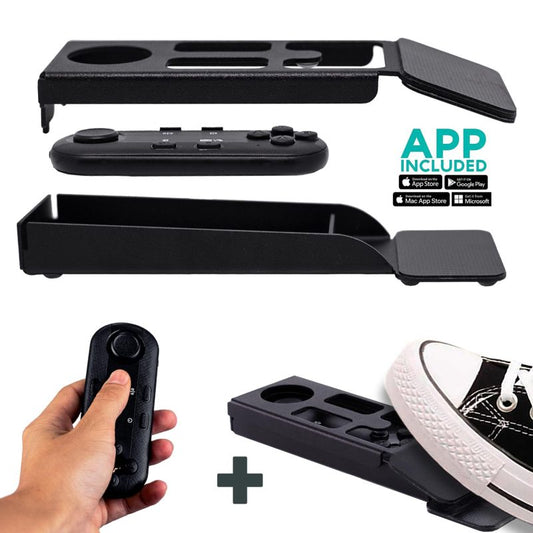
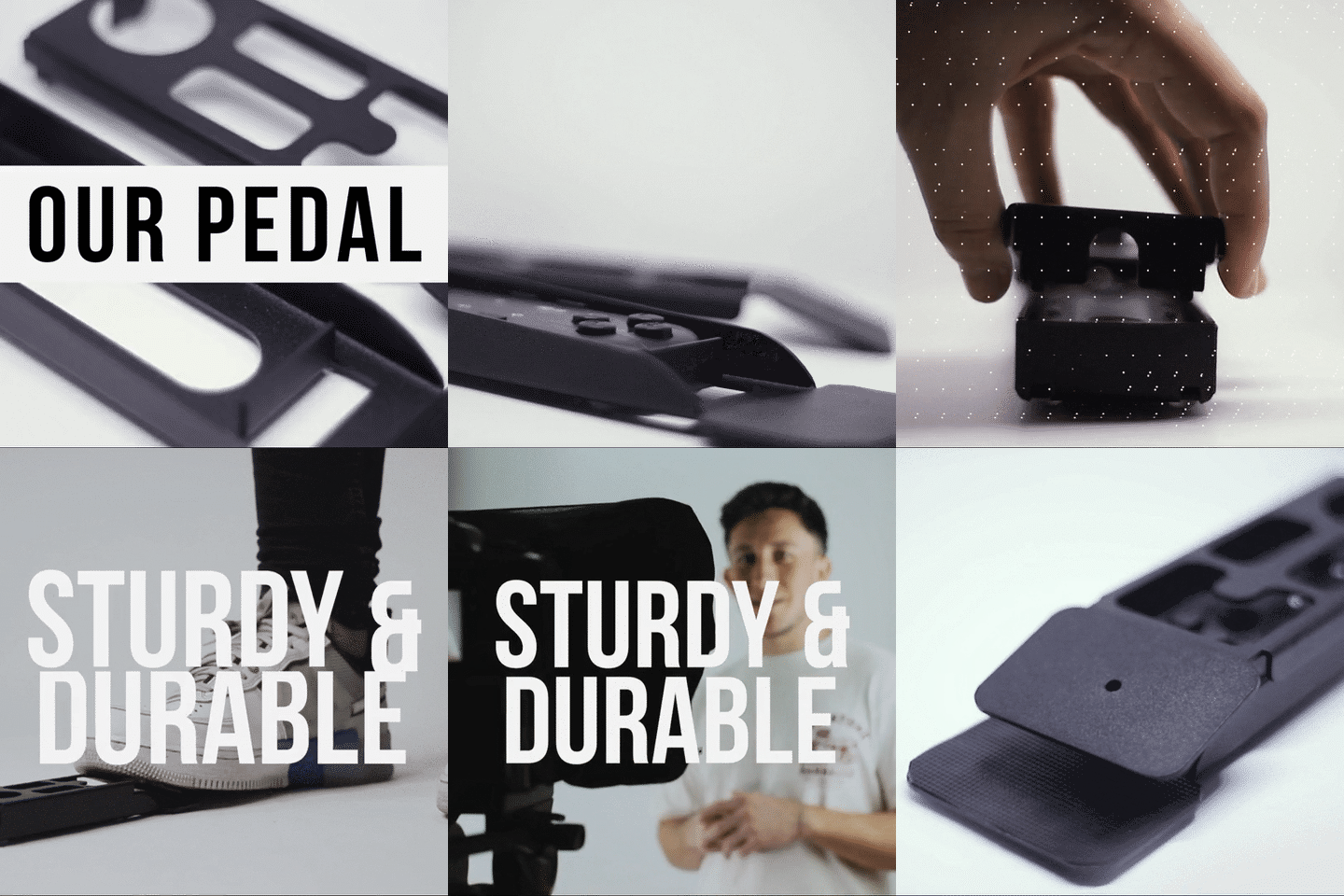
- Pair the Bluetooth remote. Use it to start/stop scrolling and adjust speed during the call. Or use the Foot Pedal if you need both hands free — the silent capacitive sensor won't get picked up by your mic.
- Do a 30-second test. Record yourself or ask a colleague to confirm you're looking straight at them. Adjust glass angle if needed.
The whole process takes about 5 minutes the first time. After that, you leave the monopod in position and it's under a minute to go live.

Who actually uses a teleprompter for virtual meetings?
Across our customer base, three groups dominate virtual meeting teleprompter purchases:
Coaches, therapists, and course creators (20% of all TeleprompterPAD orders). These folks run paid coaching calls, group sessions, and webinars — often 3-5 times per week. Maintaining eye contact isn't just about looking professional. It directly affects client trust and retention. Many of them also record course modules between calls, which is why the dual-purpose EyeMeeting Prompter makes sense. If this is you, our guide for coaches goes deeper on scripting techniques.
SMBs, startups, and marketing teams (18% of orders). Sales demos, investor pitches, client onboarding calls — all benefit from having key talking points visible without breaking eye contact. I've had startup founders tell me they close deals noticeably faster when they stop fumbling with notes off-screen.
Corporate comms and training teams (3% of orders, but growing fast). Internal town halls, leadership updates, HR policy rollouts — these are high-stakes video moments where reading from a script is expected, but looking down at notes undermines authority. See our corporate training setup guide for multi-presenter workflows.
What about software-only eye contact correction?
You've probably seen the AI gaze correction features in Zoom, Teams, and Apple FaceTime. They digitally shift your eye direction to simulate looking at the camera. Do they work?
Sort of. The technology has improved, but there are real limitations. AI correction can introduce subtle visual artifacts — slightly glassy eyes, unnatural pupil movement, occasional glitching when you turn your head. More importantly, it only fixes where your eyes appear to point. It doesn't help you actually read notes or a script while on camera.
A hardware beam splitter solves both problems simultaneously: real eye contact alignment (no AI processing delay, no artifacts) AND a place to put your text. That combination is why physical teleprompters still exist despite software alternatives.
| Criteria | AI Gaze Correction | Beam Splitter Teleprompter |
|---|---|---|
| Eye contact fix | Software simulated | Optically real |
| Script/notes on screen | No | Yes |
| Visual artifacts | Possible (glassy eyes, glitches) | None |
| Works with any app | Only supported apps | Yes — any video call platform |
| Processing load | Uses CPU/GPU | Zero |
| Cost | Free (built into app) | €99 – €229 |
Honest pros and cons of the EyeMeeting Prompter for meetings
I've been working with this product long enough to tell you what's genuinely great and what isn't.
Pros:
- Real optical eye contact — no software processing, no artifacts, works with every video call app on every platform.
- Built-in 10.1-inch HDMI monitor means you don't sacrifice a tablet for meetings. Plug in and go.
- Doubles as a recording/streaming teleprompter. If you also create content (and 24% of our customers are YouTubers), you get two tools in one.
- Bluetooth remote included. Control scrolling without touching your keyboard mid-call.
- Meeting Mode in the app overlays transparent text, so you see both your notes and the call window simultaneously.
- Personal 1-to-1 support in English, Spanish, French, German, and Italian if you get stuck during setup.
Cons:
- Takes desk space. The monopod and glass panel need about 25-30cm of depth in front of your monitor. If your desk is small, this is a real constraint.
- Not portable in any quick sense. It's a desktop device — you won't throw it in a laptop bag for a client meeting at a coffee shop.
- €229 is a real investment if you only do 1-2 calls per week. For light use, the €99 EyeMeeting Webcam is more proportionate.
- Requires HDMI output from your computer. Some ultrabooks or tablets have only USB-C, so you may need a dongle.
- Learning curve with Meeting Mode transparency settings. It takes a few calls to dial in the right text opacity so you can read notes without the overlay distracting you.


Tips for sounding natural (not robotic) on virtual meetings with a prompter
Having the gear is half the equation. The other half is what you put on the screen and how you deliver it. Here's what I tell every customer:
- Write bullet points, not full scripts. Virtual meetings are conversational. If you're reading word-for-word, people sense it. Use 3-5 word reminders for each talking point instead.
- Use the app's font size control generously. Bigger text = less eye scanning. I recommend at least 32pt for meeting notes at normal desk distance.
- Set scroll speed to manual. Meetings aren't linear — someone asks a question, you jump topics, you circle back. Use the remote to pause and advance as needed.
- Practice the "look, then speak" rhythm. Glance at a bullet point, absorb it, then look up and deliver. This is how news anchors work, and it's actually easier with a prompter because "up" and "at the camera" are the same direction.
- Keep your body language loose. Gesture with your hands. Lean forward when making a point. A teleprompter fixes your gaze direction, but frozen body language will still feel off.
One thing that surprised me: coaches and consultants (20% of our customer base) tell me the biggest improvement isn't looking polished — it's feeling less anxious. When your key points are right there in front of you, the mental load drops. You can actually listen to the other person instead of juggling memory and performance simultaneously.
The virtual meeting reality check: numbers you should know
If you're on the fence about whether a teleprompter for virtual meetings is worth the money, consider the sheer volume of video calls in the modern workweek. According to Wyzowl's 2026 report, 91% of businesses now use video as a marketing tool. And that's just marketing — it doesn't count internal meetings, client calls, or training sessions.
The average professional now joins roughly 5.4 video calls per week, up from 3.8 two years ago. Remote workers attend even more — an average of 7.3 per week. At that volume, the quality of your on-camera presence compounds fast. Looking confident and prepared in five meetings versus looking distracted in five meetings — that's a meaningful gap over months.
Frequently asked questions
Can I use a teleprompter with Zoom, Microsoft Teams, and Google Meet?
Yes. The EyeMeeting Prompter works with any video call application because it's a hardware solution, not software. Your call app simply sees whatever camera you've placed behind the beam splitter glass — it doesn't know or care that there's a teleprompter involved. Zoom, Teams, Meet, Webex, Skype, and any other platform all work.
Do I need a special camera for the EyeMeeting Prompter?
No. It works with any webcam, DSLR, or mirrorless camera. Most virtual meeting users stick with their existing webcam — a Logitech C920 or similar works perfectly. The camera mounts behind the beam splitter glass and shoots through it.
Will the other person see the teleprompter text reflected in my eyes?
No. The text brightness is far too low to create visible reflections in your eyes at normal webcam resolution. In over 10 years of working with beam splitter setups, I've never had a customer report this issue. The 60/40 HD glass ratio is calibrated specifically to prevent this.
What's the difference between the EyeMeeting Prompter and the EyeMeeting Webcam?
The Webcam (€99) is a simple USB camera with a suction cup mount that sits right in front of your screen. It handles live calls only. The Prompter (€229) is a full beam splitter with its own 10.1-inch HDMI monitor, works with any camera, and supports recording and livestreaming in addition to live calls. If you do more than just calls, the Prompter is the one to get.
Can I use the teleprompter without notes — just for eye contact?
Absolutely. Some users set up the EyeMeeting Prompter purely for the optical eye-contact alignment and don't display any text at all. The glass still directs your gaze perfectly toward the camera lens. It works as an eye-contact device whether you're prompting or not.
Does Meeting Mode work on Mac and Windows?
Yes. The TeleprompterPAD app is available on the Mac App Store and Microsoft Store. Meeting Mode — the transparent overlay feature — works on both operating systems. There's also a lite web app version that runs in any browser if you don't want to install anything.
Is the Foot Pedal silent enough for live meetings?
It is. The Foot Pedal uses a capacitive sensor with no mechanical click. I specifically recommend it for live call use because there's zero sound for your microphone to pick up. It does lack tactile feedback, so expect a short adjustment period of 2-3 sessions to get the feel down.
How much desk space does the EyeMeeting Prompter need?
Plan for about 25-30cm (10-12 inches) of depth in front of your monitor for the monopod stand and glass panel. The footprint isn't huge, but it's not invisible either. If you have a shallow desk, measure first. The monopod is height-adjustable, so vertical space isn't usually an issue.
A teleprompter for virtual meetings does one thing exceptionally well: it puts your notes where your camera is, so you never have to choose between reading and connecting. If video calls are a regular part of your work, the EyeMeeting Prompter is the most practical way to solve that problem. Try it — and if you get stuck during setup, our team offers 1-to-1 support in five languages to get you dialed in.
Our best sellers
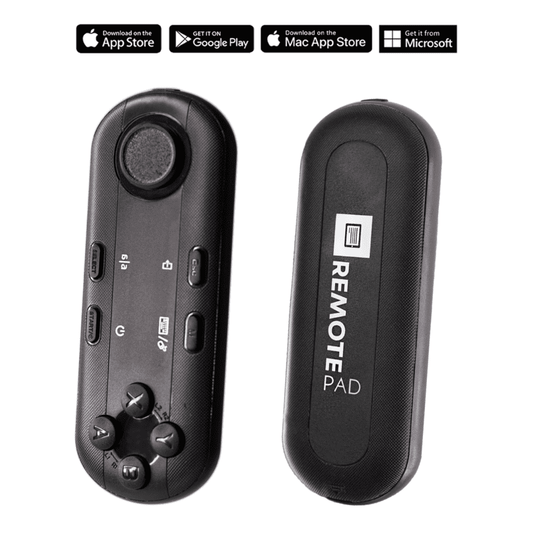
TELEPROMPTER PAD Bluetooth Remote Control for Teleprompter - Includes Teleprompter app for Apple, Android Windows & Mac - Wireless Controller for Beam Splitter Prompter or Live Streaming Equipment
- 34.90€
39.90€- 34.90€
- Unit price
- per
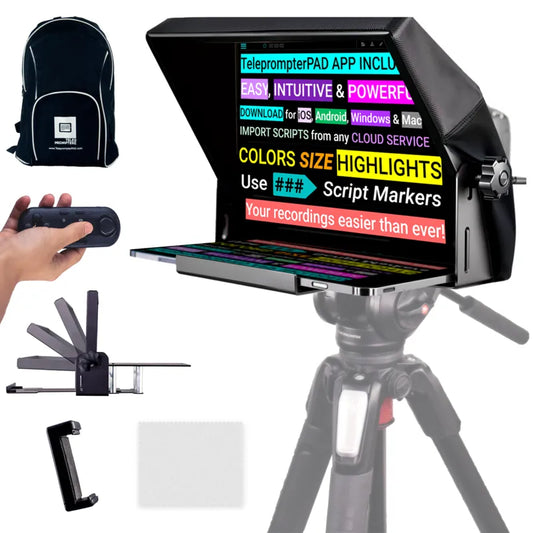
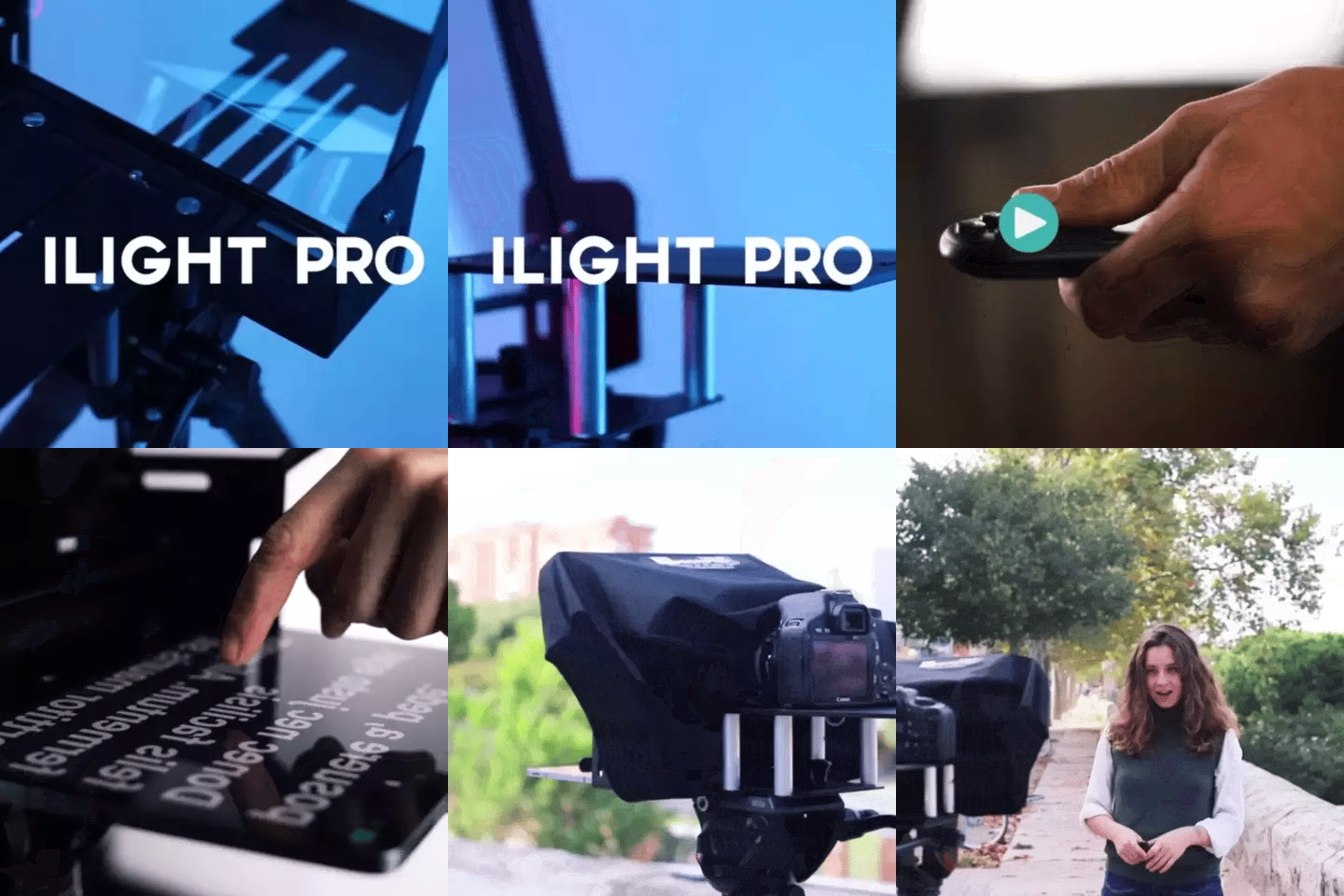
TELEPROMPTER PAD iLight PRO 12'' Teleprompter for iPad Tablet - Kit teleprompter for Video with Remote Control, APP & Carry Bag - Beam Splitter Prompter Autocue DSLR, iPhone, APP for Apple Android Mac Win
- 159.00€
199.00€- 159.00€
- Unit price
- per
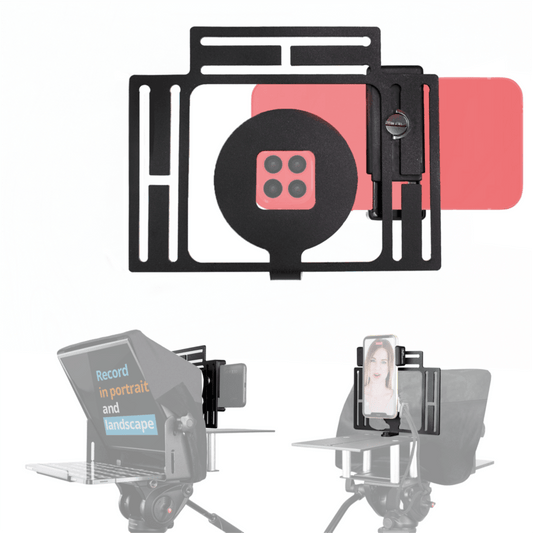
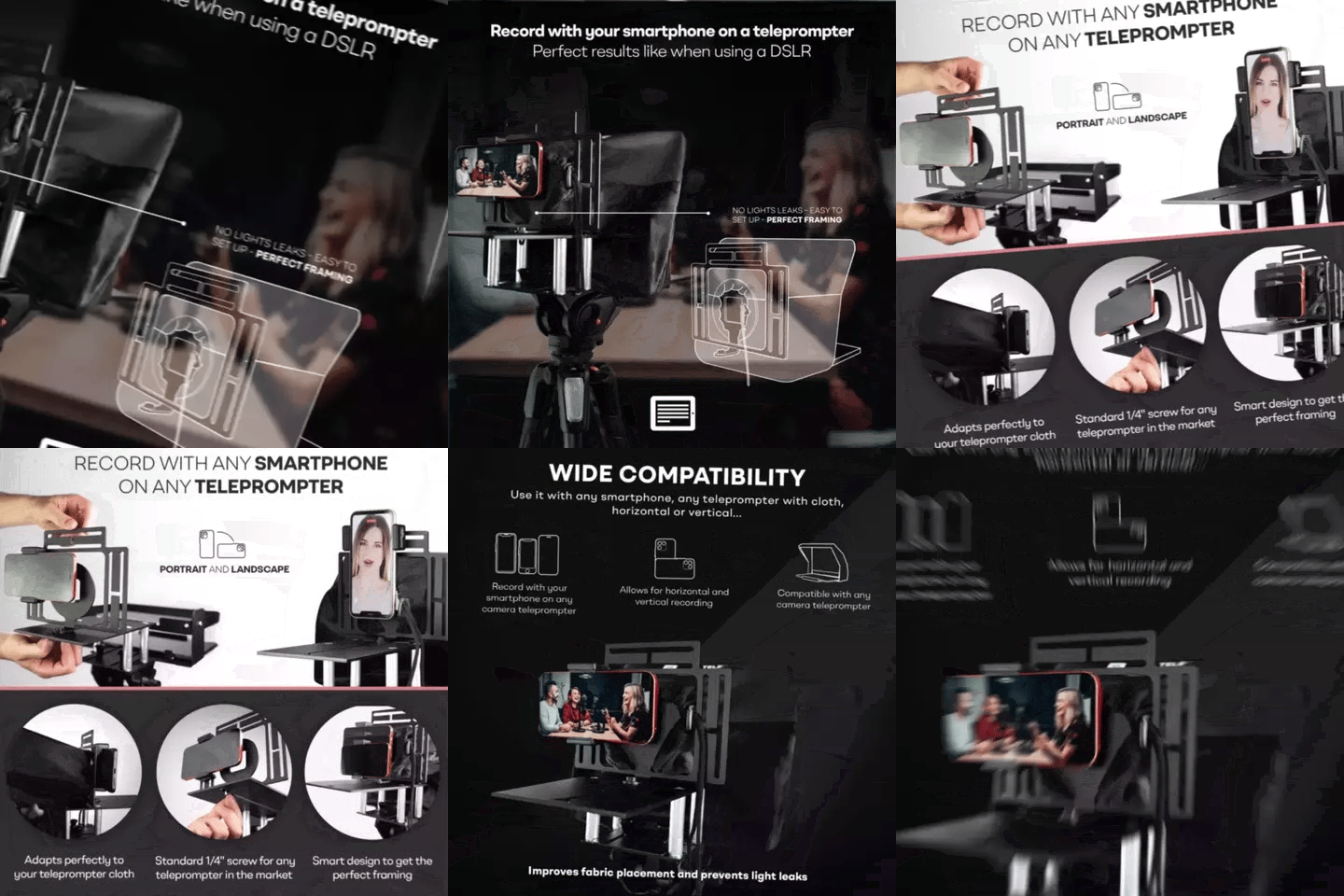
TELEPROMPTER PAD Smartphone Adaptor for teleprompter – Record with any iPhone, Android phone, compatible with any teleprompter, aluminum universal Rig for prompter with camera plate, snug cloth fit
- 29.90€
39.90€- 29.90€
- Unit price
- per
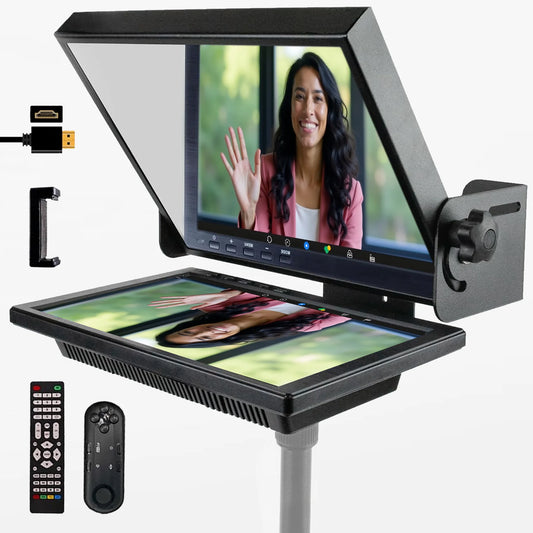

TELEPROMPTER PAD EyeMeeting Prompter for Twitch Streaming, Youtube, Zoom Eye Contact, for Mac/PC DSLR Webcam iPhone with Software, 10.1" Monitor & Remote, Compatible with Elgato Streamdeck, HDMI Input
- 229.00€
299.00€- 229.00€
- Unit price
- per