



Teleprompter for Corporate Training Sessions: What Works
A teleprompter for corporate training sessions solves the two biggest problems L&D teams face when producing video content: inconsistent delivery and endless retakes. You mount your script on a beam splitter in front of the camera lens, read naturally while maintaining direct eye contact, and cut your recording time in half. This guide covers the exact gear, setup steps, and scripting tactics I recommend after helping hundreds of corporate teams ship their first training videos. If your organization records onboarding modules, compliance updates, or skills training, this is for you.

Over 50,000 TeleprompterPAD orders have shipped globally, and roughly 18% of our customers are SMBs, startups, and marketing teams — many of them building internal training libraries from scratch. I've personally walked corporate L&D coordinators through everything from glass angle calibration to script pacing for compliance modules, so the advice here comes from real support tickets, not theory.

Why do corporate training videos need a teleprompter?
Here's the reality: most corporate training videos fail not because the content is bad, but because the presenter looks uncomfortable. They glance down at notes, lose their train of thought, stumble over compliance language, and the editor ends up stitching together 14 takes of the same two-minute segment.
A beam splitter teleprompter fixes this by placing your script directly over the camera lens. You read the text while looking straight into the lens — your audience sees confident, direct eye contact. Research confirms this matters: a review published in Frontiers in Psychology found that eye contact in video communication helps participants feel more connected and less intimidated, which is exactly the dynamic you want between a trainer and an employee watching a module.
The business case is strong too. U.S. corporate training expenditures hit $102.8 billion in 2025 — a 4.9% year-over-year increase according to Training Magazine's 2025 Industry Report. Companies are investing heavily. But 69% of learners say they're more engaged with video-based learning, so the format matters as much as the budget behind it.
Which teleprompter fits a corporate training setup?
It depends on your recording scenario. Most L&D teams fall into one of two categories: a dedicated in-office recording corner, or a portable kit that travels between conference rooms or branch offices. Here's how the options break down.
| Feature | iLight PRO 12-inch | iLight PRO 14-inch | EyeMeeting Prompter |
|---|---|---|---|
| Best for | Portable recording / multi-room | Dedicated studio / iPad Pro 12.9" | Live webinar delivery |
| Glass size | 12-inch beam splitter | 14-inch beam splitter | 10.1-inch with built-in monitor |
| Price | €159 | €239 | €229 |
| Tablet needed? | Yes (up to 10.2") | Yes (up to 12.9") | No — has own 10.1-inch screen (HDMI) |
| Setup time | Under 2 minutes | Under 2 minutes | ~5 minutes |
| Hardcase included? | No (sold separately) | Yes | No |
| Remote included? | Yes (Bluetooth) | Yes (Bluetooth) | Yes |
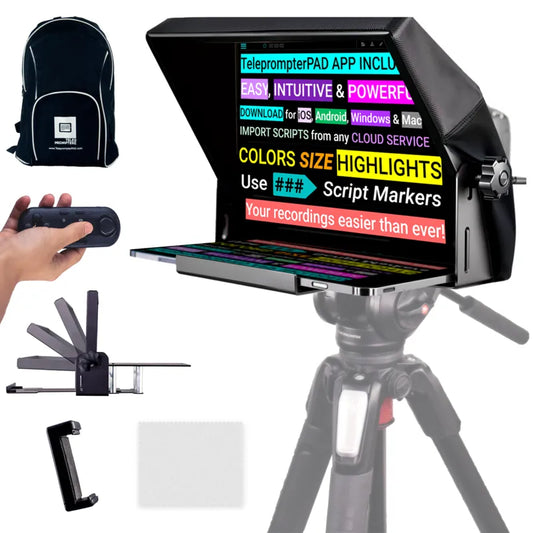
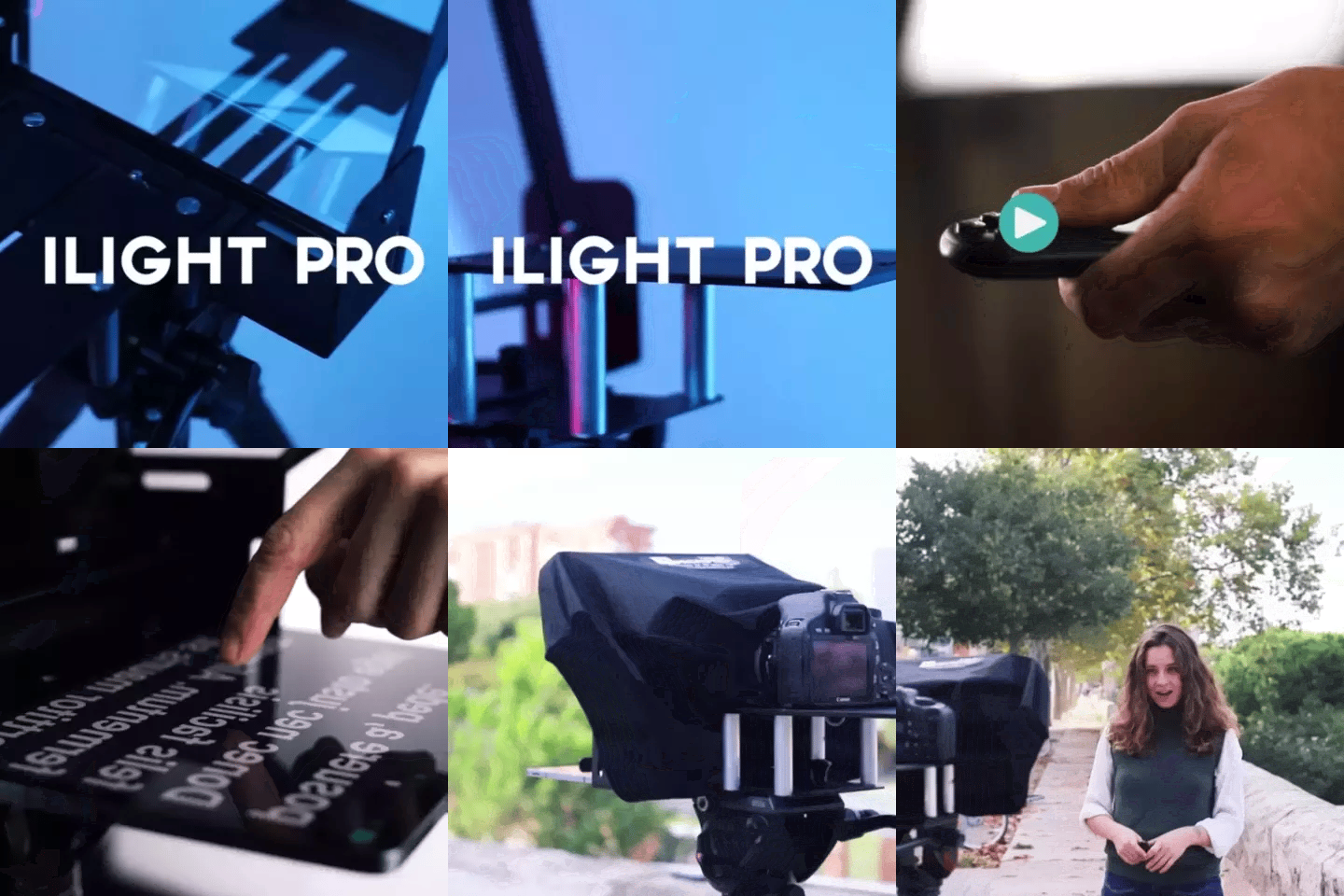
For most corporate training teams, the iLight PRO 12-inch is the sweet spot. It's our most popular model — about 60% of all sales — and there's a reason for that. It folds flat, sets up in under two minutes, comes pre-assembled, and works with any iPad or tablet up to 10.2". If your subject-matter experts are recording in different conference rooms each week, portability matters.

Step-by-step: setting up a teleprompter for your training recordings
I've walked L&D teams through this process hundreds of times. The trick is getting the setup right once, then documenting it so anyone on the team can replicate it in minutes. Here's the workflow I recommend.
- Mount the teleprompter on a tripod using the 1/4" screw on the teleprompter base — not on the camera plate. This is mistake #8 I see constantly. The tripod supports the whole unit.
- Attach your camera behind the glass. DSLR, mirrorless, or even a smartphone with the included clamp. Make sure the camera body doesn't exceed 20cm (8") from lens front to tripod screw.
- Position the glass at approximately 45 degrees. The iLight PRO 12-inch has an exclusive adjustable angle knob — dial it in, and the text reflects crisply toward the presenter while the camera sees through.
- Import your script into the TeleprompterPAD app. Available free on iOS, Android, Windows, and Mac. Use rich text formatting to bold key phrases and add script markers for section breaks.
- Set your distance at 1.5m–2.0m (5–6.5 ft). Any closer and viewers will notice the presenter's eyes scanning left to right. If you must be closer, use the app's margin-narrowing feature.
- Seal the blackout hood. The Velcro hood blocks ambient light from washing out the reflected text. Poor hood sealing is one of the most common complaints I troubleshoot.
- Do a 30-second test take. Check framing, audio levels, and scroll speed. Adjust font size in the app until the presenter feels comfortable.
Minimum focal length matters here: stay at 24mm or above. Anything wider and you'll see the glass frame edges or the tablet tray in your shot. I get emails about this every week.
How to write training scripts that work with a teleprompter
Corporate scripts tend to be too formal. That's the #1 scripting mistake I see — dense paragraphs ripped straight from a policy document. A teleprompter doesn't fix a bad script; it just makes it easier to deliver a good one.
- Write like you talk. Use contractions. "You'll need to" beats "It will be necessary for the employee to." Read it out loud before importing it.
- Keep sentences under 20 words. Longer sentences cause the presenter to run out of breath and sound robotic.
- Add pacing marks. Use the app's bold and highlight features to mark pauses, emphasis points, and section transitions.
- Break modules into 3–5 minute segments. Research shows microlearning in focused chunks lifts retention by 17% compared to longer formats.
- Use script markers in the app so the presenter can jump to a specific section if they need to re-record just one part. No need to scroll through the entire script.
The TeleprompterPAD app supports rich text editing — bold, italic, underline, highlight, and colors — so your script can visually cue the presenter without anyone on camera seeing the formatting. That's a detail most free teleprompter apps miss.

Real-world use cases: who's actually recording corporate training with a teleprompter?
About 18% of our customer base is SMBs, startups, and marketing teams — and a big chunk of those are producing internal training content. Here are the three most common scenarios I see from support conversations.
Onboarding and compliance teams (HR departments)
These teams typically record 10–30 short modules covering company policies, safety procedures, and regulatory requirements. The language has to be precise — you can't improvise compliance content. A teleprompter lets them deliver approved, legal-reviewed scripts verbatim while still looking natural. The Bluetooth remote is key here: an HR coordinator can pause and resume scrolling between sections without touching the tablet.
L&D specialists building internal course libraries
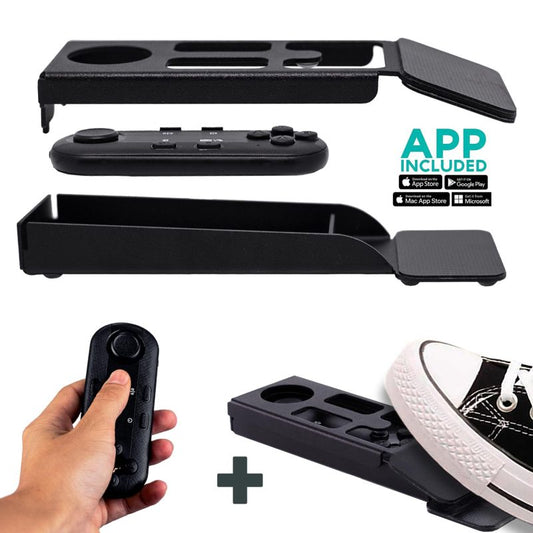
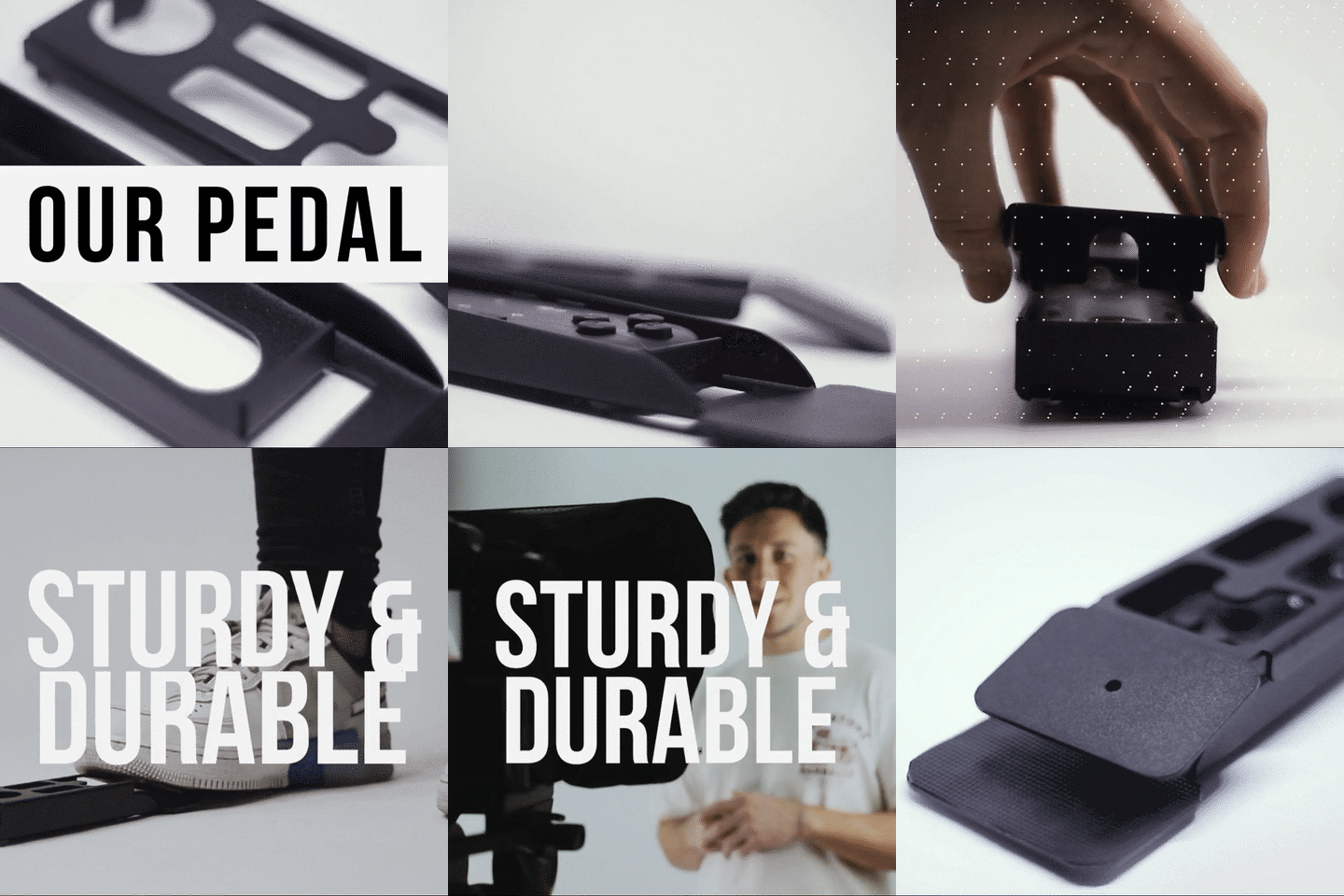
About 20% of our customers are coaches, therapists, and course creators. Many of them work inside corporations as L&D professionals now. They record skill-building modules, leadership development content, and product training. For these folks, the Wireless Kit (pedal + remote) is popular because the presenter can control scrolling with their foot while demonstrating something with their hands.
Executive communications
CEOs and VPs recording quarterly updates, culture messages, or change-management announcements. These people are busy. They don't want to memorize a script or do 12 takes. A teleprompter gets them in and out of a recording session in 15 minutes. The 3% of our customers who are corporate comms teams usually standardize on one setup and reuse it for every executive who needs to record.

Lighting, audio, and common mistakes that ruin training videos
A teleprompter handles delivery. But you'll still blow the recording if your lighting or audio is off. Here are the production basics I always flag for corporate teams.
Lighting: Use three-point lighting — a key light at a 45-degree angle front/side, a fill light on the opposite side, and a backlight behind the presenter. The critical rule: no overhead lights directly above the teleprompter. Overhead fixtures cause glare on the beam splitter glass, which shows up as a bright spot in your footage.
Audio: Always use an external microphone. At 1.5m–2.0m recording distance, your camera's built-in mic is essentially useless. A lavalier mic clipped to the presenter's collar is the standard for corporate talking heads.
Common pitfalls I see repeatedly:
| Mistake | What goes wrong | Fix |
|---|---|---|
| Tablet rotation unlocked | Text flips mid-recording | Lock screen rotation before mounting |
| Tripod mounted on camera plate | Unstable, tilts under weight | Mount tripod on teleprompter base |
| Mirror mode not activated | Reversed text on the glass | Enable mirror mode in app settings |
| Font size too small | Presenter squints, visible on camera | Increase font until comfortable at distance |
| Frozen body language | Looks stiff, unnatural | Use hand gestures, shift weight naturally |
| No test take | Discover audio/lighting issues after 20 min of recording | Always record 30-second test first |
Honest pros and cons of using a teleprompter for training sessions
I sell these things, but I'm not going to pretend they're perfect for every scenario. Here's my honest take.
Pros:
- Cuts recording time dramatically — most teams report 50%+ fewer retakes
- Consistent messaging across modules (everyone reads the same approved script)
- Maintains direct eye contact, which builds trust and engagement
- Low cost compared to hiring a full video production crew
- Portable — the iLight PRO 12-inch folds into a carry bag and moves between rooms
- Free app works on every platform (iOS, Android, Windows, Mac), so no software licensing headaches
Cons:
- Takes 2–3 sessions for presenters to stop "reading" and start "talking." There's a learning curve to sounding natural.
- Minimum focal length of 24mm means you can't use ultra-wide lenses. Wide-angle below 24mm will capture the frame edges.
- You need 1.5m+ of space between presenter and camera. Tight offices or small meeting rooms can be a challenge.
- The iLight PRO 12-inch doesn't include a hardcase — you'll want the transport hardcase if the unit travels between sites.
- Not a broadcast-grade system. If you're a large TV production, this isn't the right tier. Our gear is consumer/prosumer grade — honestly priced for what it is.

Can one teleprompter handle both recorded and live training?
Sort of. The iLight PRO 12-inch is built for recording to camera. If your training sessions are pre-recorded video modules, it's the right tool. But some L&D teams also deliver live webinars where the trainer presents to a remote audience in real time.
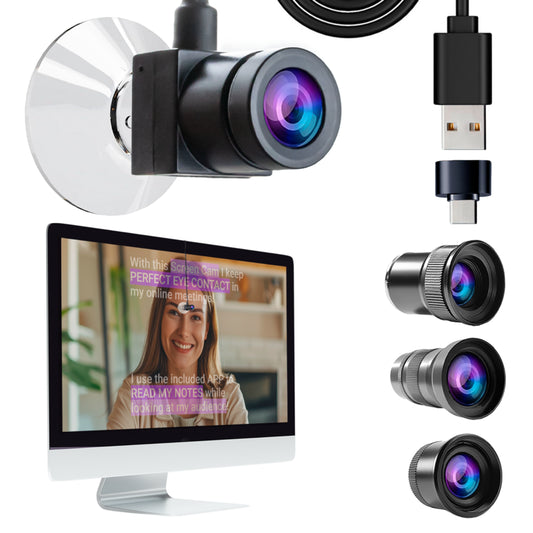
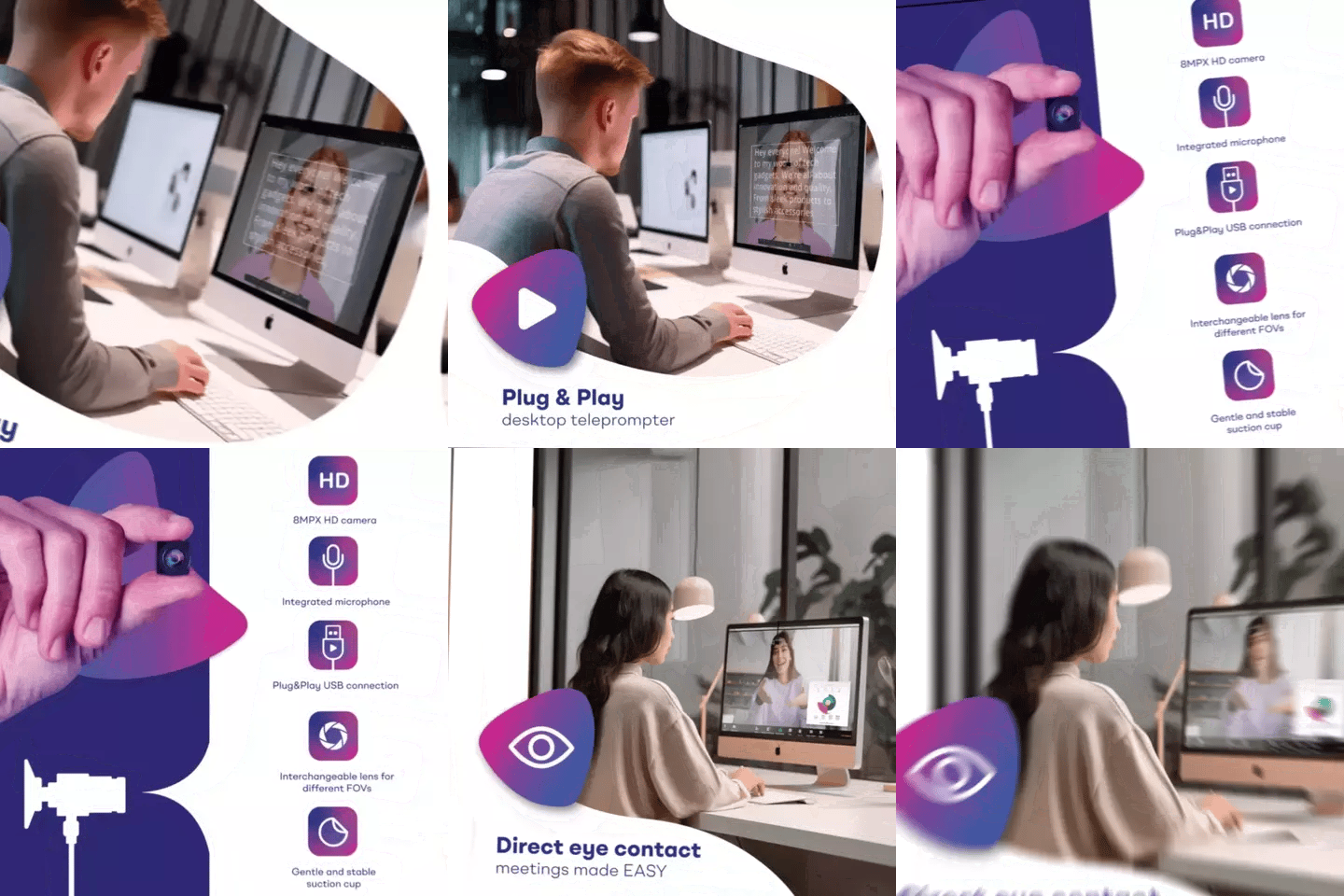
For live sessions over Zoom, Teams, or Google Meet, the TeleprompterPAD app has a Meeting Mode — a transparent script overlay that sits on top of your video call window. You read your talking points while maintaining eye contact with the webcam. That said, if live delivery is your primary use case, the EyeMeeting Prompter (€229) with its built-in 10.1-inch monitor was designed specifically for that workflow. You can read more about live delivery in our corporate webinars guide.
Many corporate teams actually buy both: an iLight PRO 12-inch for recorded modules and an EyeMeeting device for live sessions. Two different tools for two different jobs.
The anti-procrastination trick for L&D teams
I'll be straight with you. The biggest reason corporate training videos don't get made isn't budget or gear — it's friction. Someone has to book a room, set up lights, wrestle with software, and by the time everything is ready the subject-matter expert has left for their next meeting.
Here's my fix: pre-arrange everything. Tripod stays in the corner. Teleprompter stays mounted. Power strip with a single switch. Save your app settings as presets (font size, scroll speed, margins). When the SME walks in, you flip one switch, import the script, and hit record. Goal: camera rolling in under 60 seconds.
That workflow change alone is worth more than any gear upgrade. Teams that adopt it consistently go from recording one module per month to four or five.
Frequently asked questions
How much does a teleprompter for corporate training cost?
The iLight PRO 12-inch — the most popular option for corporate training — costs €159 and includes the beam splitter glass, Bluetooth remote, smartphone clamp, blackout hood, carry bag, and access to the free TeleprompterPAD app. No recurring software fees.
Can I use a teleprompter with any camera?
Yes, the iLight PRO 12-inch works with any DSLR, mirrorless camera, webcam, or smartphone. The only constraint is camera body length: max 20cm (8") from the front of the lens to the tripod screw. It mounts via a standard 1/4" screw.
Does the presenter look like they're reading?
Not if you set it up correctly. At 1.5m–2.0m distance, eye movement while reading is invisible on camera. If you're forced to work closer, use the app's margin-narrowing feature to reduce the text width. After 2–3 practice sessions, most presenters sound completely natural.
What tablet do I need?
Any tablet or smartphone up to 20cm × 26cm (7.8" × 10.2"). That covers the iPad 10", iPad Air 10.5", iPad Pro 11", iPad Mini, and most Android tablets. If you have an iPad Pro 12.9", you'll need the 14-inch model instead.
Can multiple people on my team use the same teleprompter?
Absolutely. The app is free and can be installed on any device. Each presenter can save their own script files and preferred settings. The hardware itself has no user lock — just mount, import, and go.
What if my presenter has never used a teleprompter before?
That's the norm, not the exception. I recommend one 15-minute practice session before the real recording. Start the scroll speed slow, increase gradually, and have them read out loud until the cadence feels conversational. TeleprompterPAD also offers personal 1-to-1 multilingual support (English, Spanish, French, German, Italian) if you need setup help.
Is this suitable for recording vertical video (TikTok, Shorts)?
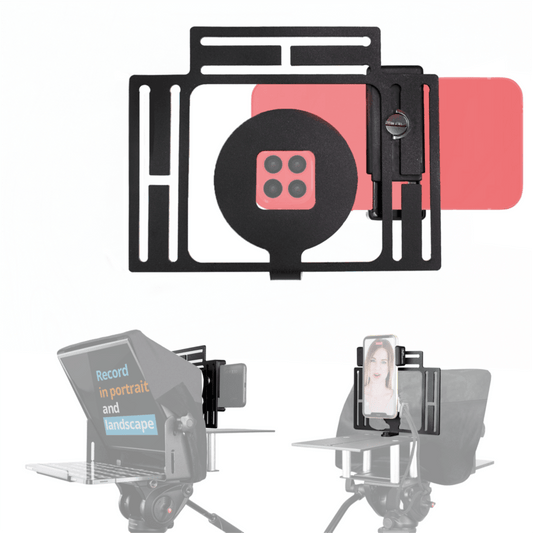
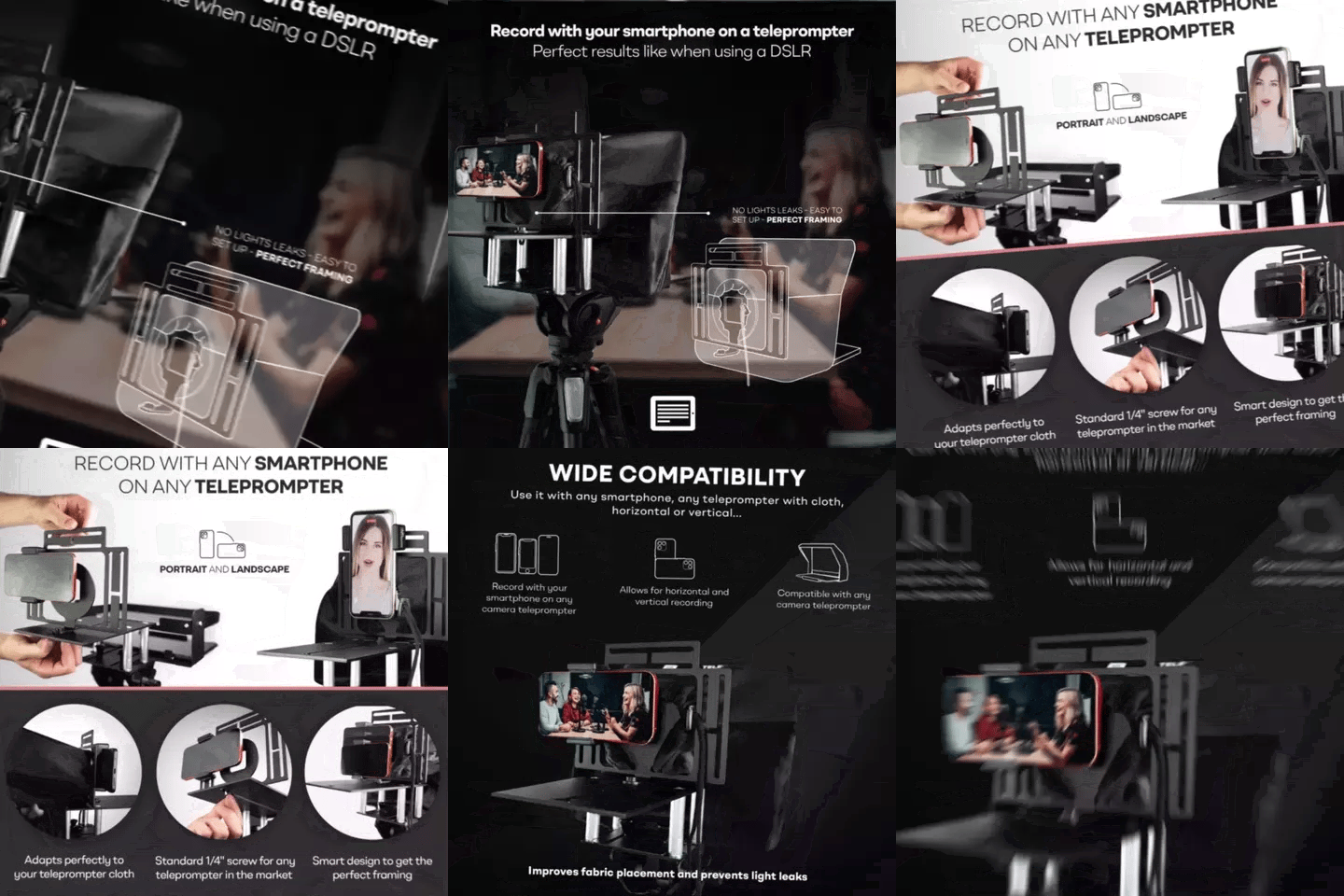
Yes, with the Smartphone Bracket adaptor. It lets you mount a phone in portrait orientation behind the beam splitter glass. Handy if your training team also creates short-form social content for employer branding.
How does the Bluetooth remote work during a recording?
The included remote controls play/pause, scroll speed, forward/backward, and font size. It auto-pairs after first use and works with iOS, Android, Windows, and Mac. One tip: make sure the remote isn't auto-connecting to a nearby laptop — that's the most common support issue I troubleshoot.
If your L&D team is ready to stop procrastinating and start shipping training content that employees actually watch, the iLight PRO 12-inch is the fastest way to get there. Mount it once, save your presets, and start recording — you'll wonder why you waited this long.
Our best sellers
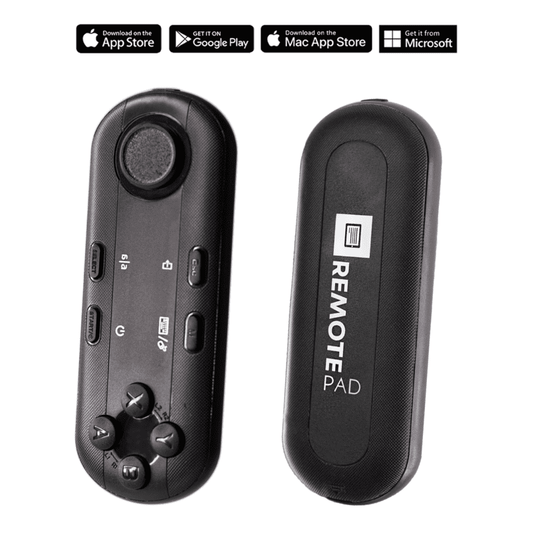
TELEPROMPTER PAD Bluetooth Remote Control for Teleprompter - Includes Teleprompter app for Apple, Android Windows & Mac - Wireless Controller for Beam Splitter Prompter or Live Streaming Equipment
- 34.90€
39.90€- 34.90€
- Unit price
- per
TELEPROMPTER PAD iLight PRO 12'' Teleprompter for iPad Tablet - Kit teleprompter for Video with Remote Control, APP & Carry Bag - Beam Splitter Prompter Autocue DSLR, iPhone, APP for Apple Android Mac Win
- 159.00€
199.00€- 159.00€
- Unit price
- per
TELEPROMPTER PAD Smartphone Adaptor for teleprompter – Record with any iPhone, Android phone, compatible with any teleprompter, aluminum universal Rig for prompter with camera plate, snug cloth fit
- 29.90€
39.90€- 29.90€
- Unit price
- per
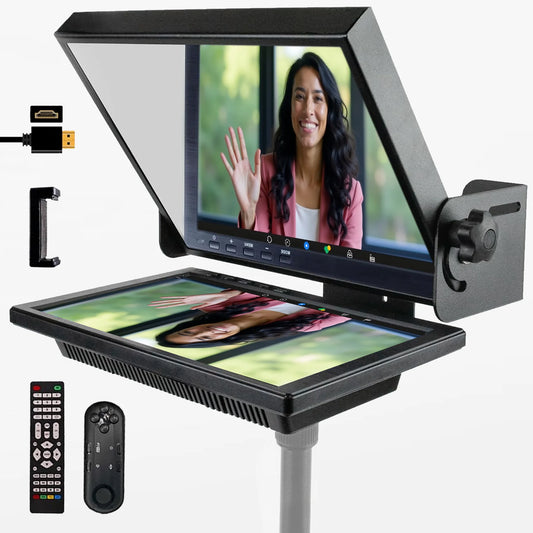
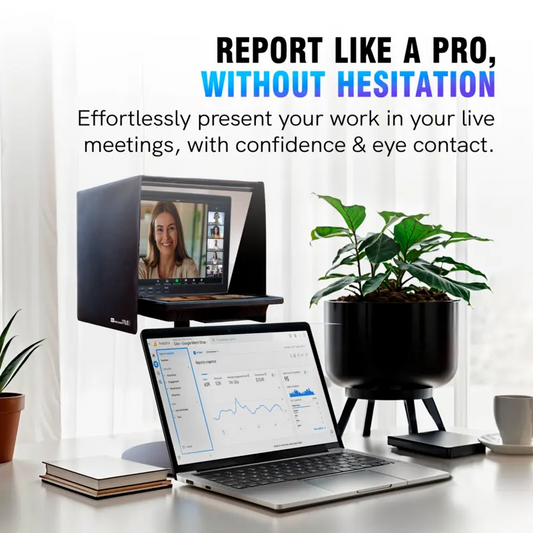
TELEPROMPTER PAD EyeMeeting Prompter for Twitch Streaming, Youtube, Zoom Eye Contact, for Mac/PC DSLR Webcam iPhone with Software, 10.1" Monitor & Remote, Compatible with Elgato Streamdeck, HDMI Input
- 229.00€
299.00€- 229.00€
- Unit price
- per