



Teleprompter for Corporate Training Sessions: L&D Setup
A teleprompter for corporate training sessions fixes the single biggest production bottleneck L&D teams face: getting subject-matter experts to deliver scripts clearly on camera without reading from notes off-screen. The right setup lets any internal presenter sit down, read the glass, and record a polished module in one or two takes. That means less time in editing, fewer retakes, and training content your employees actually watch to the end. I've helped hundreds of corporate teams build this exact workflow, and this guide walks through how to do it — gear, scripting, room layout, and the mistakes I see most often.

Over the past decade I've configured teleprompter setups for corporate L&D departments, marketing teams, and small production houses across more than 50,000 orders shipped worldwide. Around 18% of our customer base are SMBs, startups, and marketing teams building exactly this kind of reusable training station — so I see what works and what trips people up at every stage of the process.

Why L&D teams need a dedicated teleprompter station
Corporate training budgets are rising fast. US companies spent $102.8 billion on training in 2024–2025, a nearly 5% year-over-year increase according to Training Magazine's 2025 Industry Report. A huge chunk of that goes to video content. And for good reason — employees are 75% more likely to watch a video than read a document.
But here's what I see constantly: a company buys a decent camera, sets up a blank wall, hands a subject-matter expert a script on paper, and wonders why the video looks stiff. The expert glances down at their notes every few seconds. Their eye contact is broken. Viewers click away.
A beam splitter teleprompter solves that problem mechanically. The script scrolls on glass directly in front of the lens, so the presenter reads while maintaining direct eye contact with the camera. Research backs this up — as Ethos3 reports, eye contact activates the social engagement system, making your audience "more willing to be relational and take in new information." That applies just as much to a recorded training module as a live presentation.
Recorded vs. live training: which setup do you need?
This matters because it determines the gear. I talk to corporate teams every week who conflate the two.
| Factor | Pre-recorded modules | Live virtual sessions |
|---|---|---|
| Primary tool | iLight PRO 14-inch (beam splitter + DSLR/mirrorless) | EyeMeeting Prompter (desktop beam splitter + webcam) |
| Camera | DSLR / mirrorless (best image quality) | Webcam or integrated cam |
| Eye contact | Perfect — lens behind glass | Good — camera near glass |
| Script control | Remote or foot pedal (retakes easy) | Meeting Mode overlay on call app |
| Best for | Onboarding, compliance, LMS modules | Webinars, live Q&A, Zoom workshops |
| Price point | €239 | €229 |
Most L&D departments I work with focus on pre-recorded modules first. One well-made video scales to every new hire without repeating yourself. That's the economics that make video win for training — pay once, then every additional learner costs you basically nothing.
Why the iLight PRO 14-inch fits corporate training best
I recommend the 14-inch model over the 12-inch for corporate use, and there's a specific reason: screen real estate. When you have a non-professional presenter — a compliance officer, a safety engineer, a department head — reading off a larger display reduces the visible eye-scanning that gives away the teleprompter. Bigger text on a 14-inch screen means their eyes move less.
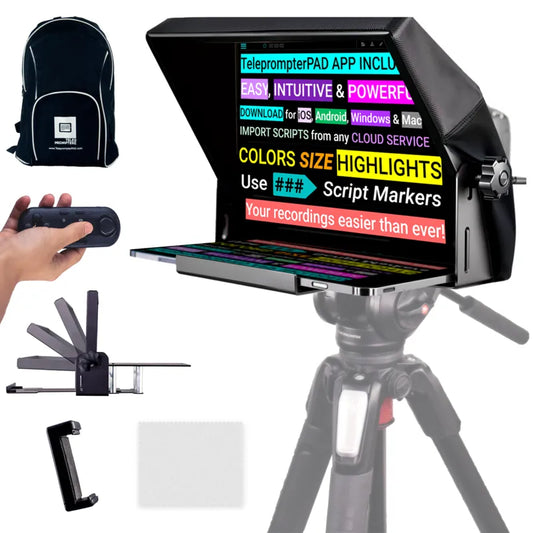
The iLight PRO 14-inch supports tablets up to 25cm × 31cm, which means an iPad Pro 12.9" fits perfectly. It also supports both 1/4" and 3/8" tripod screws, so it works with the heavier tripods you'll already have in a conference room or studio. The included hardcase means your L&D coordinator can move it between offices or campuses without worrying about the German-made beam splitter glass getting damaged in transit.

For teams that want to separate the operator and the talent — say your L&D coordinator controls the script while the subject-matter expert reads — you can add the Inverted Monitor for iLight PRO 14-inch. It replaces the tablet with a plug-and-play HDMI display connected to a laptop, so the operator has full control from their desk.
Building your corporate training recording station: step by step
I've watched L&D teams spend weeks overthinking this. In reality, you can have a permanent station ready in under an hour. Here's the workflow I recommend:
- Mount the teleprompter on a sturdy tripod. Use the teleprompter's base plate, not the camera plate. This is mistake #8 I see constantly — mounting the tripod to the camera instead of the prompter base makes the whole rig top-heavy and unstable.
- Position at eye level. The presenter's eyes should align with the center of the glass. Adjust tripod height, not the chair.
- Set presenter distance at 1.5–2.0 meters. Closer than 1.2m and viewers can see the eyes scanning left to right. If you must be closer, use the margin-narrowing feature in the TeleprompterPAD app to keep text centered.
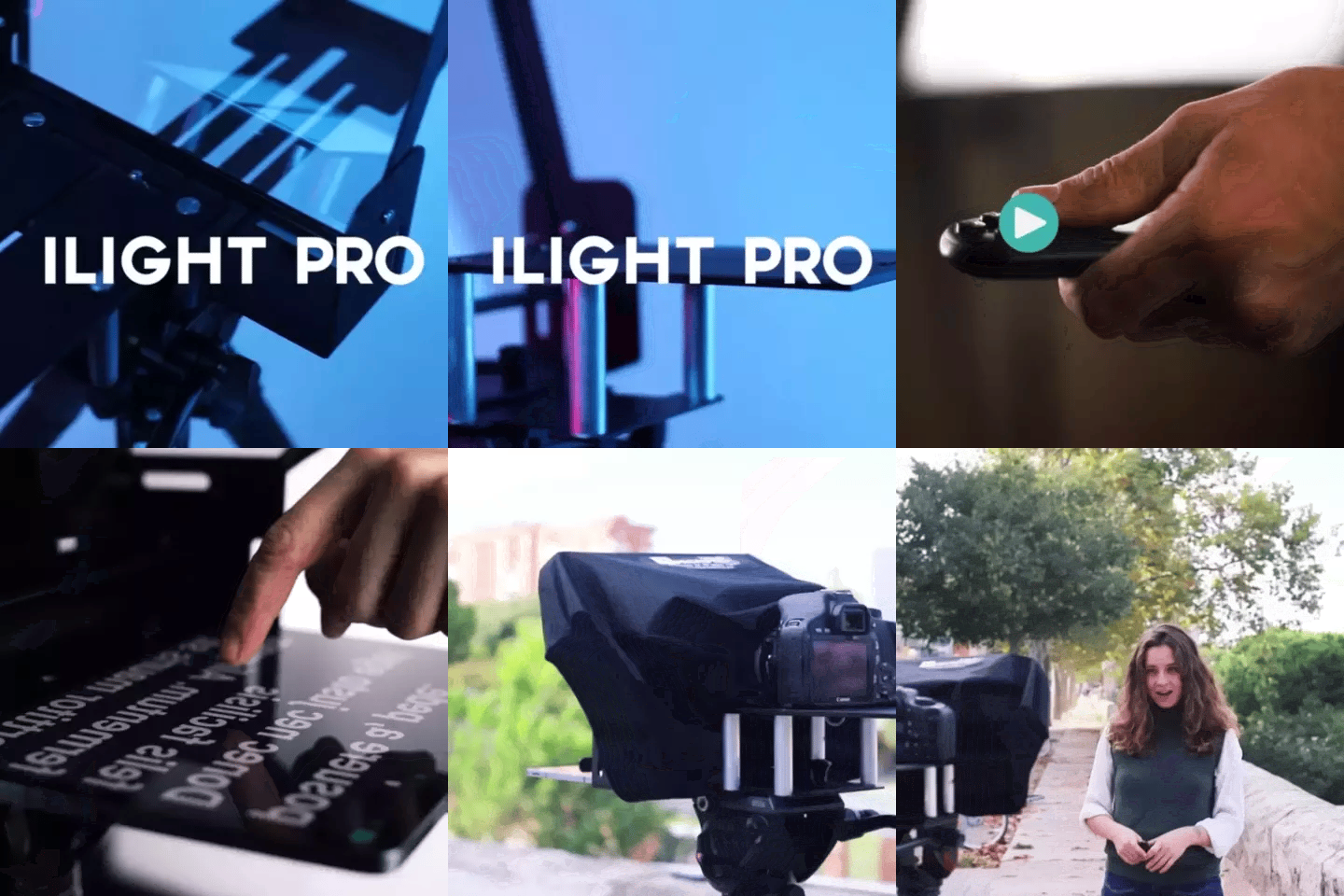
- Glass angle close to 45°. The iLight PRO has an exclusive adjustable-angle knob — dial it in until the reflection is sharp and bright. No guesswork.
- Seal the blackout hood. Ambient light leaking in washes out the text reflection. The Velcro hood included with the iLight PRO is silent, so it won't rustle on audio during takes.
- External microphone — always. At 1.5m+ distance, your camera's built-in mic is useless. A lavalier or shotgun mic is non-negotiable for training video that people will actually listen to.
- Three-point lighting. Key light at 45° front/side, fill light opposite, backlight behind the presenter. No overhead lights directly above the teleprompter — that causes glare on the glass.
Once this station is built, leave it set up. The anti-procrastination trick I teach every corporate client: use a single power strip for all your lights, monitor, and audio gear. One switch, everything powers on. Presenter sits down, opens the app, imports their script, and hits record. Under 60 seconds from walking in to rolling.

Scripting training content for a teleprompter
The biggest production killer isn't bad gear. It's a bad script. L&D teams often paste the same text from their PowerPoint decks or compliance documents straight into the teleprompter app. That never works. Written English and spoken English are different languages.
- Write short sentences. If you run out of breath reading it aloud, the sentence is too long.
- Use contractions. "You'll need to" beats "You will need to." It sounds like a human, not a policy manual.
- Add pacing marks. The TeleprompterPAD app supports bold, italic, underline, and highlight — use bold for emphasis and highlight for pause points.
- Break into 3–5 minute modules. Research shows attention drops significantly after 6 minutes in training video. A 30-minute topic should become six 5-minute segments, not one long take.
- Use script markers. The app lets you set section markers so the presenter can jump between segments without scrolling through the entire script.
A 2026 survey by TalentLMS found that 83% of employees prefer video-based training over text or in-person lectures. But preference doesn't equal completion — 35% of employees who pause a training video never come back. Your script has to earn their attention minute by minute. Short modules, conversational tone, and a presenter who looks them in the eye are your best weapons.
Real-world use cases from our customers
About 18% of our customer base are SMBs, startups, and marketing teams. Another 10% are educators and universities. These two groups overlap heavily with corporate L&D, and here's how they're using the iLight PRO 14-inch for training:
Onboarding video libraries (SMBs and startups)
A startup with 50 new hires per quarter can't have the CEO repeat the same culture talk every time. They record it once with a teleprompter, upload to their LMS, and every new employee gets the same quality introduction. One of our customers told me they cut their onboarding time from 3 days to 1.5 days just by pre-recording the repetitive sessions.
Compliance and safety training (corporate comms, 3% of our base)
Compliance content has to be precise — you can't paraphrase a regulation on the fly. A teleprompter lets you script every word, hit every required disclosure, and still deliver it with natural eye contact instead of reading from a binder on camera.
Instructor-led course recordings (educators, 10% of our base)
University departments and corporate training academies use the iLight PRO 14-inch with the inverted monitor so a teaching assistant controls the scroll speed while the instructor focuses entirely on delivery. This two-person workflow is especially useful for long-form lecture recordings.
Scaling to multiple presenters
Here's a reality most teleprompter guides skip: in a corporate environment, you don't have one presenter. You have twelve subject-matter experts, none of whom are comfortable on camera.
The TeleprompterPAD app helps here in a practical way. Each presenter imports their own script file. Font size and scroll speed are adjustable per session — a fast reader might use 18pt at medium speed, while someone less experienced might need 24pt at slow. The app saves presets, so once you've dialed in settings for each person, they're one tap away next time.
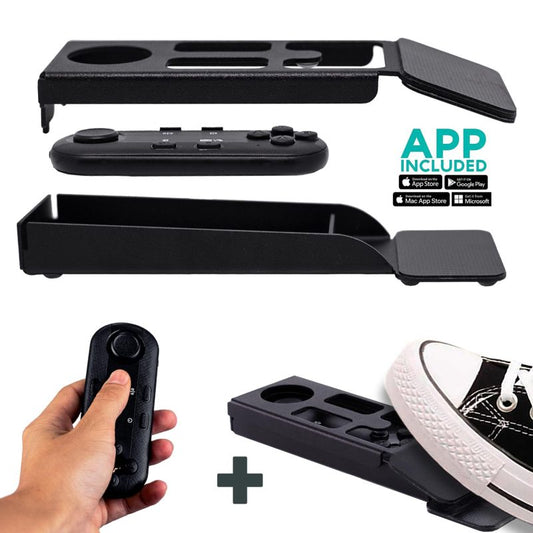
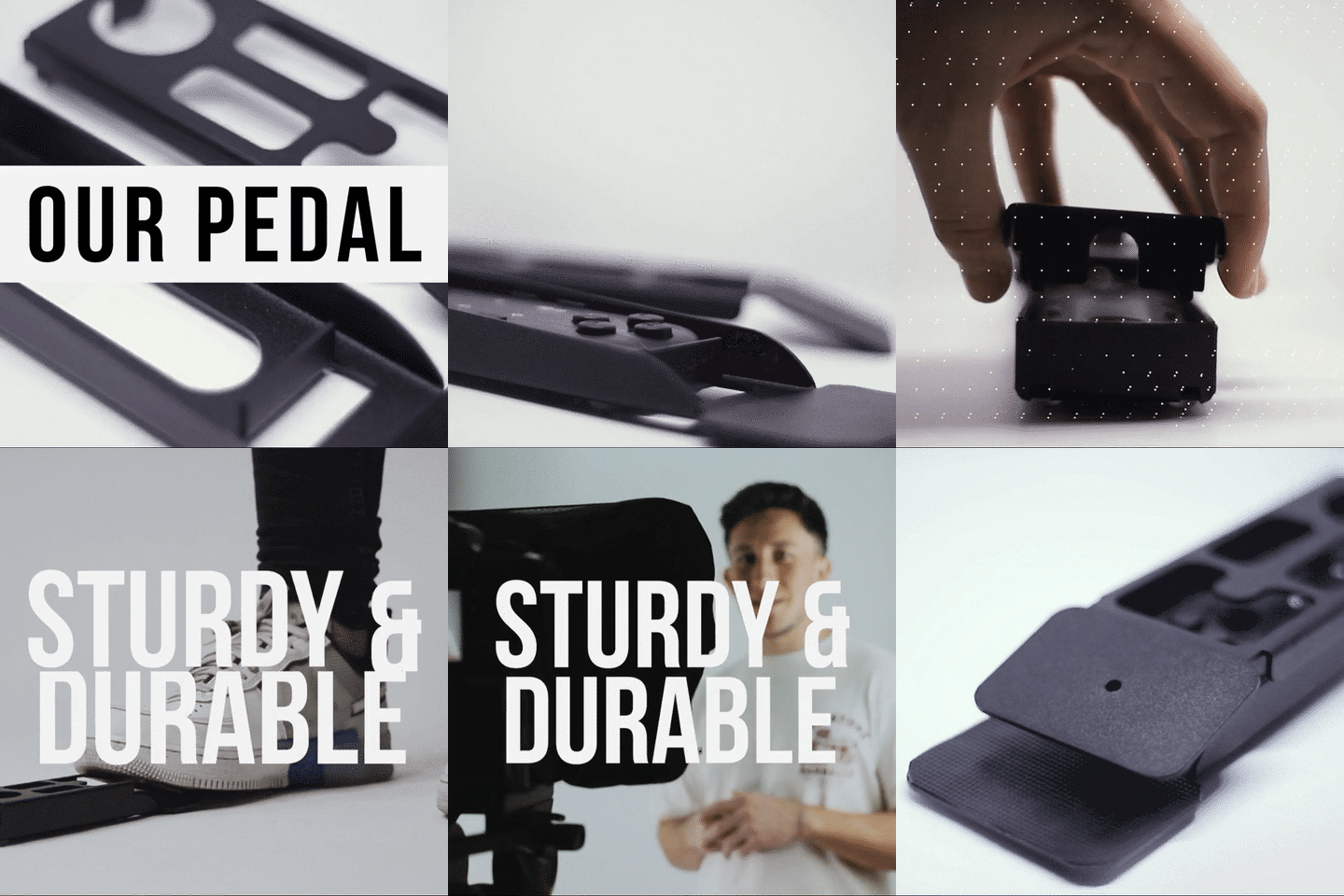
I also recommend the Wireless Kit (foot pedal + remote) for corporate setups. The foot pedal uses a silent capacitive sensor — no clicking sounds that mics can pick up. Presenters who want hands free (common when they're gesturing or holding a prop) use the pedal. An operator standing off-camera can use the handheld remote instead. Same Bluetooth connection, two control options.

Honest pros and cons
I sell this gear, but I'd rather you know the trade-offs before buying than deal with a return after.
| Pros | Cons |
|---|---|
| Pre-assembled — under 2 minutes from box to recording | Larger footprint than the 12-inch model; less portable for travel between sites |
| 14-inch HD beam splitter glass with anti-ghosting — no doubled reflections | Minimum 24mm focal length required — ultra wide-angle lenses show the frame edges |
| Dual 1/4" and 3/8" tripod screws fit professional tripods | Not a broadcast-grade system — small TV stations may want something heavier |
| Hardcase included for transport between offices | Requires a tablet or the optional inverted monitor — not standalone |
| Free app on iOS, Android, Windows, Mac — works on whatever your company standardizes on | Bluetooth remote can auto-connect to nearby devices if not properly paired — reset BT when switching presenters |
| 1-to-1 multilingual support (EN, ES, DE, FR, IT) when your team gets stuck | Non-professional presenters still need 1–2 practice takes to feel natural |
Honest assessment: this is a prosumer tool. It's built for the 18% of our customers who are SMBs and marketing teams, the 10% who are educators, and the 3% who are corporate comms departments. It's not built for a network TV newsroom. For corporate training, that's exactly the right price-to-quality ratio.

Common mistakes that ruin corporate training video
After helping thousands of teams set up their gear, I've cataloged the recurring failures. Here are the ones specific to corporate training:
- Pasting policy documents as scripts. Legal language kills viewer engagement. Rewrite for spoken delivery.
- Recording at the desk with overhead fluorescent lights. This creates harsh glare on the beam splitter glass and unflattering shadows on the presenter. Kill the overheads, use dedicated three-point lighting.
- Skipping the external mic. At 1.5m recording distance, built-in camera mics produce echoey, distant audio. A $50 lavalier mic changes everything.
- Recording 30-minute monologues. Break content into 3–5 minute modules. Research from multiple sources confirms attention drops off hard after 6 minutes.
- Not locking tablet rotation. One accidental rotation mid-take and your script flips sideways. Lock rotation in your tablet's settings before every session.
- Forgetting mirror mode. The beam splitter flips text. The app has a one-tap mirror mode toggle. If the presenter sees backwards text, someone skipped this step.
- No test take. Always do a 30-second test recording before the real session. Check framing, audio levels, lighting, and scroll speed. Every time.
What about live virtual training sessions?
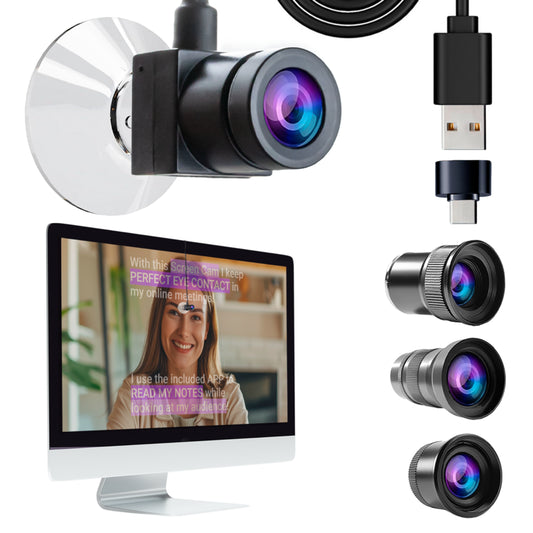
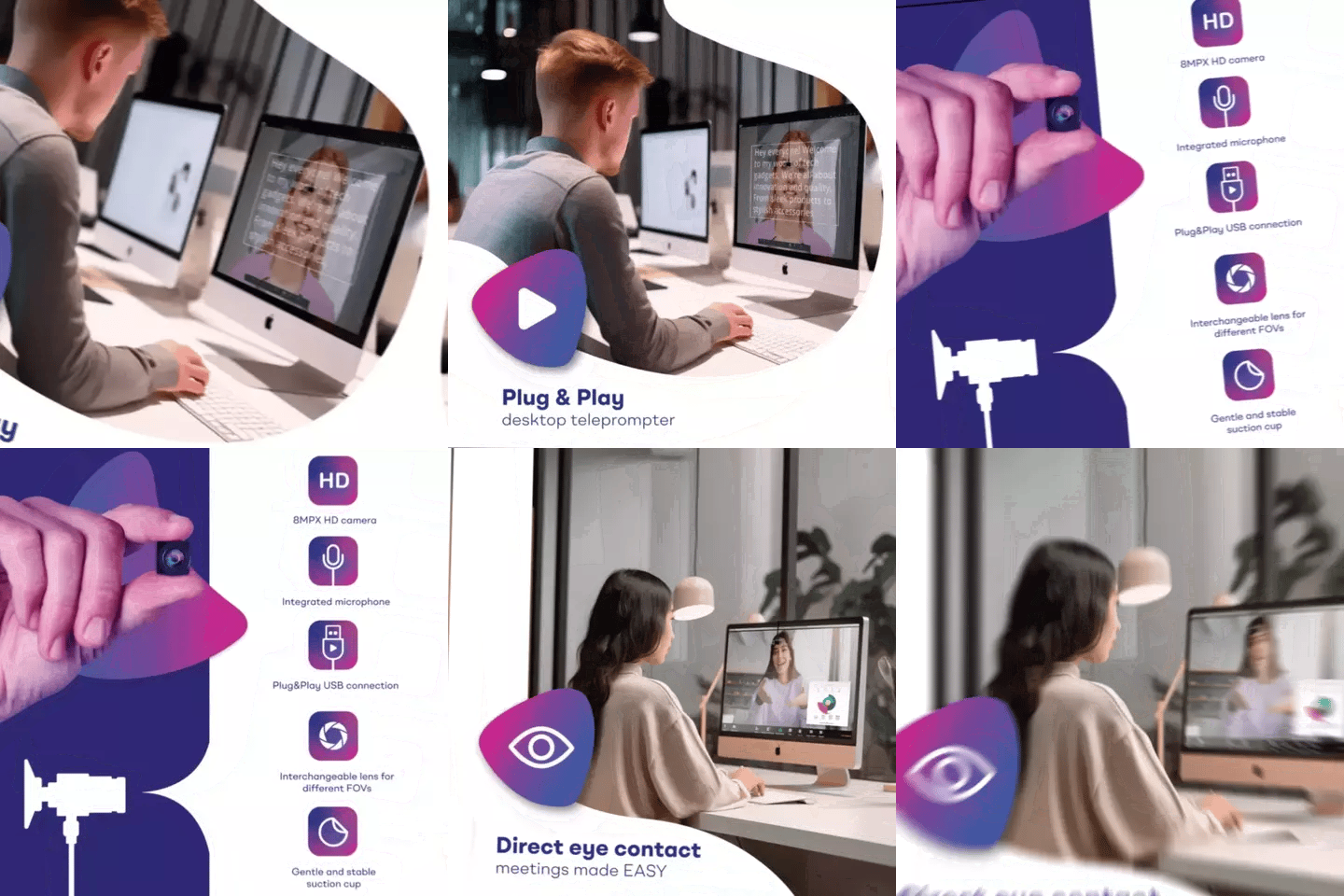
Not everything is pre-recorded. If your team runs live Zoom or Teams workshops, the virtual training teleprompter setup is a different workflow. The EyeMeeting Prompter works well for this — it has a built-in 10.1-inch screen and supports HDMI input from your computer, so your script overlay sits right in front of your webcam during live calls.
The TeleprompterPAD app's Meeting Mode overlays a transparent scrolling script on top of your video call window. You read while making eye contact through the beam splitter glass, and your audience on Zoom sees a presenter who looks directly at them the entire time. For more detail on that use case, check our guide on teleprompter for Zoom calls.
Frequently asked questions
Can multiple presenters use the same teleprompter setup?
Yes. Each person imports their own script into the TeleprompterPAD app. Font size, scroll speed, and text formatting are adjustable per session. I recommend saving presets for each regular presenter so switching between them takes under 30 seconds.
What tablet works best for corporate training recordings?
An iPad Pro 12.9" is the top pick for the iLight PRO 14-inch — it fills the viewing area and gives you the largest readable text. Android tablets up to 25cm × 31cm also fit. If your company is Windows-only, the app runs on Windows tablets too.
How far should the presenter sit from the teleprompter?
1.5 to 2.0 meters is the sweet spot. Closer than 1.2m, viewers can detect the left-right eye scanning. If space is tight, use the margin-narrowing feature in the app to keep text in a narrow column so eye movement is minimal.
Do I need a separate person to operate the teleprompter?
Not necessarily. The presenter can self-operate using the included Bluetooth remote or the optional foot pedal. For a more polished result — especially with non-professional presenters — having an L&D coordinator control the scroll speed from outside the frame produces better results.
Can I use this for training in multiple languages?
The TeleprompterPAD app supports English, Spanish, French, German, and Italian interfaces. More importantly, the script content itself can be in any language since it's just text you import. Our support team also speaks all five languages if you need setup help.
What camera should I use?
Any DSLR or mirrorless camera with a focal length of 24mm or longer works. The camera can be up to 25cm long (front of lens to tripod screw) and weigh up to about 4kg depending on your tripod. A mid-range mirrorless like a Sony a6400 or Canon EOS R50 is more than enough for corporate training video.
Is the iLight PRO 14-inch overkill if we only record quarterly?
Depends on volume. If you're recording fewer than 5 videos a year, the iLight PRO 12-inch at €159 is a solid, more portable option. But if you have multiple presenters or use an iPad Pro 12.9", the 14-inch model is the right call.
How long does setup take the first time?
The iLight PRO 14-inch comes pre-assembled. First-time unboxing to first recording takes about 15–20 minutes, including tripod mounting, app install, and a test take. After that, setup from the hardcase is under 2 minutes.
If your L&D team needs to produce training videos that employees actually finish, the setup matters as much as the content. The iLight PRO 14-inch gives you a reusable recording station that any presenter can walk up to, read from, and deliver polished corporate training content with direct eye contact. Build the station once, use it for years.
Our best sellers
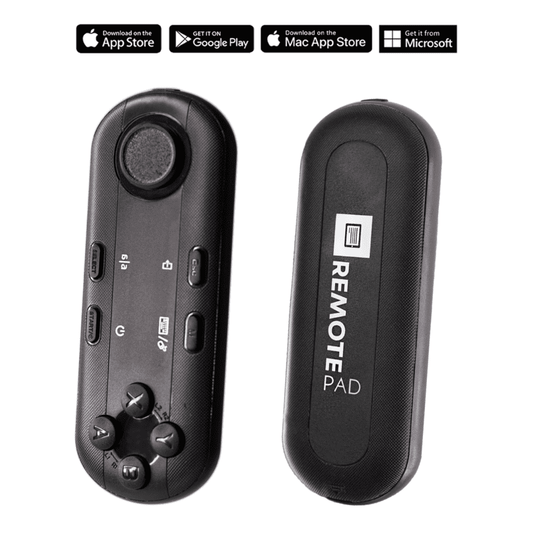
TELEPROMPTER PAD Bluetooth Remote Control for Teleprompter - Includes Teleprompter app for Apple, Android Windows & Mac - Wireless Controller for Beam Splitter Prompter or Live Streaming Equipment
- 34.90€
39.90€- 34.90€
- Unit price
- per
TELEPROMPTER PAD iLight PRO 12'' Teleprompter for iPad Tablet - Kit teleprompter for Video with Remote Control, APP & Carry Bag - Beam Splitter Prompter Autocue DSLR, iPhone, APP for Apple Android Mac Win
- 159.00€
199.00€- 159.00€
- Unit price
- per
TELEPROMPTER PAD Smartphone Adaptor for teleprompter – Record with any iPhone, Android phone, compatible with any teleprompter, aluminum universal Rig for prompter with camera plate, snug cloth fit
- 29.90€
39.90€- 29.90€
- Unit price
- per
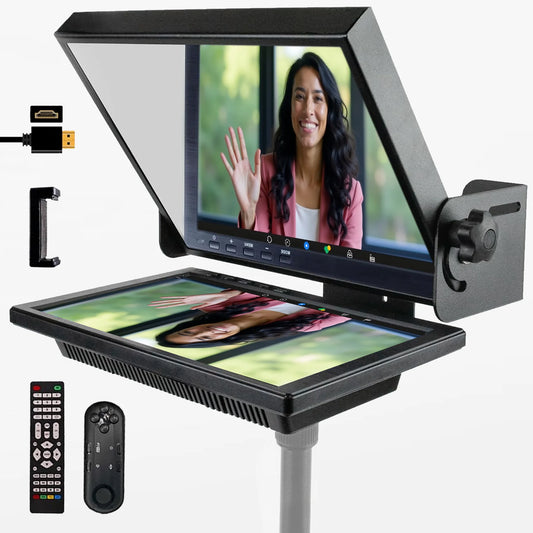
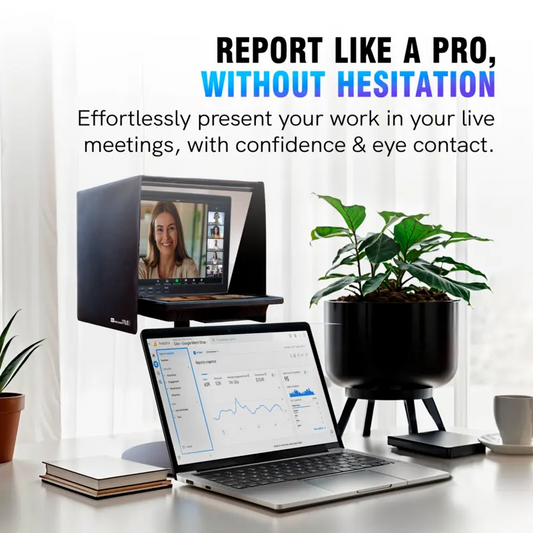
TELEPROMPTER PAD EyeMeeting Prompter for Twitch Streaming, Youtube, Zoom Eye Contact, for Mac/PC DSLR Webcam iPhone with Software, 10.1" Monitor & Remote, Compatible with Elgato Streamdeck, HDMI Input
- 229.00€
299.00€- 229.00€
- Unit price
- per