



Teleprompter for Corporate Training Sessions: Setup Guide
A teleprompter for corporate training sessions lets your trainers read from a script while looking directly into the camera — no memorization, no cue cards, no awkward glances off-screen. The result is consistent, professional training content that employees actually trust and retain. After helping thousands of L&D teams, HR departments, and SMB training leads set up their first teleprompter rig, I can tell you the biggest difference isn't the gear itself. It's how much faster you record once the script is right there in front of the lens. This guide covers the exact setup, scripting method, and equipment that works for corporate training — based on real production workflows, not theory.

Over the past decade I've helped set up teleprompter rigs for corporate training teams across 40+ countries — from 3-person startups recording onboarding videos to university L&D departments producing entire compliance libraries. About 18% of TeleprompterPAD's 50,000+ shipped orders come from SMBs and marketing teams producing exactly this kind of internal training content. I've seen what works (and what wastes a morning of your trainer's time).

Why does corporate training need a teleprompter in the first place?
Because your employees can tell when the presenter is winging it. According to Research.com's 2026 training video trends report, 90% of L&D professionals find that video content significantly improves learner engagement and knowledge retention. But that only works when the video is actually watchable.
A trainer who keeps breaking eye contact to check notes — or reads stiffly from a script taped to the wall — erodes trust fast. Research published in Frontiers in Psychology found that lack of eye contact in video communication creates "a sense of both emotional and physical distance." That's the opposite of what you want in a training module about, say, workplace safety or customer service protocols.
A beam splitter teleprompter solves this by placing the scrolling script directly in front of the camera lens. The trainer reads naturally. The camera records them looking straight at the viewer. The result is a training video that feels like a real conversation, not a PowerPoint being read aloud.
Which teleprompter setup works best for corporate training sessions?
For most corporate training teams, a beam splitter teleprompter with a large screen gives you the best combination of readability, camera quality, and ease of use. The iLight PRO 14-inch is what I recommend for this use case, and here's why.
Corporate training scripts tend to be longer and more detailed than a 60-second YouTube intro. You need a bigger text display area so the trainer can read comfortably without squinting or losing their place. The 14-inch model fits tablets up to 25cm × 31cm, which includes the iPad Pro 12.9" — the single best tablet for prompting long scripts because of its screen real estate and brightness.
The 14-inch glass also means reduced frame margins. At a recording distance of 1.5–2.0 meters (the sweet spot for training videos), the larger glass keeps the black frame edges well outside the camera's field of view, even at 24mm focal length.

iLight PRO 14-inch vs. 12-inch: which is right for your training team?
The answer depends mostly on what tablets you already own and how many locations you need to move the rig between. Here's a direct comparison:
| Feature | iLight PRO 14-inch | iLight PRO 12-inch |
|---|---|---|
| Glass size | 14-inch HD 60/40 | 12-inch HD 60/40 |
| Max tablet size | 25cm × 31cm | 20cm × 26cm |
| iPad Pro 12.9" compatible | ✅ Yes | ❌ No (too wide) |
| Camera max length | 25cm / 10" | 20cm / 8" |
| Tripod mount | 1/4" + 3/8" dual | 1/4" only |
| Hardcase included | ✅ Yes | ❌ Sold separately |
| Price | €239 | €159 |
| Best for | Training teams, production setups, larger tablets | Solo creators, budget-conscious, smaller tablets |
If your training department already owns iPad Pro 12.9" units (common in corporate environments), the 14-inch is the only iLight model they'll physically fit in. The dual 1/4" and 3/8" tripod mount also matters if you're using heavier production tripods — which most corporate A/V closets tend to have.
The 12-inch model is a fine choice if portability matters more — say, if you're recording training content across multiple office locations with a compact kit. But for a dedicated training studio or conference room setup, the 14-inch pays for itself in readability alone.
Step-by-step: setting up a teleprompter for corporate training
Here's the exact workflow I walk corporate teams through. The whole thing takes under 15 minutes the first time and under 5 minutes every time after that.
- Mount the teleprompter on your tripod. Attach the iLight PRO to the tripod using the base plate screw — not the camera plate. This is one of the most common mistakes I see. The teleprompter goes on the tripod; the camera sits on the teleprompter's own camera plate behind the glass.
- Load your tablet and open the TeleprompterPAD app. Import or paste your training script. The app supports file importing and rich text editing — bold key terms, highlight section headers, add pacing markers where the trainer should pause.
- Enable mirror mode. The text needs to display mirrored on the tablet so it reads correctly when reflected in the beam splitter glass. The app does this with one tap.
- Set the glass angle to approximately 45 degrees using the exclusive adjustable angle knob. Position the camera snug behind the glass. Close and seal the blackout hood — use the Velcro tabs to block all light leaks.
- Set your recording distance to 1.5–2.0 meters. Closer than 1.2m, viewers can see the trainer's eyes scanning left to right. At 1.5m+, the eye movement is invisible.
- Test audio and lighting before recording. Use an external microphone (lapel or shotgun). At 1.5m+, your camera's built-in mic will pick up mostly room noise. Use three-point lighting: key light front/side, fill light opposite, backlight behind the trainer.
- Do one test take. Play it back. Check for glass frame edges in shot (zoom in slightly if needed — stay at 24mm or above), verify the hood isn't leaking light, and confirm audio levels.
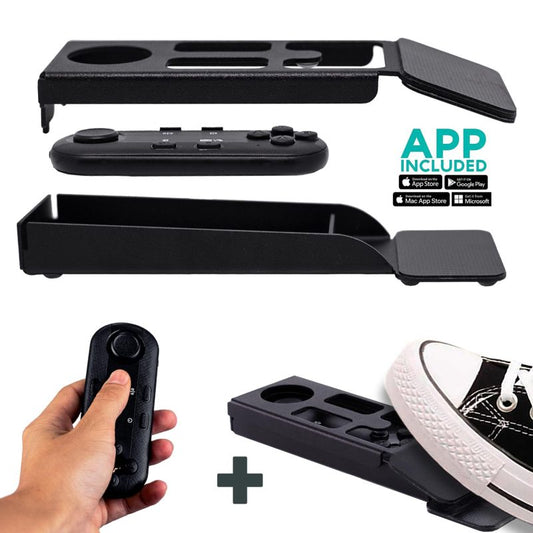
That's it. From here, the trainer picks up the included Bluetooth remote, hits play, and reads at their natural speaking pace. The remote also controls speed adjustments and pause/resume, so the trainer doesn't need to touch the tablet mid-take.

Scripting tips that actually matter for training videos
The script is where most corporate training videos fall apart. I've seen this pattern hundreds of times: the L&D team writes a beautiful document, loads it into the teleprompter, and the trainer sounds like a robot reading a legal disclaimer.
- Write for the ear, not the page. Use contractions. Use short sentences. Break up paragraphs every 2–3 lines. If you wouldn't say it out loud in a meeting, rewrite it.
- Add pacing marks. The TeleprompterPAD app supports script markers — use them to insert visual pauses, section breaks, and emphasis cues. This prevents the trainer from reading in a monotone stream.
- Use font size generously. For a 1.5m reading distance on a 14-inch setup, I typically recommend 36–42pt font in the app. The trainer should never have to squint.
- Narrow margins if recording closer. If space constraints force you under 1.5m, the app lets you narrow the text margins so the trainer's eye movement stays within a tighter zone. This minimizes visible scanning.
- Break it into modules. Instead of one 30-minute script, split into 5–7 minute segments. This matches the microlearning trend (more on that below) and gives your trainer natural breathing points.
Corporate training is shifting to video — fast
This isn't a niche use case anymore. According to Wyzowl's 2026 State of Video Marketing report, 91% of businesses now use video as a marketing tool and 89% of consumers say video quality directly impacts their trust in a brand. Training content isn't exempt from those expectations — your employees judge internal training videos by the same standards they apply to everything else they watch.
The numbers on corporate training spending confirm the trend. U.S. organizations increased training expenditures to $102.8 billion in 2024–2025, and 79% of organizations now use virtual classrooms, webcasting, or video broadcasting for online training. When your competitors are producing polished video training, a shaky webcam recording with the presenter reading off-screen doesn't cut it.
And here's the retention angle that matters for L&D specifically: employees retain up to 95% of a message delivered via video compared to 10% via text. That stat gets cited a lot, but it only holds when the video is well-produced — meaning clear audio, good lighting, and a presenter who looks at the camera with confidence. A teleprompter handles that last part.
Real-world use cases: who's actually using this setup?
About 18% of our customers are SMBs, startups, and marketing teams — and a growing chunk of those orders are specifically for internal training and onboarding content. Here's how three different segments use the teleprompter for corporate training sessions:
HR and L&D departments (compliance & onboarding)
These teams typically record quarterly compliance modules, new-hire onboarding series, and policy update announcements. The scripts are long, detail-heavy, and legally sensitive — you can't ad-lib HIPAA training. A teleprompter lets the compliance officer read the approved script word-for-word while still looking natural on camera. The 14-inch model is popular here because the iPad Pro 12.9" gives enough screen real estate for dense scripts.
Coaches and course creators (20% of our customers)
Coaches building internal training programs — leadership development, sales methodology, soft skills — need to sound conversational even when delivering structured content. Our teleprompter guide for coaches goes deeper on this, but the core principle is the same: write like you talk, then let the teleprompter keep you on track.
Educators and universities (10% of our customers)
Academic institutions increasingly use teleprompters for lecture capture, faculty training modules, and student-facing orientation videos. If you're in this segment, our teleprompter for online courses guide has more detail on lecture-specific setups.
Operator-controlled mode: when you have a two-person team
For more polished corporate production — think executive messages, company-wide announcements, or high-stakes training series — an operator-controlled setup is worth considering. You pair the iLight PRO 14-inch with the Inverted Monitor for iLight PRO 14-inch, which replaces the tablet with a plug-and-play HDMI display connected to a laptop.

The operator sits at the laptop, controls scroll speed, jumps between script sections, and adjusts pacing in real time — while the on-camera trainer just reads and performs. The monitor is pre-inverted, so you don't even need to toggle mirror mode in software. This is the closest you'll get to a broadcast-style workflow at a consumer/prosumer price point.
Honest pros and cons for corporate training use
| Pros | Cons |
|---|---|
| Trainer maintains direct eye contact with camera | Requires 1.5m+ distance — tight rooms are a challenge |
| Pre-assembled — setup under 2 minutes | Scripts must be rewritten for spoken delivery (extra prep time) |
| Hardcase included for transport between offices | Overhead lighting creates glare on glass — repositioning needed |
| Free app works across iOS, Android, Windows, Mac | Focal length must be 24mm+ or glass frame edges appear in shot |
| German lab-grade 60/40 HD beam splitter glass with anti-ghosting | Not broadcast-grade — won't replace a $5,000+ studio prompter |
| 1-to-1 multilingual support (EN, ES, DE, FR, IT) | Bluetooth remote may auto-connect to nearby paired devices |
I want to be direct about that last con. This is a prosumer teleprompter, not a broadcast rig. If you're a Fortune 500 company with a full in-house production studio and a dedicated teleprompter operator, you'd probably spec something different. But for the 18% of our customers who are SMBs and marketing teams — and the 3% who are corporate comms teams — this setup produces results that are dramatically better than no teleprompter at all, at a fraction of the cost.

Avoiding the 5 most common corporate training mistakes
- Scripts that read like policy documents. Your compliance team wrote the content. Great. Now rewrite it for speaking. Nobody sounds natural reading "in accordance with Section 4.2 of the employee handbook" at camera.
- Monotone delivery without pacing marks. Use the app's script markers to insert [PAUSE] and [EMPHASIZE] cues. These visual breaks remind the trainer to vary their tone.
- Frozen body language. Reading from a teleprompter can make people go stiff. Tell your trainer: hands visible, occasional gestures, slight head movements. They're having a conversation, not reading a news ticker.
- Skipping the test take. I've seen teams record an entire 45-minute training series, only to discover the hood was leaking light and there's a ghostly reflection on every frame. One 30-second test take prevents this.
- No external microphone. At 1.5m recording distance, your DSLR's built-in mic is useless. A $30 lavalier mic solves this. Don't let great visuals get ruined by hollow, echoey audio.
What about live training sessions (not pre-recorded)?
If your corporate training happens live via Zoom, Teams, or Webex, a beam splitter teleprompter still works — but you've got an additional option. The TeleprompterPAD app's Meeting Mode overlays a transparent script window directly on top of your video call, so you can read talking points while looking at the camera. This is especially useful for webinar-style training where the trainer is presenting live to 50+ remote employees.
For teams that do a lot of live virtual training, our corporate webinar teleprompter guide covers the Meeting Mode setup in detail.
Frequently asked questions
How much does a teleprompter for corporate training sessions cost?
The iLight PRO 14-inch — which I recommend for most corporate training setups — costs €239 and includes the beam splitter glass, Bluetooth remote, free app, smartphone clamp, blackout hood, and transport hardcase. You supply the tablet, camera, and tripod. Total cost for a complete recording setup (including an iPad and basic tripod) is typically under €700.
Can multiple trainers use the same teleprompter?
Absolutely. The setup is the same regardless of who's on camera. Each trainer can have their scripts loaded in the TeleprompterPAD app, and switching between them takes seconds. The Bluetooth remote pairs once and auto-reconnects — just make sure it's connecting to the right device if you have multiple tablets nearby.
Does the teleprompter work with a webcam for recording?
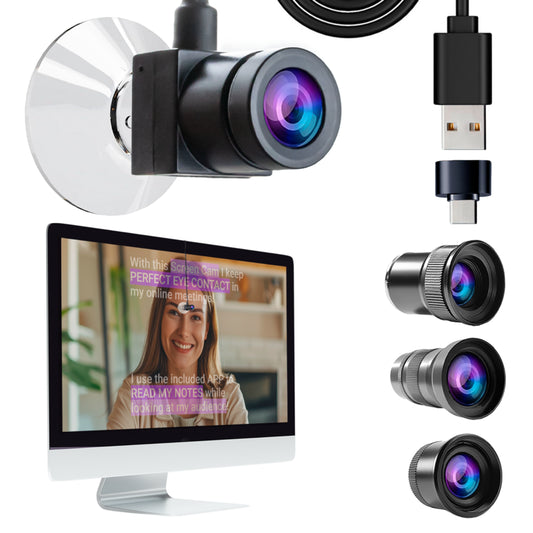
Yes. Any camera with a 1/4" tripod mount works — DSLRs, mirrorless cameras, webcams, even smartphones with the separate Smartphone Bracket. For webcam use, just check that the camera body length doesn't exceed 25cm (10") from the front of the lens to the tripod screw.
What's the minimum room size I need?
You need at least 1.5 meters between the teleprompter and the trainer for the eye movement to be invisible on camera. Add another meter behind the teleprompter for the camera and some working space. So roughly 3 meters of depth minimum. Width-wise, you need room for a three-point lighting setup — about 2.5 meters.
Can I use this for multilingual corporate training?
Yes. The TeleprompterPAD app supports scripts in any language you can type. The interface itself is available in English, Spanish, French, German, and Italian. If your trainer needs help with setup, our support team provides 1-to-1 assistance in all five languages too.
How long does it take a new trainer to get comfortable?
Most people find their rhythm within 2–3 takes. The first take always feels a little awkward — that's normal. By the third take, the trainer's eyes have adjusted to the reading distance and they start delivering more naturally. The key is writing conversational scripts; stiff scripts make even experienced presenters sound robotic.
Is the iLight PRO 14-inch portable enough to move between offices?
Yes. It folds flat, comes with a rigid transport hardcase, and the whole kit weighs a few kilograms. I've had customers fly with it as carry-on luggage. Setup at each new location takes under 2 minutes since the unit arrives pre-assembled.
Do I need the Inverted Monitor add-on?
Only if you want an operator-controlled setup where someone at a laptop manages the script while the trainer just reads. For solo recording or self-operated training sessions, the tablet + Bluetooth remote combo works perfectly. The Inverted Monitor is a nice upgrade for teams doing high-volume production.
A teleprompter for corporate training sessions isn't complicated gear — it's a simple beam splitter, a tablet, and a good app. What makes the difference is matching the right setup to your training workflow and writing scripts that sound human. The iLight PRO 14-inch handles the hardware side; your scripting and delivery handle the rest. If you get stuck during setup, our support team does personal 1-to-1 walkthroughs in five languages — just reach out.
Our best sellers
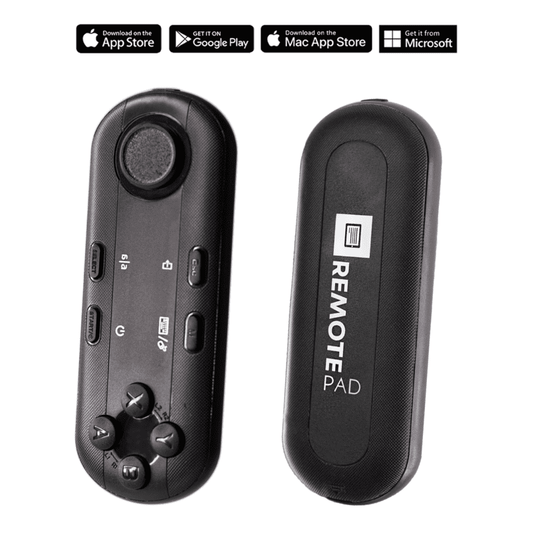
TELEPROMPTER PAD Bluetooth Remote Control for Teleprompter - Includes Teleprompter app for Apple, Android Windows & Mac - Wireless Controller for Beam Splitter Prompter or Live Streaming Equipment
- 34.90€
39.90€- 34.90€
- Unit price
- per
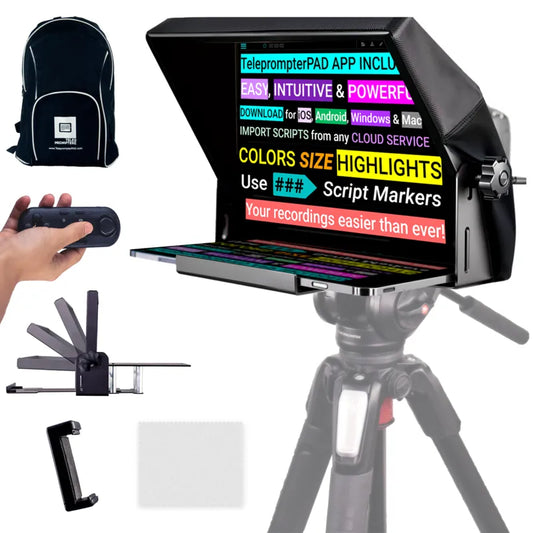
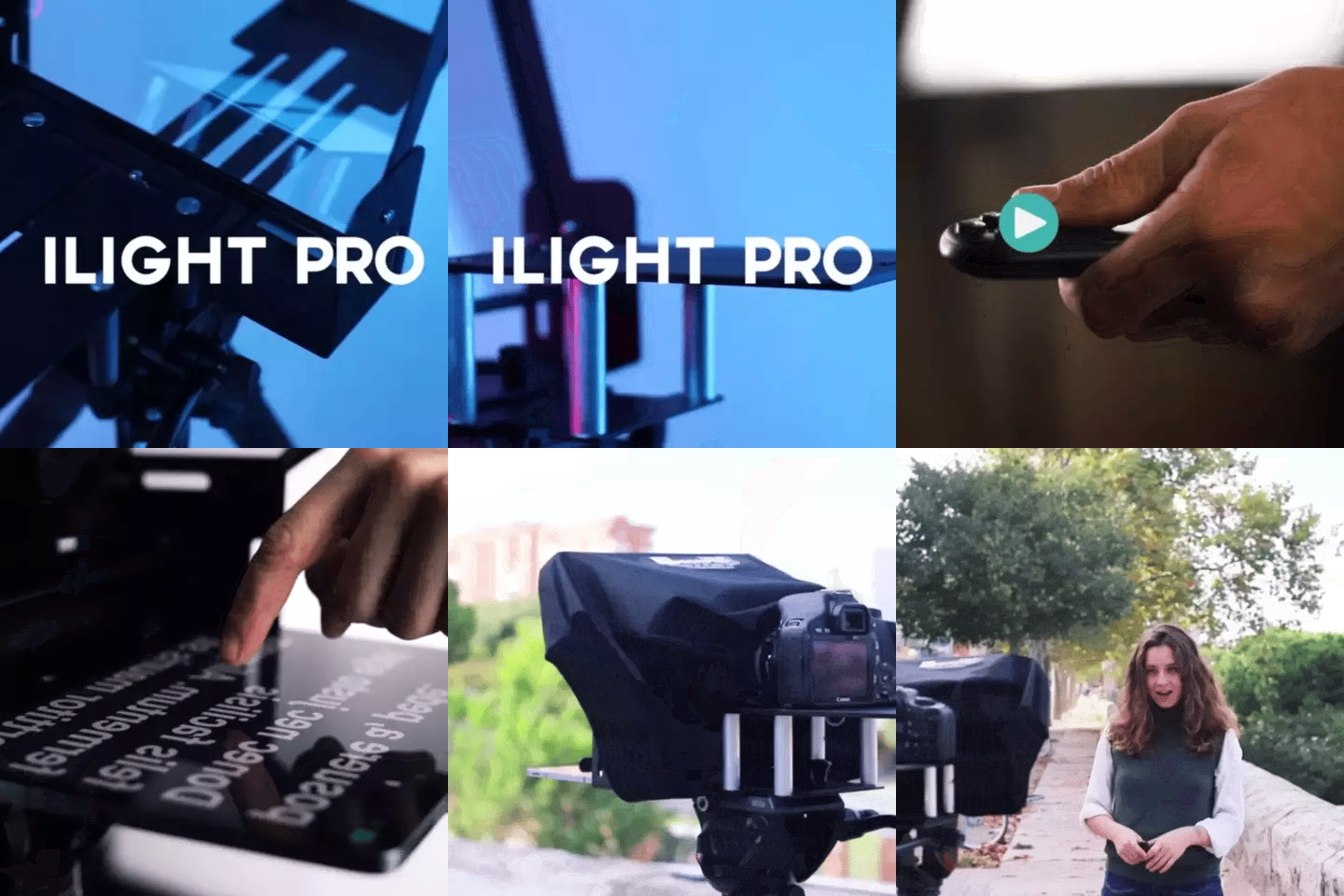
TELEPROMPTER PAD iLight PRO 12'' Teleprompter for iPad Tablet - Kit teleprompter for Video with Remote Control, APP & Carry Bag - Beam Splitter Prompter Autocue DSLR, iPhone, APP for Apple Android Mac Win
- 159.00€
199.00€- 159.00€
- Unit price
- per
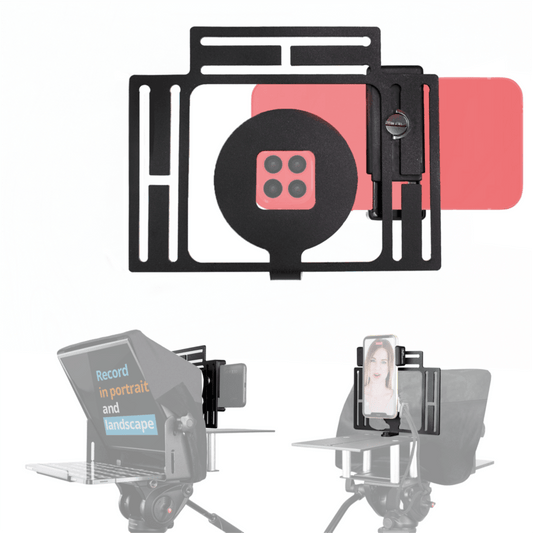
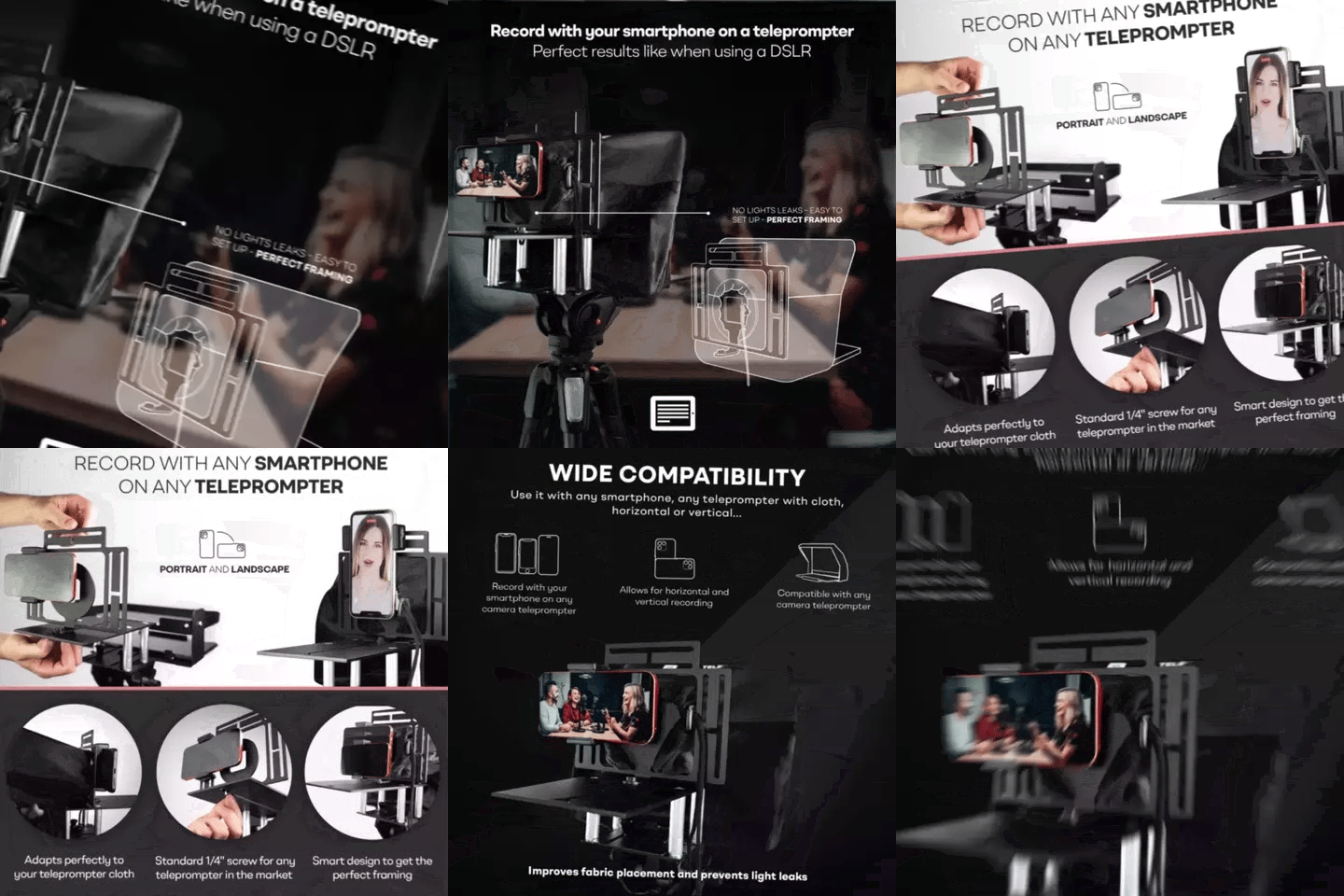
TELEPROMPTER PAD Smartphone Adaptor for teleprompter – Record with any iPhone, Android phone, compatible with any teleprompter, aluminum universal Rig for prompter with camera plate, snug cloth fit
- 29.90€
39.90€- 29.90€
- Unit price
- per
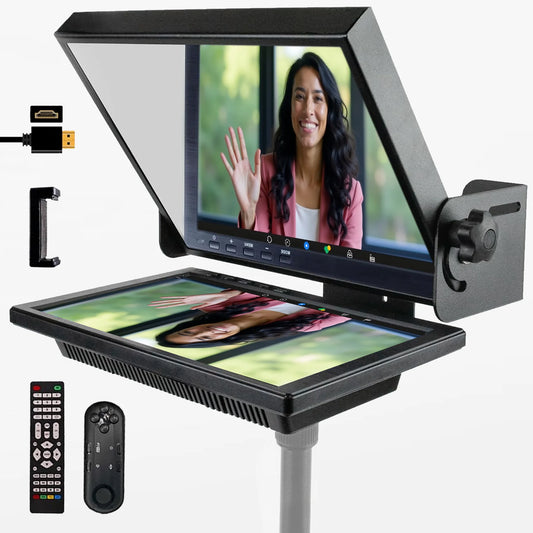
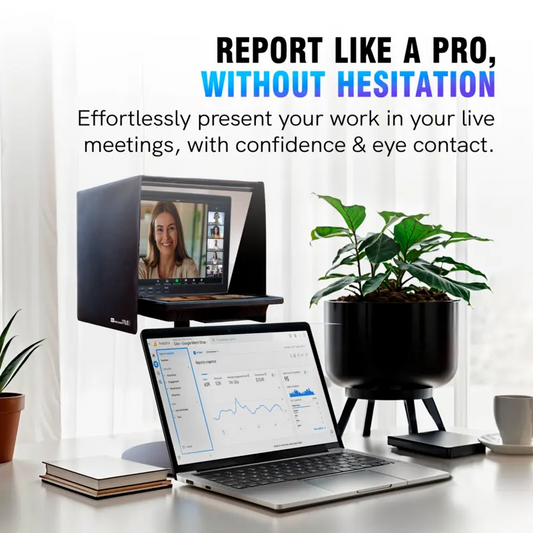
TELEPROMPTER PAD EyeMeeting Prompter for Twitch Streaming, Youtube, Zoom Eye Contact, for Mac/PC DSLR Webcam iPhone with Software, 10.1" Monitor & Remote, Compatible with Elgato Streamdeck, HDMI Input
- 229.00€
299.00€- 229.00€
- Unit price
- per