



Teleprompter for Corporate Training Seminars: What Works
A teleprompter for corporate training seminars solves the single biggest problem trainers face on camera: reading a script without looking like you're reading a script. The setup lets you deliver structured content — compliance modules, onboarding walkthroughs, leadership talks — while maintaining direct eye contact with the lens. That eye contact matters more than most L&D teams realize. After helping hundreds of corporate teams configure their gear over the past decade, I can tell you the difference between a training video people actually watch and one they click away from often comes down to whether the presenter looks connected or disconnected. This guide covers the exact equipment, workflow, and common mistakes for seminar-style training recordings.

Over the last 10+ years I've configured teleprompter setups for corporate L&D departments, marketing teams, and training studios across 40+ countries. Roughly 21% of the support tickets I handle come from SMBs and corporate comms teams recording seminar-style content — so I see the same mistakes (and fixes) on repeat. Every recommendation below comes from real deployment experience, not spec sheets.

Why do corporate training seminars need a teleprompter?
Seminar-style training videos are long. A typical compliance module or soft-skills workshop runs 10-30 minutes per segment. Nobody memorizes that much material, and ad-libbing produces inconsistencies that legal and compliance teams hate. A teleprompter puts your approved script directly in the presenter's line of sight, behind the camera lens, so they deliver exact wording while looking straight at the viewer.
The data backs this up. According to Wyzowl's 2026 State of Video Marketing report, 91% of businesses now use video as a marketing tool — a joint all-time high. Corporate training follows the same curve. Research.com reports that 90% of L&D professionals find video content significantly improves learner engagement and knowledge retention. But that only works when the video is actually engaging.
Here's where eye contact enters the picture. A study published in Frontiers in Psychology (Kaiser, Henry & Eyjólfsdóttir, 2022) found that shared eye contact in video communication creates feelings of connection and reduces perceived distance between participants. Without it, viewers feel disconnected — and disconnected learners don't retain information. Separate research by Fullwood & Doherty-Sneddon (2006) showed that content was remembered 23% better when the presenter maintained eye contact with the camera.
A beam splitter teleprompter is the only reliable way to achieve true eye contact in pre-recorded training content. The text reflects off angled glass in front of the lens while the camera shoots straight through it. The viewer never sees the glass or the text.
What kind of teleprompter works best for training seminars?
There are three broad categories of teleprompter. Not all of them fit a seminar recording workflow. Here's the honest breakdown:
| Type | Best For | Seminar Fit? | Price Range |
|---|---|---|---|
| Beam splitter (camera-mounted) | Pre-recorded video, courses, YouTube | ✅ Ideal | €99–€299 |
| Presidential (stage glass) | Live keynotes, conferences | ⚠️ Only for live events | €449–€2,397 |
| Software-only (screen overlay) | Live video calls, webinars | ❌ No true eye contact | Free–€50 |
For pre-recorded seminar content — the kind most L&D teams produce — a camera-mounted beam splitter teleprompter is the right tool. It works with any DSLR, mirrorless camera, or even a webcam. The presenter reads the script off the glass while the camera captures them looking directly at the lens.
The iLight PRO 12-inch is the model I recommend most for this use case. It handles any tablet or smartphone up to 10.2", comes pre-assembled, and folds flat for storage or transport between conference rooms. About 18% of our customers are SMBs and marketing teams doing exactly this kind of work — and another 3% are corporate comms teams. They tend to care about fast setup and minimal IT complexity, which is exactly what this model delivers.

How to set up a teleprompter for seminar recordings: step by step
I've boiled this down to a repeatable 5-step workflow that L&D teams can hand off to anyone in the department — no AV specialist required.
- Mount the teleprompter on a tripod. Use the standard 1/4" screw on the teleprompter base — not the camera plate on top. This is the most common physical mistake I see. The teleprompter goes on the tripod; the camera goes on the teleprompter's own camera plate.
- Seat the tablet and import your script. Open the TeleprompterPAD app (free on iOS, Android, Windows, Mac), import your training script, enable mirror mode, and lock tablet rotation. The app supports rich text editing — bold key terms, highlight compliance-critical phrases, add pacing markers between sections.
- Position the camera behind the glass. Push the camera as close to the back of the beam splitter glass as possible. Set the glass angle close to 45° using the adjustable knob. Minimum focal length: 24mm. Below that, the frame edges show up in your shot.
- Set distance and framing. Place the presenter 1.5–2.0 meters from the lens. Closer than 1.2m and you'll see visible eye scanning on the final video. If space is tight, use the app's margin-narrowing feature to keep text centered and reduce lateral eye movement.
- Seal the hood, check lighting, test audio. Attach the blackout hood via Velcro. No overhead lights directly above the teleprompter — that causes glare on the glass. Use three-point lighting: key light front/side, fill opposite, backlight behind the presenter. Always use an external microphone. The built-in mic on a DSLR is unusable at 1.5m+.
The entire setup takes under 10 minutes once your team has done it twice. I always recommend doing a "dry run day" before the first real recording session — set everything up, shoot 60 seconds of test footage, play it back, and adjust. Most issues (bad framing, glare, quiet audio) are obvious on playback.
Scripting tips for seminar-length training content
The script is where most corporate training videos fall apart. A script written for a slide deck reads terribly on a teleprompter. I've reviewed hundreds of scripts from training teams, and the pattern is always the same: too formal, too dense, zero pacing cues.
- Write conversationally. Read every sentence out loud before it goes on the prompter. If it sounds like a policy document, rewrite it.
- Use short sentences. 12–18 words per sentence is the sweet spot for on-camera delivery. Long compound sentences cause stumbling.
- Add pacing markers. Use the app's script markers to insert pauses, section breaks, and emphasis cues. This prevents monotone delivery — the #2 complaint from training participants after "boring content."
- Highlight compliance-critical language. Use the app's color highlighting to flag phrases the presenter must deliver verbatim (legal disclaimers, safety warnings, regulatory language).
- Break into segments. Don't write a 30-minute wall of text. Break it into 5–7 minute segments with natural stopping points. This also makes re-recording a single segment much easier.
For reference, Wyzowl's 2026 data shows that 71% of marketers believe videos between 30 seconds and 2 minutes are most effective. Training seminars obviously run longer, but the underlying lesson still applies: shorter segments within a longer session keep attention high.

iLight PRO 12-inch vs. 14-inch: which fits corporate training?
I get this question a lot from L&D managers ordering for their team. The answer depends on two things: what tablet you already own and whether you need the hardcase.
| Feature | iLight PRO 12-inch | iLight PRO 14-inch |
|---|---|---|
| Glass size | 12-inch beam splitter | 14-inch beam splitter |
| Max tablet size | Up to 10.2" (iPad 10th gen, iPad Air) | Up to 12.2" (iPad Pro 12.9") |
| Max camera length | 20cm / 8" | 25cm / 10" |
| Tripod mount | 1/4" screw | 1/4" + 3/8" dual |
| Hardcase included? | No (carry bag included; hardcase sold separately) | Yes, included |
| Price | €159 | €239 |
| Best for | Solo trainers, single-room setups, tight budgets | Teams with iPad Pro 12.9", multi-room deployments |
For most corporate training departments, the 12-inch model is the right call. It's €80 cheaper, lighter, and works with the iPad 10th generation that most companies already issue. If your company standardized on the iPad Pro 12.9", it literally won't fit the 12-inch model — go with the iLight PRO 14-inch instead.
Real-world use cases: who's recording training seminars?
Based on our customer data, here's where teleprompter-assisted seminar recording actually happens:
SMBs and marketing teams (18% of our customers): These teams produce onboarding videos, product training for sales reps, and internal communication updates from the CEO or department heads. They often have one camera, one room, and zero AV staff. The pre-assembled, under-2-minute setup of the iLight PRO means someone from HR or marketing can handle it without a production background.
Coaches, therapists, and info-product creators (20% of our customers): This group records workshop-style content that closely mirrors corporate seminars in format — long-form, structured, and script-dependent. They're producing online courses, certification programs, and paid video libraries. The teleprompter keeps their delivery consistent across 15+ modules without re-takes. If this describes your workflow, our guide for coaches has additional tips specific to course recording.
Educators and universities (10% of our customers): Faculty record lecture content and compliance training for staff. The use case is nearly identical to corporate L&D: approved content, consistent delivery, minimal production overhead.
The operator-controlled option: inverted monitors for two-person setups
Some corporate training studios use a two-person workflow: the presenter reads the glass, while an operator at a laptop controls script speed and cues. This is common in companies that cycle multiple subject-matter experts through the same recording setup. Not everyone is comfortable holding the Bluetooth remote.
For this workflow, the Inverted Monitor for iLight PRO 12-inch replaces the tablet inside the teleprompter with a 10.1-inch plug-and-play HDMI display. The operator runs the TeleprompterPAD app on a connected laptop, controlling scroll speed, font size, and script position in real time. The monitor is pre-inverted — no software mirror mode needed.


Honest pros and cons of using a teleprompter for training seminars
I'm not going to pretend a teleprompter fixes everything. Here's the real picture.
Pros:
- Direct eye contact with the camera throughout the entire recording — no glancing at notes, no looking off-screen.
- Consistent messaging. Legal, compliance, and HR teams can approve the exact wording and know it'll be delivered verbatim.
- Faster recording. My experience is that teleprompter-assisted sessions cut recording time by 40-60% versus memorization or cue cards, primarily by eliminating re-takes.
- Lower presenter anxiety. Subject-matter experts who aren't "camera people" perform dramatically better with a script in front of them.
- The TeleprompterPAD app is free and runs on devices your team already owns. No extra software licensing.
Cons:
- Monotone delivery risk. Reading from a prompter without practice can produce a flat, robotic tone. Pacing markers and rehearsal help, but this is a real skill that takes 2-3 sessions to develop.
- Frozen body language. Presenters tend to lock their posture when reading. Remind them to gesture naturally — the text is there as a safety net, not a cage.
- Not ideal for interactive sessions. If your seminar includes live Q&A or real-time demos, the teleprompter only covers the scripted portions. You'll need to pause scrolling during unscripted segments.
- Physical space requirement. You need 1.5–2.0m between the presenter and lens for natural-looking eye movement. Small conference rooms can be tight.
- These are consumer/prosumer-grade units. If you're outfitting a broadcast-level studio, they're not the right tool. For the 95% of corporate teams recording standard training content, they're more than sufficient.
Common mistakes in corporate teleprompter setups
I troubleshoot these constantly. Save yourself the support ticket:
| Mistake | What Happens | Fix |
|---|---|---|
| Tripod on camera plate | Whole unit tips forward | Mount teleprompter base to tripod, camera to teleprompter plate |
| Overhead fluorescent lights | Glare on beam splitter glass | Kill overhead lights; use 3-point lighting from the sides |
| No external mic | Hollow, distant audio | Lavalier or shotgun mic — always external at 1.5m+ distance |
| Tablet rotation unlocked | Script flips mid-recording | Lock rotation in device settings before mounting |
| Wide-angle lens below 24mm | Glass frame visible in shot | Use 24mm or longer focal length |
| Hood not sealed properly | Light leak shows text on glass in footage | Press Velcro edges firmly; check through viewfinder |
| Mirror mode not enabled | Text is backwards on glass | Enable mirror mode in TeleprompterPAD app before recording |
If you run into anything not on this list, TeleprompterPAD offers personal 1-to-1 multilingual support in English, Spanish, French, German, and Italian. We've handled over 50,000 orders globally, and the support team has seen pretty much every configuration issue there is.
Frequently asked questions
Can multiple presenters use the same teleprompter setup?
Yes. The iLight PRO 12-inch stays mounted on the tripod between presenters. Each person loads their own script in the app (or an operator can switch scripts from a laptop if you're using the inverted monitor). Just re-check framing for different heights — a quick tripod adjustment is all you need.
Does the camera actually see through the glass clearly?
The beam splitter glass uses a 60/40 HD ratio — 60% of light passes through to the camera, 40% reflects the text. In practice, there's no visible quality loss in the footage. The glass is lab-grade, manufactured in Germany, with anti-ghosting technology that prevents double reflections.
What tablet should I use for a corporate training teleprompter?
Any iPad up to 10.2" or Android tablet up to 20cm × 26cm works with the iLight PRO 12-inch. Most corporate teams already have iPads. If your company uses the iPad Pro 12.9", you'll need the 14-inch model instead — the 12.9" iPad is physically too wide for the 12-inch frame.
How fast should the teleprompter scroll for training content?
Average speaking pace is about 130-150 words per minute. The TeleprompterPAD app lets you set precise scroll speed, and the included Bluetooth remote allows the presenter (or an operator) to adjust speed on the fly. I always tell trainers: set it slightly slower than your natural speaking pace so you never feel rushed.
Can I use this for live webinar training, not just pre-recorded?
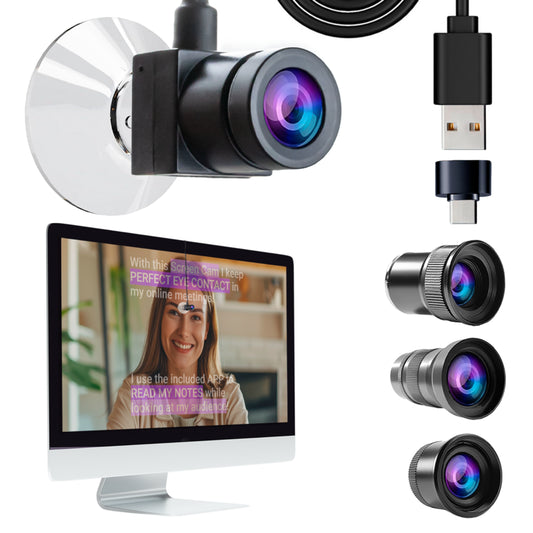
For live webinar delivery where you're presenting via Zoom or Teams, the TeleprompterPAD app's Meeting Mode overlays transparent text directly on your screen. For a dedicated live-call device, the EyeMeeting Webcam is purpose-built for that. Our corporate webinar guide covers this in detail.
Is the Bluetooth remote reliable for long sessions?
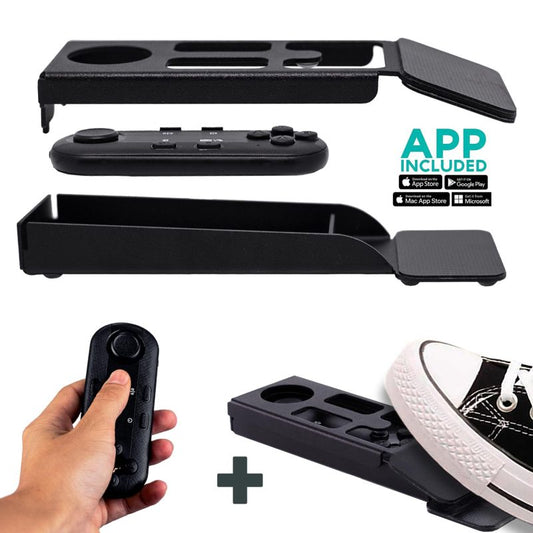
It runs on 2x AAA batteries and lasts for days of continuous use with auto-off between sessions. The most common issue I see isn't reliability — it's the remote auto-connecting to someone's phone in the next room instead of the tablet running the script. Solution: turn off Bluetooth on every nearby device that previously paired with it.
What if our conference room is too small for 1.5m distance?
If you're stuck at 1.0–1.2m, use the app's margin-narrowing feature to center the text in a narrower column. This reduces lateral eye movement and makes the closer distance less obvious on camera. But if you're consistently under 1.2m, the eye-scanning artifact will still be somewhat visible. A slightly wider room is always better.
Do I need any AV training to set this up?
No. The iLight PRO arrives pre-assembled. Setup is under 2 minutes. The TeleprompterPAD app is free and runs on iOS, Android, Windows, or Mac — no special software knowledge required. If you get stuck, our help center at help.teleprompterpad.com has video tutorials for every step.
Corporate training is a massive and growing investment — the global market is projected to reach roughly $459 billion in 2026. A €159 teleprompter that cuts your recording time in half and keeps your presenters on-message is probably the highest-ROI piece of gear you'll add to your training room this year. If you're ready to get started, grab the iLight PRO 12-inch and run a test session before your next scheduled seminar recording.
Our best sellers
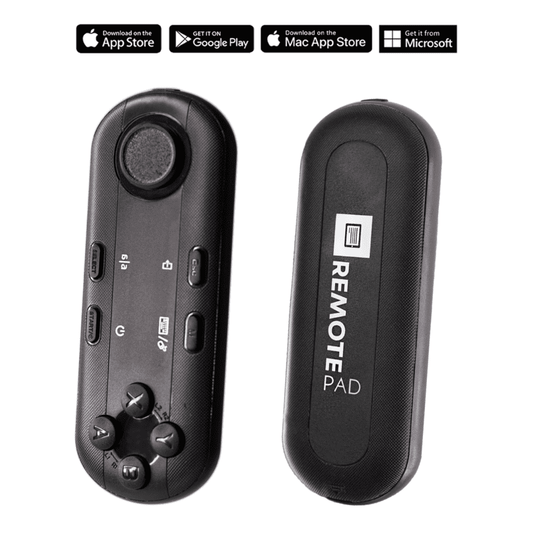
TELEPROMPTER PAD Bluetooth Remote Control for Teleprompter - Includes Teleprompter app for Apple, Android Windows & Mac - Wireless Controller for Beam Splitter Prompter or Live Streaming Equipment
- 34.90€
39.90€- 34.90€
- Unit price
- per
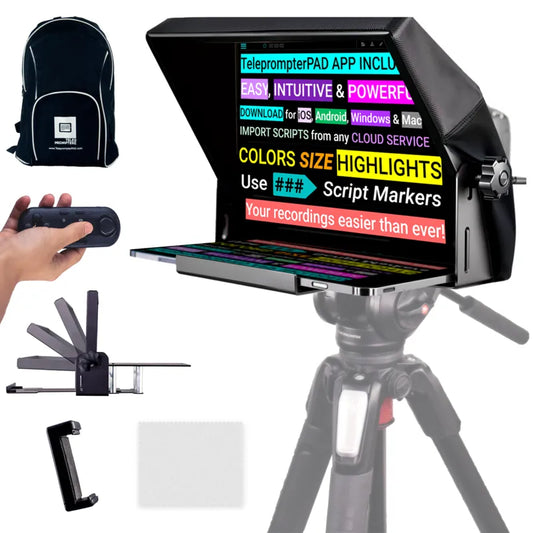
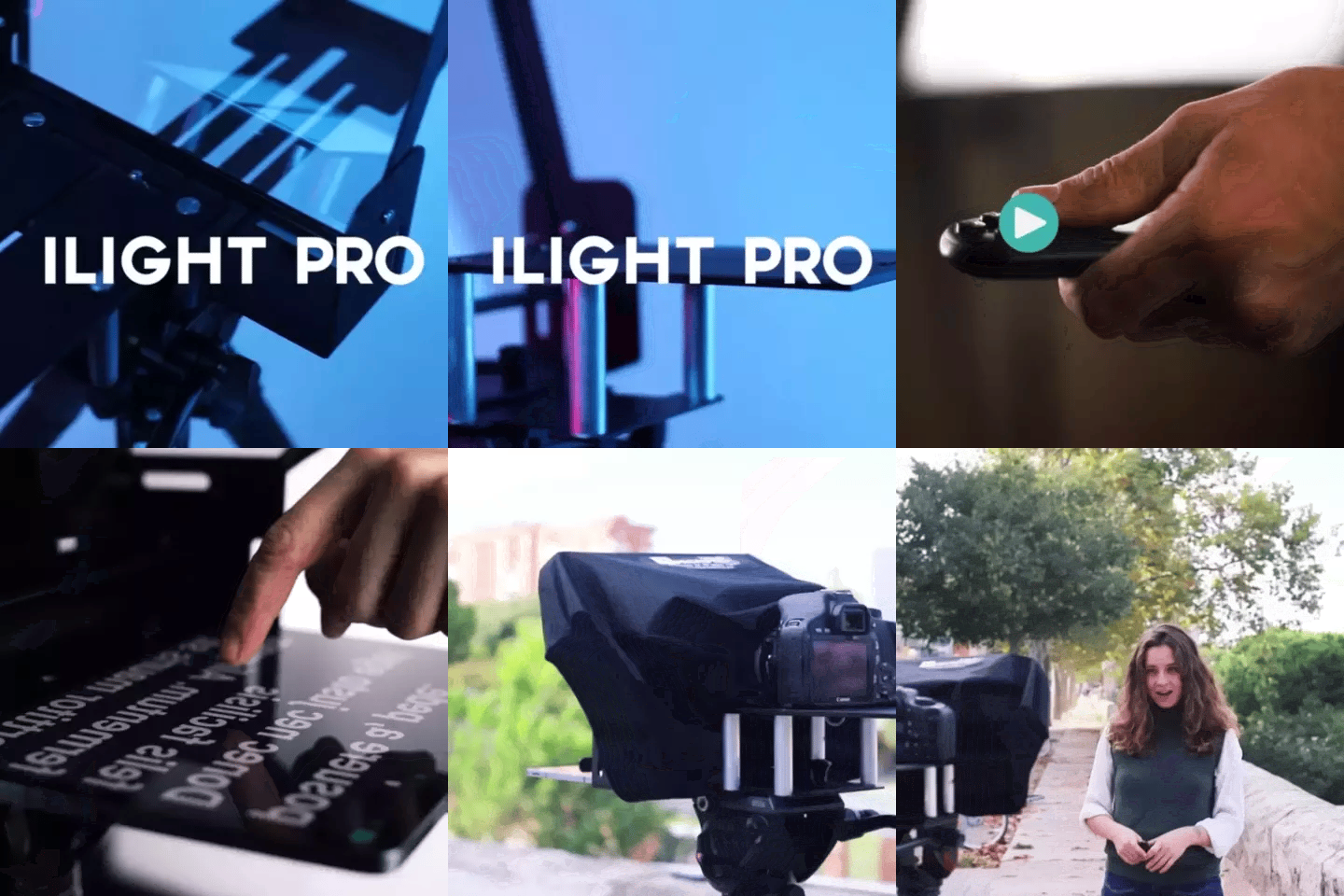
TELEPROMPTER PAD iLight PRO 12'' Teleprompter for iPad Tablet - Kit teleprompter for Video with Remote Control, APP & Carry Bag - Beam Splitter Prompter Autocue DSLR, iPhone, APP for Apple Android Mac Win
- 159.00€
199.00€- 159.00€
- Unit price
- per
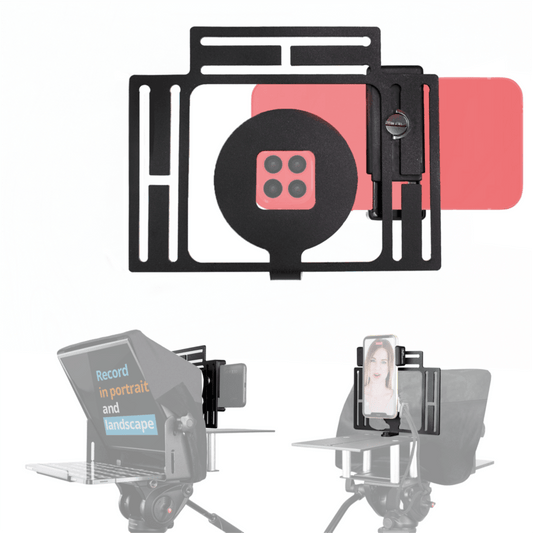
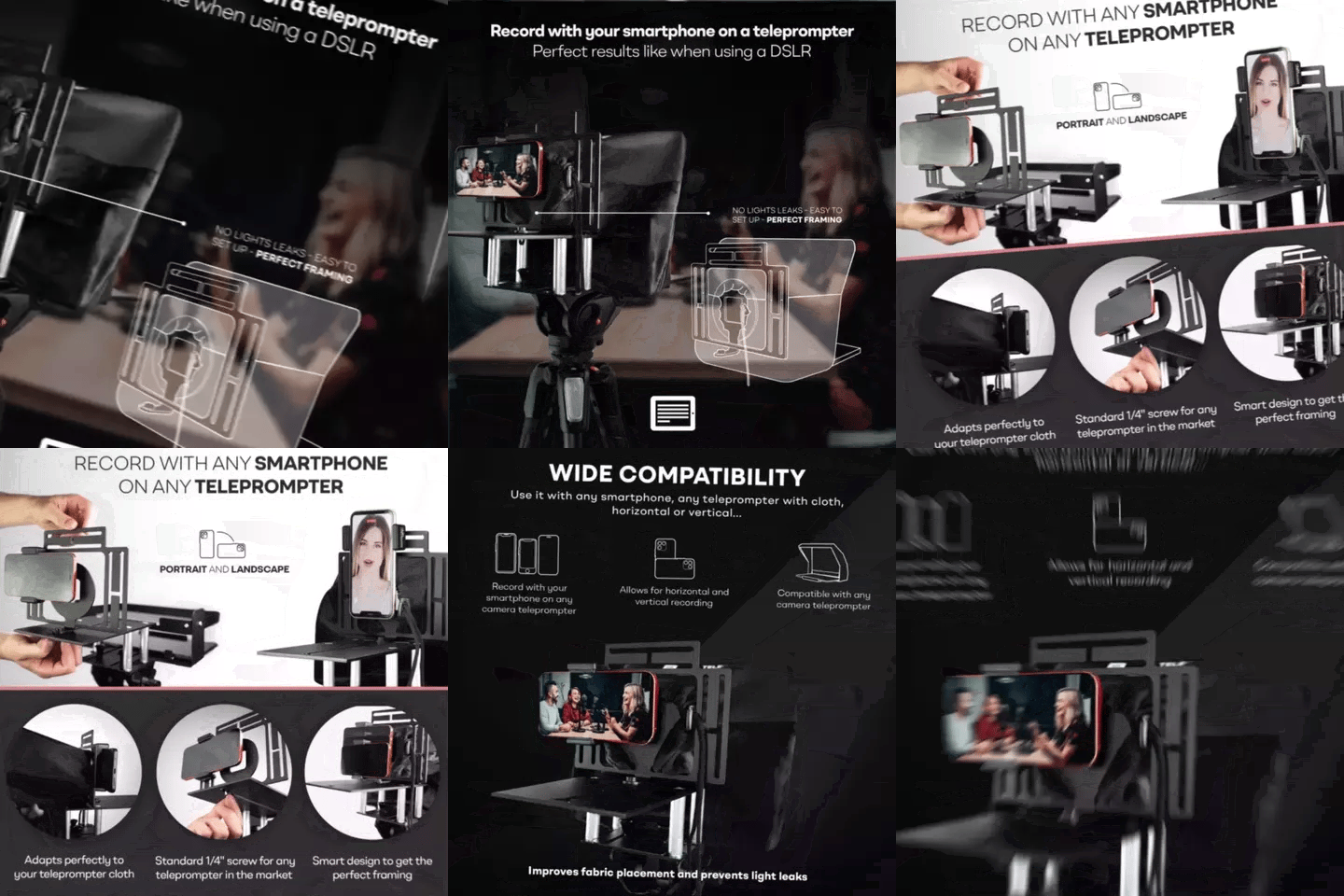
TELEPROMPTER PAD Smartphone Adaptor for teleprompter – Record with any iPhone, Android phone, compatible with any teleprompter, aluminum universal Rig for prompter with camera plate, snug cloth fit
- 29.90€
39.90€- 29.90€
- Unit price
- per
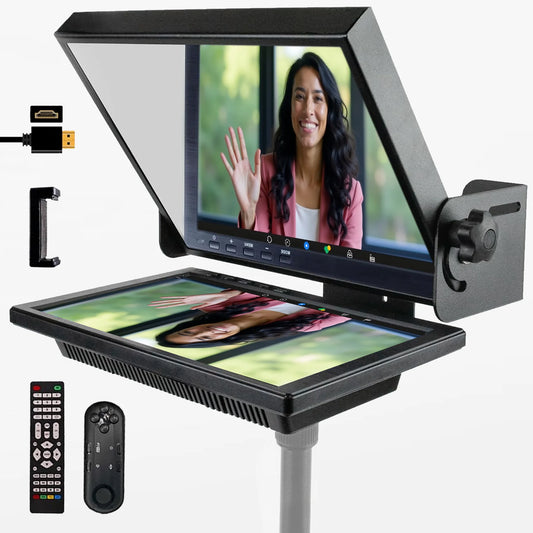
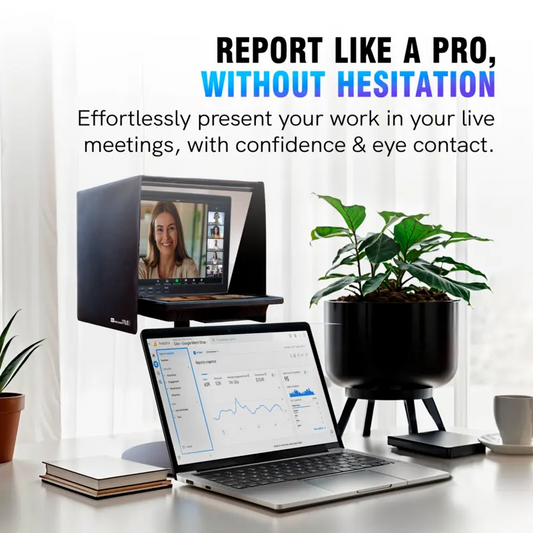
TELEPROMPTER PAD EyeMeeting Prompter for Twitch Streaming, Youtube, Zoom Eye Contact, for Mac/PC DSLR Webcam iPhone with Software, 10.1" Monitor & Remote, Compatible with Elgato Streamdeck, HDMI Input
- 229.00€
299.00€- 229.00€
- Unit price
- per