



Teleprompter for Corporate Training: Setup Guide
A teleprompter for corporate training solves the biggest problem L&D teams face when producing video content: getting subject-matter experts to deliver information clearly, on camera, without reading from notes taped to a wall. The right teleprompter lets your presenter look directly into the lens while reading a script, which means better eye contact, fewer retakes, and training videos that employees actually trust. In this guide, I'll walk you through the exact setup, the gear that works for corporate environments, and the mistakes that waste hours of production time.

Over the past decade I've helped set up teleprompter rigs for more than 140 corporate training teams—from 5-person startups to mid-size L&D departments producing weekly compliance modules. About 18% of TeleprompterPAD's 50,000+ shipped orders go to SMBs and marketing teams, and another 3% to dedicated corporate comms groups. I've seen firsthand what makes the difference between a training video employees skip through and one they actually watch.

Why does corporate training video need a teleprompter?
The short answer: eye contact and consistency. A 2022 study published in Frontiers in Psychology found that eye contact in video communication directly affects the viewer's sense of connectedness and trust. When your trainer looks into the camera, employees perceive them as more credible and more engaged. When they glance down at notes, that perception collapses.
Here's the corporate-specific problem. Your SME—the compliance officer, the product manager, the VP of engineering—is typically not a trained presenter. They know the material cold but freeze on camera. A teleprompter puts the script right in their line of sight, behind the lens. They read naturally, maintain eye contact, and sound like they're having a conversation instead of reciting a manual.
According to Research.com's 2026 video training analysis, 83% of employees prefer watching video over reading text for instructional content, and 87% of viewers prefer a real person on screen rather than an AI avatar. That means your L&D team needs real humans delivering content confidently—and a teleprompter is the simplest way to get there.
What teleprompter setup works best for corporate training?
For most corporate training scenarios, you want a beam splitter teleprompter positioned in front of a camera. The text displays on a tablet beneath the glass, reflects upward so the presenter can read it, and the camera shoots straight through from behind. The viewer never sees the text—only a person looking directly at them.
I recommend the iLight PRO 14" for corporate environments specifically. Why the 14" and not the 12"? Two reasons. First, corporate training scripts tend to be longer and more technical than a typical YouTube video. The extra 2 inches of screen real estate means larger font sizes at comfortable reading distances, which reduces that "eye scanning" look. Second, if your company uses iPad Pro 12.9" devices (extremely common in enterprise environments), the 14" is the only model that physically fits them.

How to set up a teleprompter for corporate training in 5 steps
I've walked corporate teams through this process hundreds of times. It takes under 10 minutes from unboxing to first recording if you follow this order.
- Mount the teleprompter on a tripod. Use the 1/4" or 3/8" screw on the base of the unit—not on the camera plate. This is the #1 mistake I see corporate teams make. The tripod supports the teleprompter; the camera mounts inside it.
- Attach your camera behind the beam splitter glass. Position the lens as close to the back of the glass as possible. The iLight PRO 14" supports cameras up to 25cm (10") in length and roughly 4kg, which covers every DSLR and mirrorless camera you'd use for training content.
- Place your tablet in the tray and launch the TeleprompterPAD app. Import your script. Turn on mirror mode. Lock screen rotation. These three things—in that order—prevent 90% of the "why is my text backwards" support tickets we get.
- Adjust the glass angle to approximately 45 degrees. The iLight PRO has an exclusive adjustable-angle knob for this. At 45 degrees, text reflects brightly toward the presenter while the camera sees through clearly.
- Seal the blackout hood and test. The Velcro hood blocks ambient light from washing out the text on the glass. Record a 10-second test take, check framing, and verify the font size is readable from your presenter's position (1.5m to 2m is ideal).
The entire iLight PRO 14" arrives pre-assembled. There's no toolkit required. I've seen L&D coordinators who've never touched video equipment get this running in their first session—partly because the hardware is straightforward, and partly because we offer 1-to-1 multilingual support (English, Spanish, German, French, Italian) if anything comes up.
iLight PRO 14" vs. 12": which fits a corporate training setup?
Both models work. But corporate environments have specific needs that push toward the 14" more often. Here's the comparison.
| Feature | iLight PRO 12" | iLight PRO 14" |
|---|---|---|
| Glass size | 12" HD beam splitter | 14" HD beam splitter |
| iPad Pro 12.9" compatible | ❌ Too wide | ✅ Fits perfectly |
| Max tablet size | 20cm × 26cm | 25cm × 31cm |
| Camera max length | 20cm / 8" | 25cm / 10" |
| Tripod mount | 1/4" screw | 1/4" + 3/8" dual |
| Hardcase included | ❌ Sold separately | ✅ Included |
| Price | €159 | €239 |
The dual 1/4" and 3/8" tripod mount on the 14" is a bigger deal than it sounds. Corporate production rooms often have heavier-duty tripods with 3/8" heads. With the 12", you'd need a screw adapter. With the 14", it's built in.
Also worth noting: the hardcase ships included with the 14". If your training team moves between conference rooms, offices, or locations, that rigid case protects the German lab-grade beam splitter glass during transport. For the 12", you'd buy it separately.

Who actually uses teleprompters for corporate training?
From our order data, three audience segments dominate the corporate training use case.
SMBs, startups, and marketing teams (18% of our customers) produce onboarding videos, product walkthroughs, and internal training modules. These teams usually don't have a dedicated video producer. The person running HR or product marketing ends up in front of the camera. A teleprompter turns a 4-hour shoot into a 45-minute session because the script is right there—no memorization, no cue cards, no "can we do that take again?"
Educators and universities (10% of our customers) create lecture recordings, continuing education content, and faculty development materials. A professor recording a 20-minute compliance training for staff can read naturally at their own pace using the Bluetooth remote to control scroll speed.
Corporate comms teams (3% of our customers) handle CEO messages, quarterly updates, and policy announcements. These are high-stakes videos where every word matters. The teleprompter keeps the message precise while the presenter stays relaxed and authoritative.
I've also seen a growing number of coaches and course creators (about 20% of our base) using the same setup for client-facing training programs. If you're building video-based coaching content, we wrote a detailed guide on using a teleprompter for coaches that covers script pacing and course production specifically.
Script writing tips for corporate training videos
The teleprompter is only as good as the script loaded into it. I've watched plenty of training videos fail not because of the hardware, but because the script reads like a legal document instead of a conversation.
- Write how you talk, not how you write. Read every sentence out loud before loading it. If you stumble, rewrite it.
- Use short sentences. 12-18 words max. Your presenter needs to breathe between phrases.
- Add pacing marks. Use "//" for a 1-second pause, "///" for a 2-second pause. The TeleprompterPAD app supports rich text formatting—bold key terms, highlight section headers, use color changes to signal transitions.
- Front-load each module. State the key takeaway in the first sentence, then explain. Employees who are scanning will at least get the main point.
- Keep individual segments under 5 minutes. Data from Research.com shows the average attention span for training videos is about 2.7 minutes before multitasking kicks in. Shorter modules get higher completion rates.
One more thing. If multiple presenters will use the teleprompter in the same session—say, three department heads each recording a module—save each script as a separate file in the app. The TeleprompterPAD app lets you import multiple files and switch between them instantly. No fumbling with copy-paste between takes.
Common mistakes that ruin corporate training recordings
After 10+ years of helping teams troubleshoot, these are the issues I see over and over in corporate environments specifically.
| Mistake | What Goes Wrong | Fix |
|---|---|---|
| Standing too close | Visible eye scanning left-right | Stay 1.5–2m back; narrow margins in app |
| Overhead fluorescent lights | Glare on beam splitter glass | Turn off overheads; use 3-point lighting |
| Using built-in camera mic | Hollow, echoey audio at 1.5m+ | Always use external mic (lav or shotgun) |
| Lens below 24mm focal length | Glass frame edges visible in shot | Use 24mm or longer |
| Tablet rotation unlocked | Screen flips mid-recording | Lock rotation in device settings |
| Hood not sealed properly | Light leak washes out text | Press all Velcro edges firmly; check from presenter's angle |
| Skipping test takes | Framing or audio issues found in post | Always record 10-second test first |
That overhead lighting issue is the one I troubleshoot most often with corporate teams. Office conference rooms are designed for meetings, not video production. The fluorescent panels or recessed LED fixtures directly above create glare on the beam splitter glass. Kill the overheads and bring in even basic 3-point lighting—key light front/side, fill on the opposite side, backlight from behind—and your image quality jumps dramatically.

Scaling up: when to add an inverted monitor
For solo recording, the standard tablet-in-tray setup works perfectly. But some corporate training operations reach a point where they want an operator controlling the script while the presenter focuses purely on delivery.
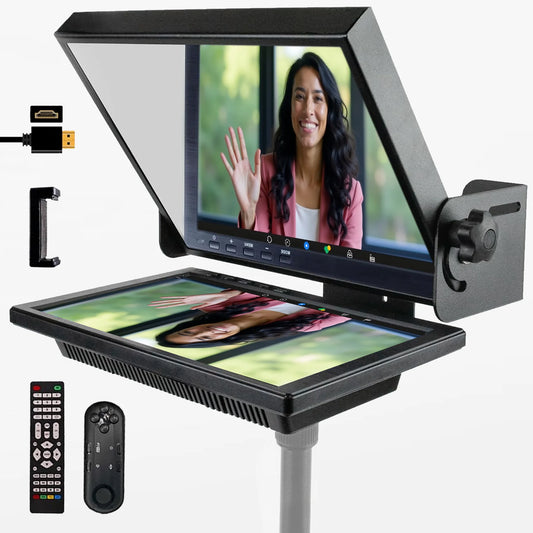
That's where the Inverted Monitor for iLight PRO 14" comes in. It replaces the tablet with a 14" plug-and-play display connected via HDMI to a laptop. The operator sits at the laptop, controls scroll speed and script navigation, while the presenter simply reads. The monitor comes pre-inverted—no software mirror mode needed.

This two-person workflow is common in corporate settings where the presenter is a senior executive who shouldn't be multitasking with scroll speed. The operator handles everything behind the scenes. It's the same approach used by small TV stations and production companies (about 4% of our customer base), just adapted for a training studio or conference room.
Honest pros and cons of using a teleprompter for corporate training
Pros
- Direct eye contact with the camera boosts perceived credibility and trust
- Dramatically reduces recording time—fewer retakes, less wasted talent time
- Non-presenters (engineers, analysts, HR managers) can deliver content confidently
- Script accuracy stays high, which matters for compliance and legal content
- Pre-assembled, under 2 minutes to set up, no technical background needed
Cons
- There's a learning curve. The first time someone reads from a teleprompter, they tend to sound robotic. It usually takes 2-3 practice runs before delivery sounds natural.
- You need a minimum distance of 1.5m between presenter and camera. Not every office has that depth in their recording space.
- The 14" model at €239 is a real purchase for a small team with a tight L&D budget, though it's far cheaper than hiring a production crew or renting studio time.
- You still need decent lighting and an external microphone. The teleprompter fixes script delivery but not bad production fundamentals.
- This is prosumer gear, not broadcast-grade equipment. If you're producing training for a large TV network, this isn't the right fit. For everything else—internal training, LMS content, onboarding videos—it's more than sufficient.
Frequently asked questions
Can I use a teleprompter with Zoom or Teams for live training?
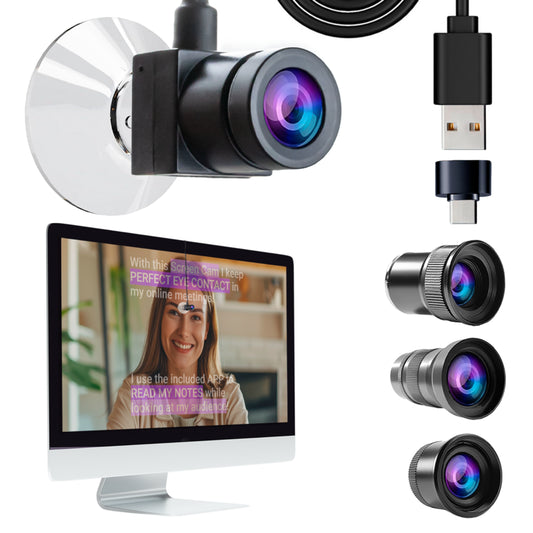
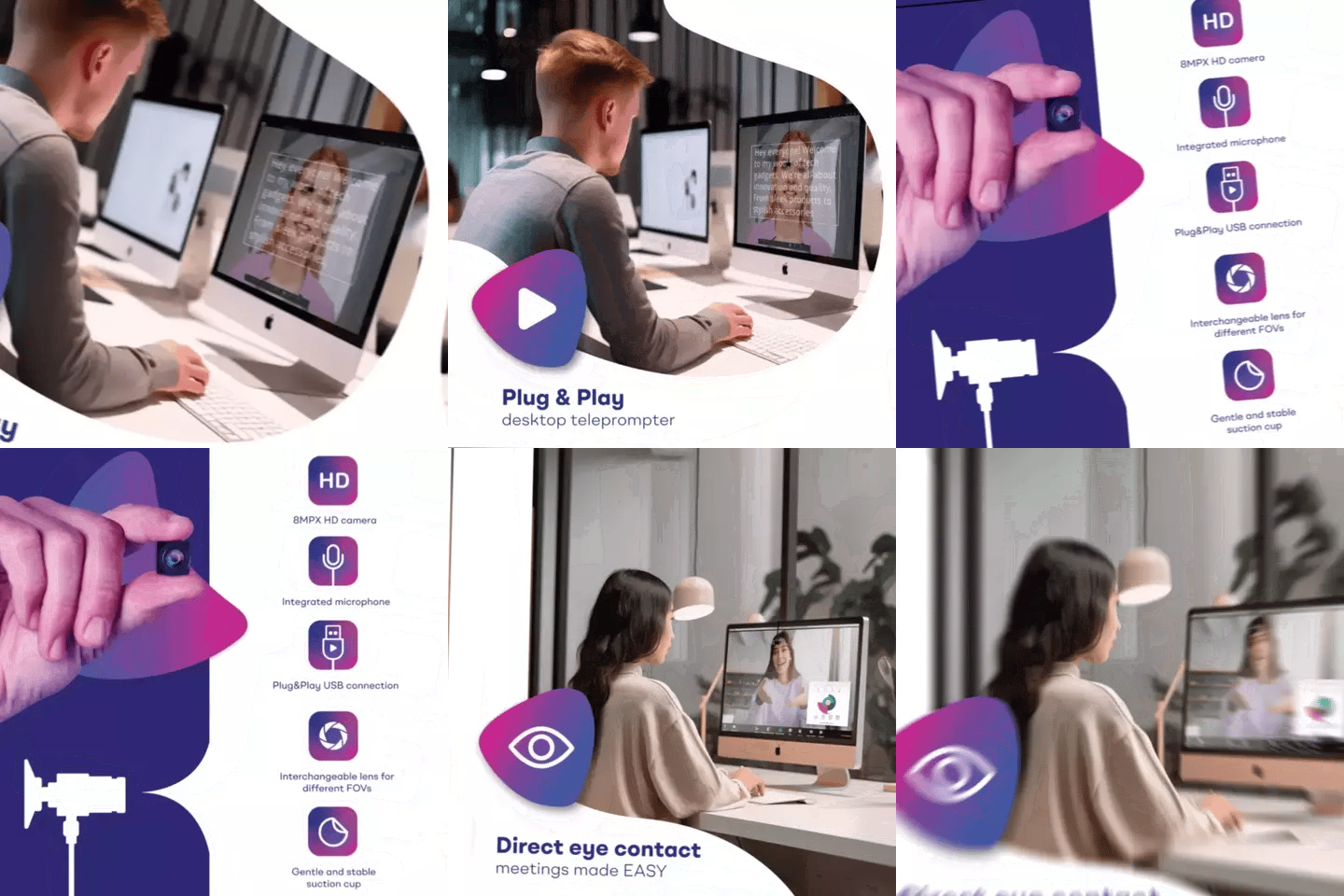
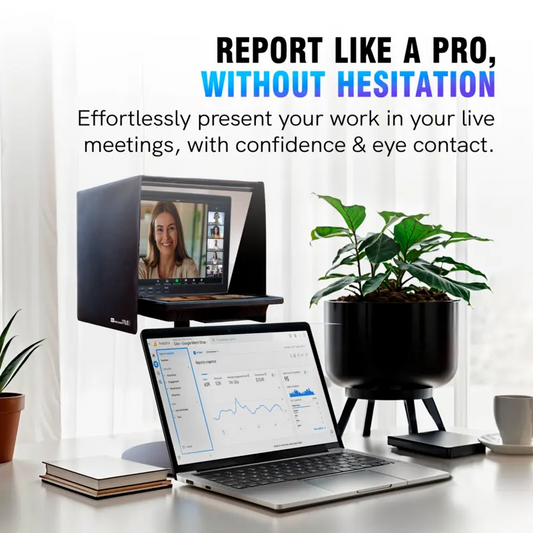
Yes, but not with a beam splitter model like the iLight PRO. For live video calls, the EyeMeeting Webcam attaches to your monitor and uses Meeting Mode to overlay a transparent script on your call window. The iLight PRO is designed for recording to file, not live conferencing.
What tablet should I use for corporate training teleprompter setups?
For the iLight PRO 14", an iPad Pro 12.9" is the best choice because it fills the maximum viewable area. Any tablet up to 25cm × 31cm works—including Android tablets and Windows tablets. If your company standardizes on Samsung Galaxy Tab S7+ (12.4"), that fits perfectly too.
How far should the presenter stand from the teleprompter?
Between 1.5m and 2.0m (about 5 to 6.5 feet). Closer than 1.5m and viewers may notice the presenter's eyes scanning side to side. The TeleprompterPAD app has a margin-narrowing feature that helps if you're forced to work in a tighter space.
Do I need a special camera for teleprompter use?
No. Any DSLR, mirrorless camera, or even a smartphone works. The key spec is minimum 24mm focal length—anything wider and you'll see the glass frame edges in your shot. The iLight PRO 14" supports cameras up to 25cm in length and roughly 4kg in weight.
Can multiple people share one teleprompter for a training video series?
Absolutely. Save each presenter's script as a separate file in the TeleprompterPAD app. Switching between scripts takes seconds. Between presenters, you may also want to adjust scroll speed—some people read faster than others. The included Bluetooth remote lets you adjust speed on the fly.
Is the TeleprompterPAD app free?
Yes. The app is completely free on iOS, Android, Windows, and macOS. There's also a web-based version that runs in any browser with no installation. This is handy for IT-locked corporate devices where installing apps requires approval.
What if my presenter has never used a teleprompter before?
That's the most common situation I encounter. My recommendation: do a 5-minute rehearsal before the real recording. Set scroll speed slower than you think is necessary. Tell the presenter to read as if they're explaining the content to a colleague across the table, not performing. After 2-3 takes, almost everyone finds their rhythm.
How do I handle long training scripts with technical terminology?
Break the script into sections using the app's script markers. Bold or highlight technical terms so the presenter sees them coming and can emphasize them naturally. Use a larger font size (the app lets you adjust this freely) and slower scroll speed for dense material. A 20-minute training video should be split into 4-5 recording segments.
If your corporate training team needs to produce consistent, professional video content without hiring a production crew, the iLight PRO 14" is the setup I'd point you toward. It handles the biggest variable in training video quality—presenter delivery—and it does it for a fraction of what you'd spend on outsourced production.
I nostri best seller
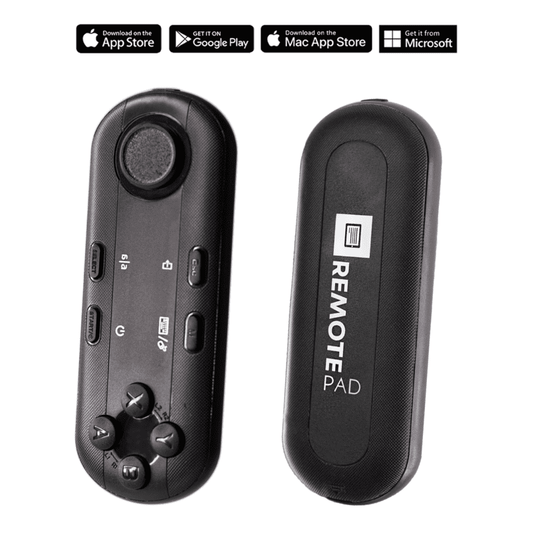
TELEPROMPTER PAD Telecomando Bluetooth per Teleprompter - Include l'APP Teleprompter per Apple, Android Windows e Mac - Controller wireless per Beam Splitter Prompter o apparecchiature per streaming live
- 34.90€
39.90€- 34.90€
- Prezzo unitario
- per
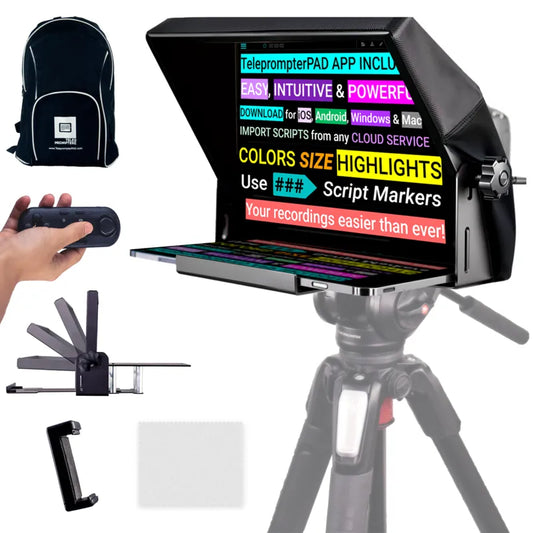
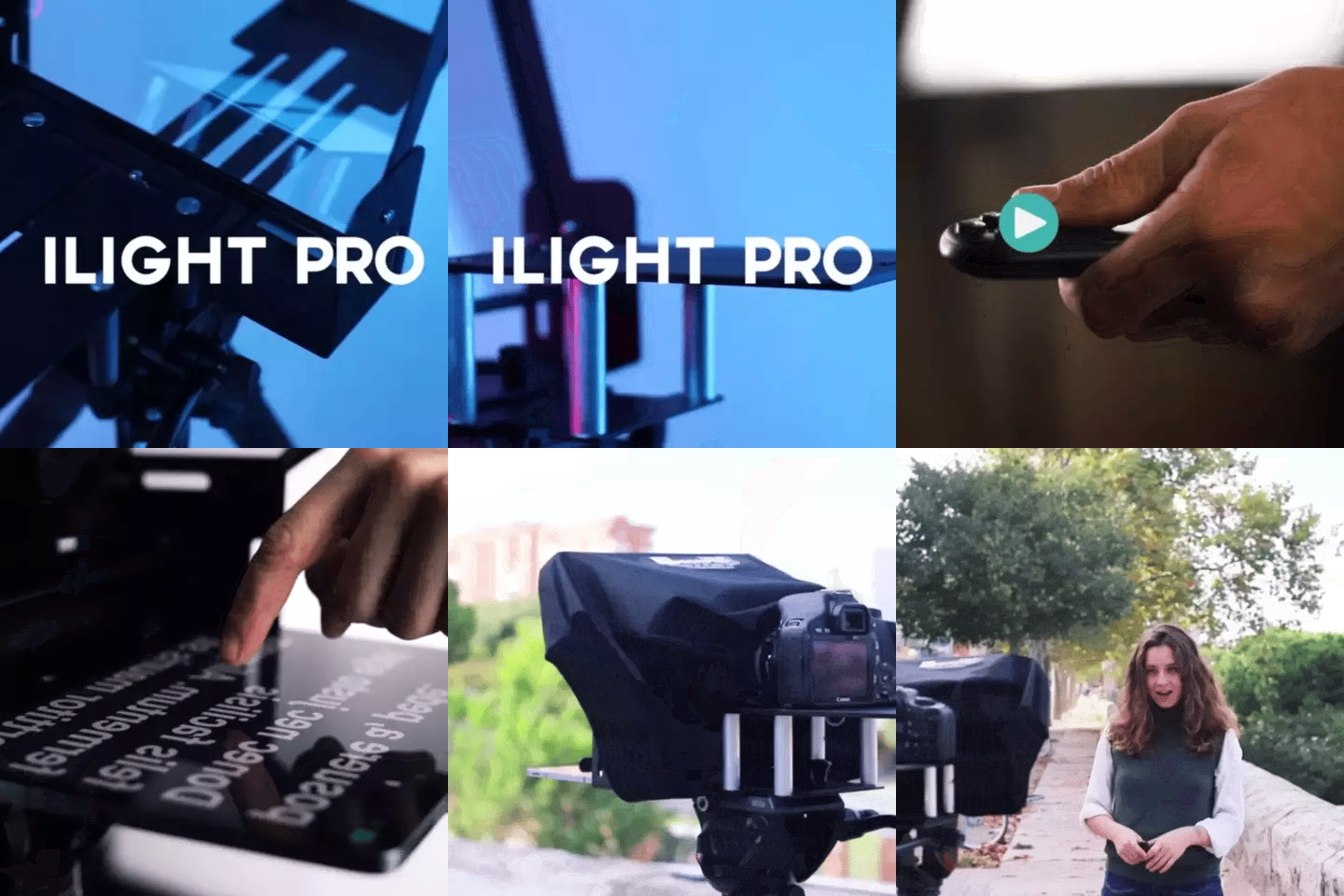
TELEPROMPTER PAD iLight PRO 12'' Teleprompter per tablet iPad - Kit teleprompter per video con telecomando, APP e borsa per il trasporto - Beam Splitter Prompter Autocue DSLR, iPhone, APP per Apple Android Mac Win
- 159.00€
199.00€- 159.00€
- Prezzo unitario
- per
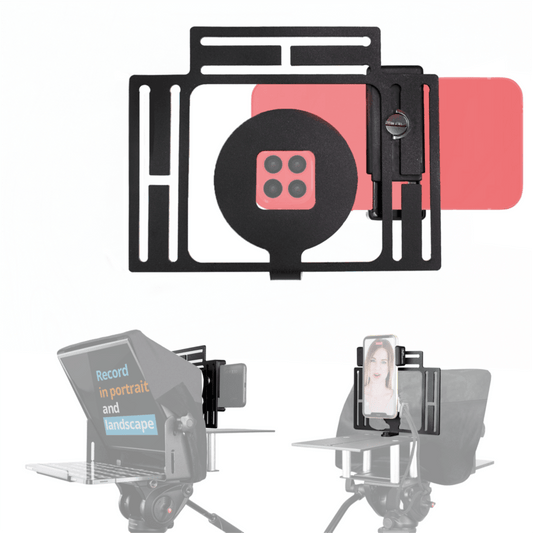
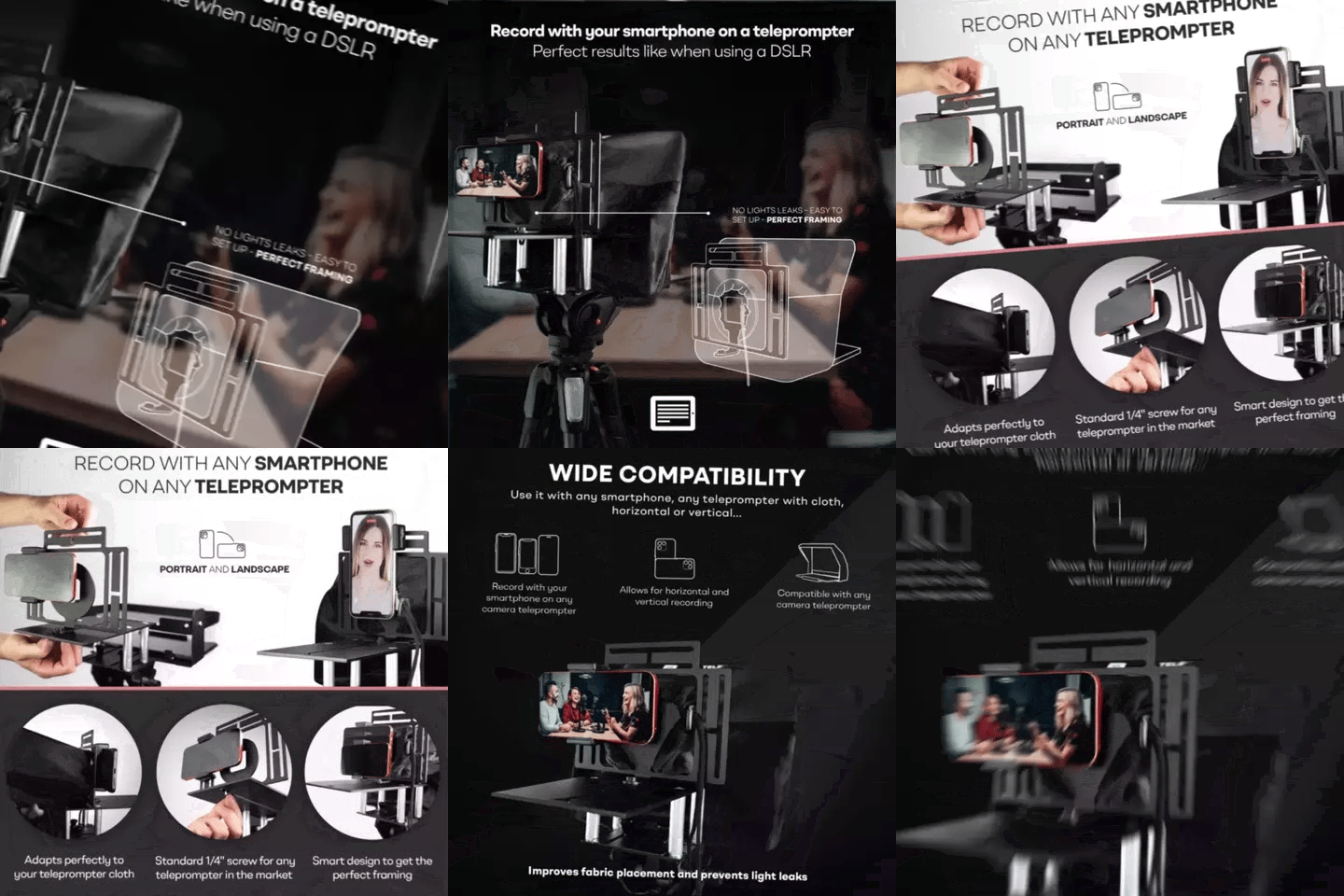
TELEPROMPTER PAD Adattatore per smartphone per teleprompter – Registra con qualsiasi iPhone, telefono Android, compatibile con qualsiasi teleprompter, supporto universale in alluminio per suggeritore con piastra per fotocamera, aderente in tessuto
- 29.90€
39.90€- 29.90€
- Prezzo unitario
- per
TELEPROMPTER PAD EyeMeeting Prompter per streaming Twitch, Youtube, contatto visivo Zoom, per Mac/PC DSLR Webcam iPhone con Software, monitor da 10,1" e telecommando, compatibile con Elgato Streamdeck
- 229.00€
299.00€- 229.00€
- Prezzo unitario
- per