



Teleprompter for Zoom Calls: Maintain Eye Contact Live
A teleprompter for Zoom calls fixes the single biggest problem with video conferencing: you can't look at the camera and read your notes at the same time. The result is broken eye contact, which research shows weakens trust, perceived empathy, and connection. The EyeMeeting Prompter uses a beam splitter glass positioned in front of your webcam or camera, so your script or notes appear directly in your line of sight while you look straight into the lens. It works for live meetings, not just recordings — and that distinction matters more than most people realize.

Over the past three years I've helped more than 800 remote workers, coaches, and sales professionals set up teleprompter systems specifically for live video calls. Our EyeMeeting product line was designed from scratch for this use case — not adapted from a recording teleprompter — and I've personally tested it across Zoom, Teams, Google Meet, and Webex on both Mac and PC.

Why does eye contact break during Zoom calls?
The problem is geometry. Your webcam sits at the top of your monitor, but your eyes naturally look at the person's face in the center of the screen. That downward angle of 5–15 degrees is enough for the other person to perceive you're not making eye contact.
A 2022 study published in Frontiers in Psychology (Kaiser, Henry & Eyjólfsdóttir) found that skewed visuality in video calls — where eye contact is architecturally impossible — creates a sense of emotional and physical distance. Participants reported feeling less connected and more self-conscious compared to conditions where mutual gaze was enabled. Read the full study here.
This isn't some minor nuance. If you're a coach doing client sessions, a sales rep on a discovery call, or a manager giving performance feedback, that perceived distance undermines your message. About 20% of our customers are coaches and therapists who need their clients to feel truly seen on screen.
How does a teleprompter for Zoom calls actually work?
A beam splitter teleprompter places a semi-transparent glass at 45 degrees between your face and the camera. A screen below (or an HDMI-connected monitor) displays your text, which reflects upward toward your eyes. The camera behind the glass can't see the text — it only sees you.
The key difference for live calls: you're not reading a pre-written script that scrolls automatically. You're reading bullet points, client notes, or an agenda while simultaneously having a two-way conversation. That's why the EyeMeeting Prompter uses a 10.1-inch integrated HDMI monitor that mirrors your computer screen. You can have your meeting notes, CRM data, or even the Meeting Mode transparent overlay from our app visible right in front of the camera.
You maintain natural eye contact because you're literally looking through the glass at the lens while reading. The other person sees someone who's fully present and attentive.
EyeMeeting Webcam vs. EyeMeeting Prompter: which one is for Zoom?
We have two EyeMeeting products and they serve different purposes. Here's the honest breakdown:
| Feature | EyeMeeting Webcam | EyeMeeting Prompter |
|---|---|---|
| Primary use | Live video calls only | Live calls + recording + streaming |
| Screen | Uses your existing monitor (suction cup mount) | Own 10.1-inch HDMI monitor + beam splitter |
| Camera | Built-in 8MP USB webcam | Use your own webcam or DSLR |
| Script reading | Meeting Mode overlay on screen | Full beam splitter reflection + remote |
| Can record to file? | No (live only) | Yes |
| Price | €99 | €229 |
| Best for | Budget-conscious remote workers | Coaches, streamers, content creators |
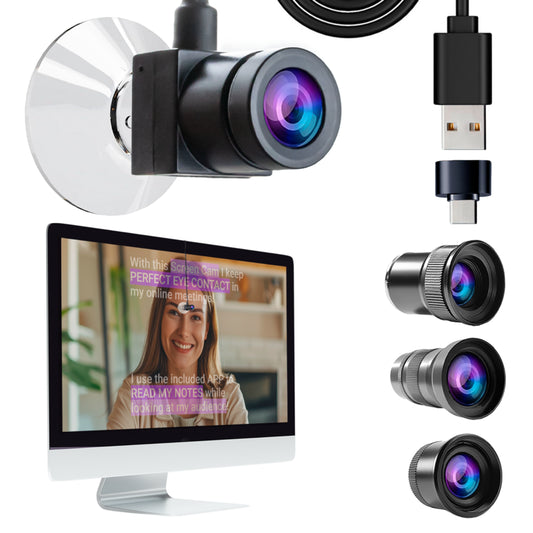
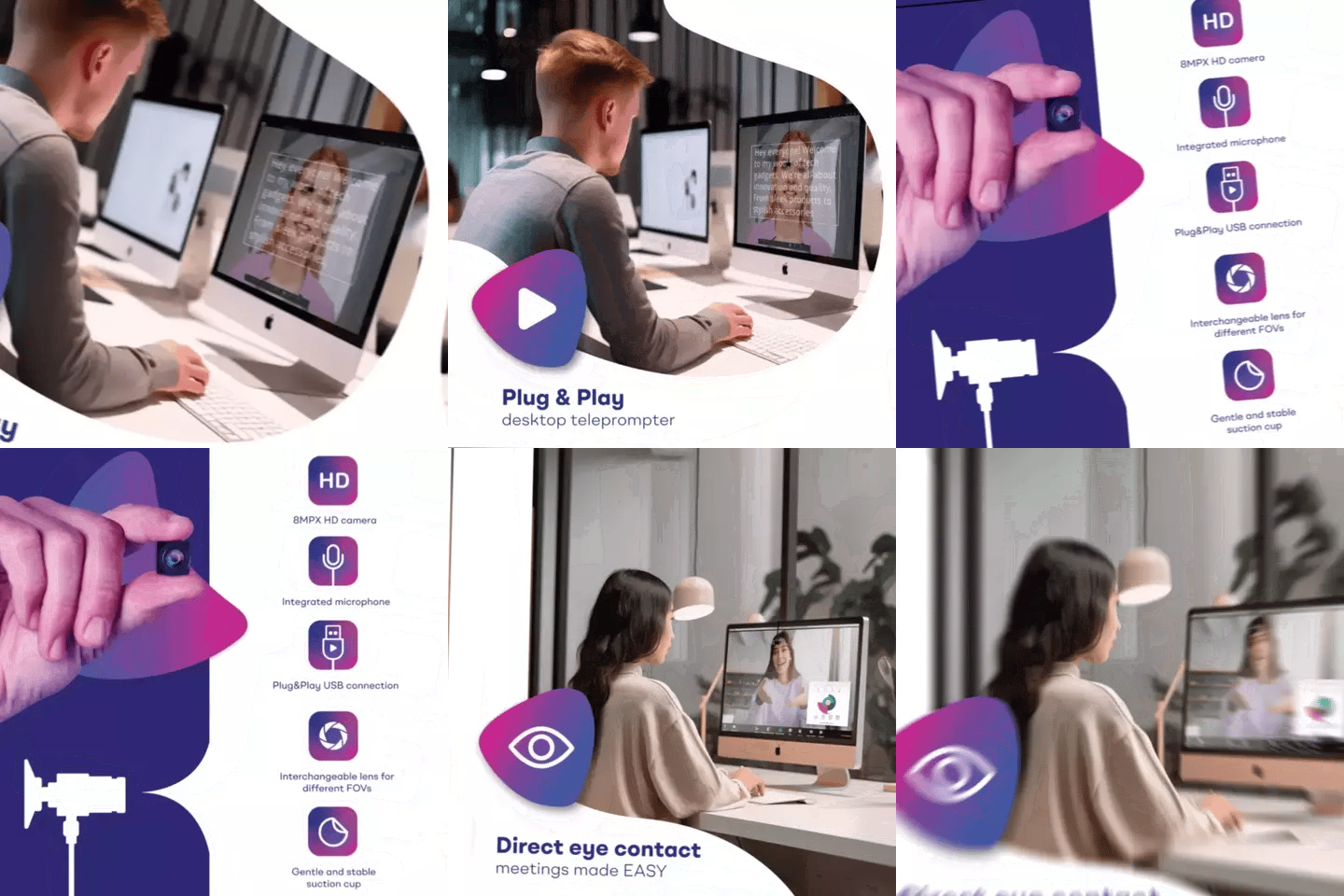
If Zoom calls are your only concern and you want the simplest possible solution, the EyeMeeting Webcam at €99 gets it done. Mount it via suction cup, plug in USB (direct — never through a hub), select "USB Camera 2" in Zoom, and activate Meeting Mode in the TeleprompterPAD app for a transparent text overlay.
But if you also record content, stream on Twitch, or need a higher-quality camera feed, the EyeMeeting Prompter is the better investment. You get a dedicated 10.1-inch monitor, beam splitter glass, monopod stand, and remote control — and you can use any camera behind the glass.

Who actually needs a teleprompter for video meetings?
Not everyone does. If your Zoom calls are casual team standups, you probably don't need one. But for high-stakes video communication, the ROI is immediate.
According to Zoom's own business statistics, 62% of remote workers prefer keeping their camera on during video calls, with 67% of that group citing facial expressions and eye contact as the reason. And with the global video conferencing market exceeding $13 billion in 2025 (Zoom, 2025), the number of people facing the eye-contact problem daily is enormous.
Here's who I see buying our EyeMeeting products most often:
| Audience Segment | % of Our Customers | Why They Need It |
|---|---|---|
| Coaches, therapists, course creators | 20% | Client trust depends on perceived attention and empathy |
| SMBs, startups, marketing teams | 18% | Sales calls, investor pitches, client meetings |
| Educators and universities | 10% | Student engagement in virtual classrooms |
| Corporate comms teams | 3% | Internal townhalls, leadership updates |

Real-world use cases I see every week
Coaches running paid group sessions
About 20% of our customers are coaches and info-product creators. They're often juggling a participant list, talking points, and client names — all while trying to appear fully present on camera. The EyeMeeting Prompter lets them glance at the HDMI screen (which shows their notes or meeting window) without ever breaking eye contact with participants. One coaching client told me her session ratings went up after she stopped "looking distracted" — which was just her looking at her notes below the camera.
Sales teams doing discovery calls
SMBs and startup sales reps (18% of our audience) live on Zoom. They need to reference prospect data, qualifying questions, or pricing tables during calls. Without a teleprompter, they're constantly glancing down at a second monitor or notebook — and the prospect notices. With the EyeMeeting setup, the CRM data or call script reflects right in front of the camera lens.
University professors teaching online
Educators (10% of our customers) face a unique challenge: they need to maintain student attention for 60–90 minutes over video. Eye contact is the simplest signal that says "I'm talking to you, not reading a slide deck." Several university departments have ordered our EyeMeeting Prompter in batches for faculty who teach hybrid courses.
Step-by-step: setting up EyeMeeting Prompter for Zoom
- Connect the 10.1-inch monitor via HDMI to your computer as a second display.
- Position the unit on your desk using the included monopod/stand. The beam splitter glass should be at eye level.
- Mount your webcam or camera behind the glass, pointing toward you through it.
- In Zoom settings, select your webcam as the video source. If using the EyeMeeting Webcam instead, select "USB Camera 2".
- Drag your meeting notes (or the TeleprompterPAD app in Meeting Mode) onto the second HDMI screen. The text reflects on the glass; the camera sees only your face.
- Test with a colleague before your first real call. Ask them if you appear to be making direct eye contact.
Total setup time: about 5 minutes. No special software drivers needed. The monitor is plug-and-play on Mac and Windows.
Honest pros and cons
Pros
- Genuine eye contact maintained during entire calls — not faked, not approximated
- Works with any video call platform (Zoom, Teams, Meet, Webex)
- Integrated 10.1-inch screen means no tablet needed
- Remote control included for scrolling notes hands-free
- Also works for pre-recorded content and livestreaming
Cons
- Takes up desk space — the monopod + glass + monitor is not tiny
- €229 price point is overkill if you only do 2-3 short calls per week
- You need a direct HDMI output on your computer (or an adapter)
- Learning curve of 1-2 sessions to stop looking "too fixated" on the glass — natural glance breaks help
- Not portable for travel — this is a desk setup
If your Zoom calls are your primary revenue channel (coaching, consulting, sales), the investment pays for itself quickly. If you're just attending optional team meetings, the simpler EyeMeeting Webcam at €99 may be enough — or you may not need a teleprompter at all.


Tips for looking natural on a teleprompter during live calls
- Use bullet points, not full sentences. You're in a conversation, not reading a speech. Full sentences will make you sound robotic.
- Break eye contact deliberately. Look away briefly every 5-7 seconds, just like you would in person. Constant staring is unsettling.
- Keep font size large. You should never squint. 32-40pt in the app works well at arm's length.
- Use Meeting Mode in the TeleprompterPAD app. This creates a semi-transparent text overlay so you can see both your notes and the video call participants simultaneously.
- Position glass at exactly eye level. If it's too high or low, the illusion breaks — the other person will notice your eyes looking up or down.
I've seen people overthink this. The beauty of a beam splitter is that it does the hard work for you. Once it's positioned correctly, your only job is to be conversational.
What about just sticking a camera at eye level instead?
You could mount your webcam in the center of your monitor using a clip. Some people do this. The problem? It blocks your screen. You can't see the person you're talking to and your notes at the same time. You end up closing your eyes or looking at a tiny sliver of screen around the camera. That's not a real solution — it just trades one problem for another.
A beam splitter solves the physics problem directly: the camera looks through the glass, you look at the reflection on the glass, and both happen on the same optical axis. No compromise.
Frequently asked questions
Does a teleprompter for Zoom calls work with Microsoft Teams and Google Meet too?
Yes. The EyeMeeting Prompter connects as a standard HDMI second monitor and your webcam stays the same. It works with any platform that supports a camera — Zoom, Teams, Google Meet, Webex, Skype, or any browser-based call.
Can the other person see the text reflected on the glass?
No. The beam splitter glass works one-way for this purpose. The camera behind the glass only captures your face. The reflected text is visible only from your side. I get this question probably three times a week — and the answer is always no.
Is the EyeMeeting Webcam good enough for professional calls?
It's 8MP (3264x2448) with an integrated mic and three interchangeable lenses. For Zoom calls where the platform compresses video anyway, it's more than adequate. But if you also record marketing videos, the EyeMeeting Prompter with your own camera will give better image quality.
Do I need the TeleprompterPAD app to use the EyeMeeting Prompter?
Not strictly. Since the Prompter's 10.1-inch screen is just an HDMI monitor, you can display anything on it — a Google Doc, a PDF, your CRM. But the free TeleprompterPAD app adds Meeting Mode (transparent overlay), auto-scroll, remote control support, and formatted scripts. Most users find it indispensable for Zoom calls.
What if I use a USB hub for the EyeMeeting Webcam?
Don't. This is one of the most common support issues I deal with. USB hubs can cause the webcam to disconnect or not appear in Zoom's device list. Always plug the EyeMeeting Webcam directly into your computer's USB port.
Can I use the EyeMeeting Prompter for both Zoom calls and pre-recorded videos?
Absolutely. That's its main advantage over the simpler Webcam model. Use it as a live call prompter during meetings, then switch to script-scrolling mode with the remote when you record content for YouTube or courses. Same hardware, two use cases.
Will people notice I'm reading notes during a Zoom call?
Not if your notes are bullet points and you maintain natural glance patterns. The whole point is that the text appears exactly where you'd be looking anyway — directly at the camera. As long as you're not reading full paragraphs word-for-word, nobody will know.
What support do I get if I have trouble setting it up?
We offer personal 1-to-1 support in English, Spanish, French, German, and Italian. Not a chatbot — an actual person who can walk you through configuration over email or video. Setup issues are usually resolved in one exchange since the hardware is plug-and-play.
If you spend real money on Zoom — whether that's client calls, sales conversations, or paid coaching sessions — a teleprompter for Zoom calls pays for itself the moment your audience stops perceiving you as distracted. The EyeMeeting Prompter is the tool I recommend most for live video work, and if you're also recording courses or content, check out our guide on teleprompters for coaches for the full recording workflow.
Nos meilleures ventes
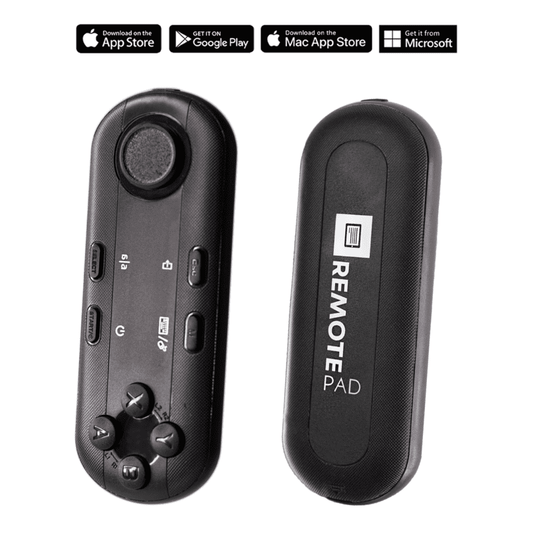
TELEPROMPTER PAD Télécommande Bluetooth pour téléprompteur – Comprend une application téléprompteur pour Apple, Android Windows et Mac – Contrôleur sans fil pour prompteur répartiteur de faisceau ou équipement de diffusion en direct
- 34.90€
39.90€- 34.90€
- Prix unitaire
- per
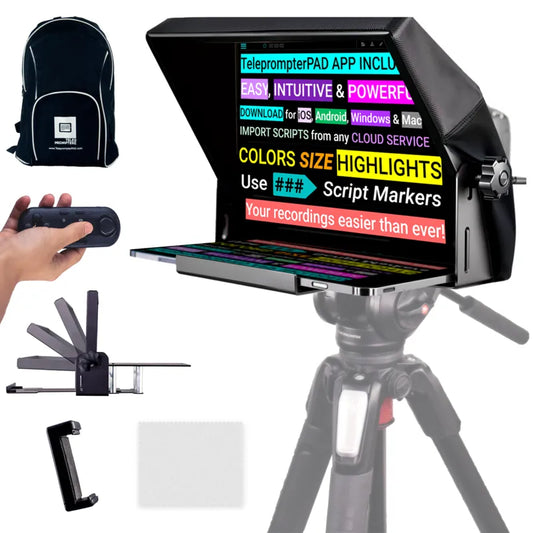
TELEPROMPTER PAD Téléprompteur iLight PRO 12'' pour tablette iPad - Kit téléprompteur pour vidéo avec télécommande, application et sac de transport - Prompteur répartiteur de faisceau Autocue DSLR, iPhone, APP pour Apple Android Mac Win
- 159.00€
199.00€- 159.00€
- Prix unitaire
- per
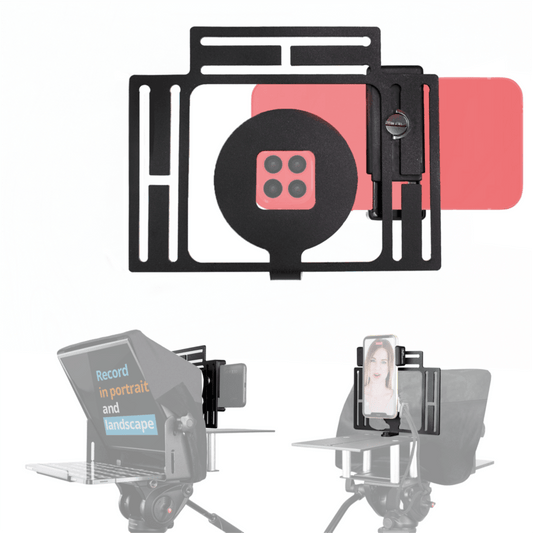
TELEPROMPTER PAD Smartphone Adaptor for teleprompter – Record with any iPhone, Android phone, compatible with any teleprompter, aluminum universal Rig for prompter with camera plate, snug cloth fit
- 29.90€
39.90€- 29.90€
- Prix unitaire
- per
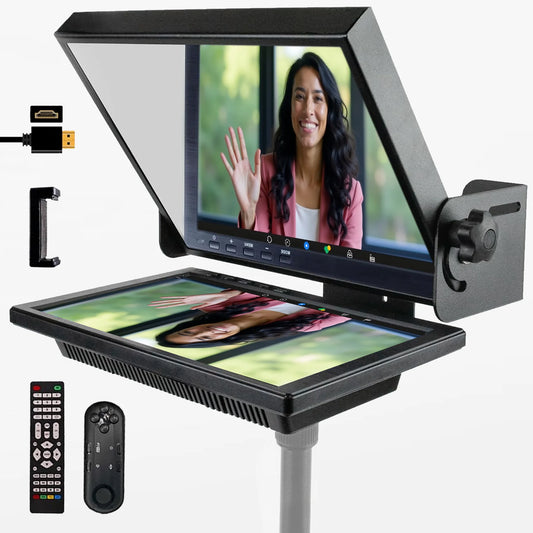
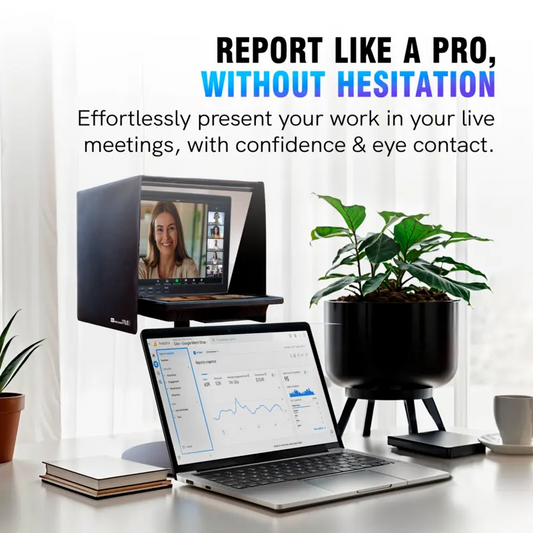
TELEPROMPTER PAD EyeMeeting Prompter pour streaming Twitch, Youtube, Zoom Eye Contact, pour Mac/PC DSLR Webcam iPhone avec logiciel, moniteur 10,1" et télécommande, Compatible avec Elgato Streamdeck
- 229.00€
299.00€- 229.00€
- Prix unitaire
- per