



Teleprompter for Corporate Webinars: Keep Eye Contact
A teleprompter for corporate webinars solves the one problem that tanks your engagement metrics: broken eye contact. When you glance down at notes or a second monitor, your audience checks out. A beam splitter teleprompter places your script directly over your camera lens, so you read while looking straight at attendees. I've helped hundreds of corporate teams set this up — marketing departments, L&D teams, executive comms — and the pattern is always the same: tighter presentations, fewer retakes, and audiences that actually stay on the call.

Over the past three years, corporate comms and marketing teams have become our fastest-growing customer segments — roughly 21% of our 50,000+ shipped orders combined. I've personally walked dozens of webinar presenters through HDMI routing, Meeting Mode overlays, and the exact glass angle that keeps their face naturally lit on Zoom. This guide distills that hands-on experience into a practical setup you can replicate today.

Why Does Eye Contact Matter So Much in Corporate Webinars?
It's not a soft skill thing. It's a recall thing. Research by Fullwood and Doherty-Sneddon found that participants who perceived eye contact during a video presentation recalled significantly more information — with even 30% direct camera gaze improving memory encoding. In a corporate webinar where your goal is to get stakeholders to remember key points and take action, that difference is massive.
And webinar audiences are paying closer attention than you think. According to DemandSage's 2026 webinar statistics report, corporate webinars attract a 65% attendance rate — far above the 35-45% average. That means your audience showed up on purpose. They're invested. Don't lose them because you keep looking at your notes off-screen.
The core problem is physics. Your webcam sits above or beside the area where your script or notes live on screen. When you read, your gaze drifts down or sideways. A beam splitter teleprompter eliminates this by reflecting your scrolling text onto a transparent glass panel positioned directly in front of the camera lens. You read. Your audience sees eye contact. Done.
What Kind of Teleprompter Works Best for Corporate Webinars?
It depends on your setup and whether you're doing live calls, pre-recorded presentations, or both. Here's how the main options break down:
| Feature | EyeMeeting Prompter | EyeMeeting Webcam | iLight PRO 12-inch |
|---|---|---|---|
| Best for | Live webinars + recording | Live calls only | Pre-recorded webinars |
| Built-in screen | Yes — 10.1-inch HDMI | No (suction-cup webcam) | No (uses your tablet) |
| Beam splitter glass | Yes — German lab-grade | No | Yes — German lab-grade |
| Camera type | Any webcam / DSLR | Built-in 8MP USB cam | DSLR / mirrorless |
| Recording to file | Yes | No (live only) | Yes |
| Livestream capable | Yes | No | With capture card |
| Price | €229 | €99 | €159 |
For most corporate webinar presenters, the EyeMeeting Prompter hits the sweet spot. It has its own 10.1-inch inverted monitor — you connect it via HDMI as a second display from your laptop — and it uses a real beam splitter glass in front of your webcam or camera. You get prompted text on the glass and perfect eye contact simultaneously, during both live webinars and pre-recorded presentations.

How to Set Up the EyeMeeting Prompter for Corporate Webinars
I've walked corporate teams through this setup hundreds of times. The whole thing takes about five minutes, and it stays on your desk between sessions — no teardown needed.
- Position the unit at eye level. Use the included adjustable monopod stand. Your eyes should be roughly level with the center of the glass when you're seated naturally.
- Connect the HDMI cable from the EyeMeeting Prompter's 10.1-inch monitor to your laptop. It shows up as a second display — extend (don't mirror) your desktop to it.
- Mount your webcam (or external camera) behind the beam splitter glass. The camera shoots through the glass while you read text reflected on it.
- Open the TeleprompterPAD app on the extended display. Import your webinar script, set your font size and scroll speed. The app supports rich text editing — bold key points, highlight CTAs, add pacing markers.
- Launch your webinar platform (Zoom, Teams, Webex, GoToWebinar) on your main monitor. Select your camera. You present on your main screen, read your script on the glass, and your audience sees you looking right at them.
One pro tip I give every corporate team: do a two-minute test call with a colleague before your first live webinar. Check that your camera isn't picking up any glass reflections (usually fixed by adjusting the glass angle slightly) and that your lighting isn't creating glare. No overhead lights directly above the prompter — that's the number one mistake.
The Meeting Mode Trick for Live Q&A Segments
Here's something most corporate presenters miss. The TeleprompterPAD app includes a Meeting Mode that creates a transparent text overlay on your screen. During the scripted portion of your webinar, you use the beam splitter glass with the full scrolling script. But when you switch to Q&A or open discussion, you can pop Meeting Mode on your main display as a semi-transparent layer over your webinar window.
This means you can keep bullet-point notes visible while looking at your webcam and reading audience questions. Really useful for those product launch webinars where you need stats at your fingertips during the Q&A. And according to industry data, 92% of webinar attendees expect a live Q&A session — so you need to be ready for it.

Who's Actually Using This? Real Audience Segments
About 18% of our customers are SMBs, startups, and marketing teams — many of them running weekly or biweekly webinars for lead generation, product demos, and investor updates. Another 20% are coaches, consultants, and info-product creators who host webinars as part of their sales funnel. For both groups, the EyeMeeting Prompter solves the same problem: reading a structured script while maintaining the personal, eye-contact-driven connection that converts attendees into buyers.
Corporate trainers and L&D teams fall in here too. About 10% of our orders go to educators and universities, and many of those are running internal training webinars. If your company runs onboarding webinars, compliance training, or quarterly all-hands presentations, a prompter pays for itself after a handful of sessions just in reduced prep time and fewer re-recordings.
I also see a growing number of executive comms teams (roughly 3% of our orders) buying EyeMeeting Prompters for C-suite executives who do earnings calls, investor webinars, and board presentations over video. When your CEO looks directly at the camera while delivering quarterly results, it reads completely differently than when they're glancing at notes off to the side.
What About Budget-Only Setups? The EyeMeeting Webcam Option
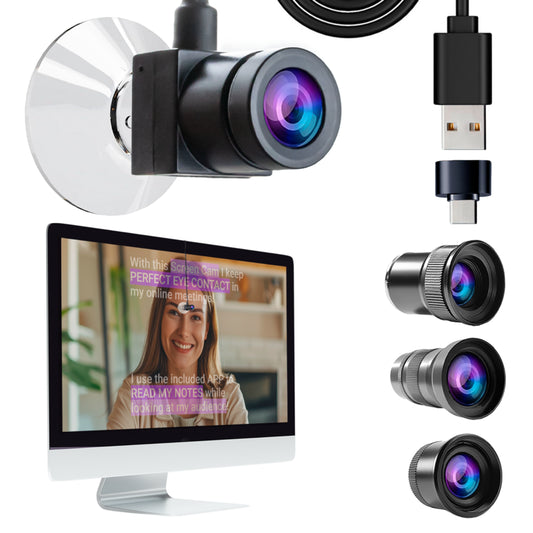
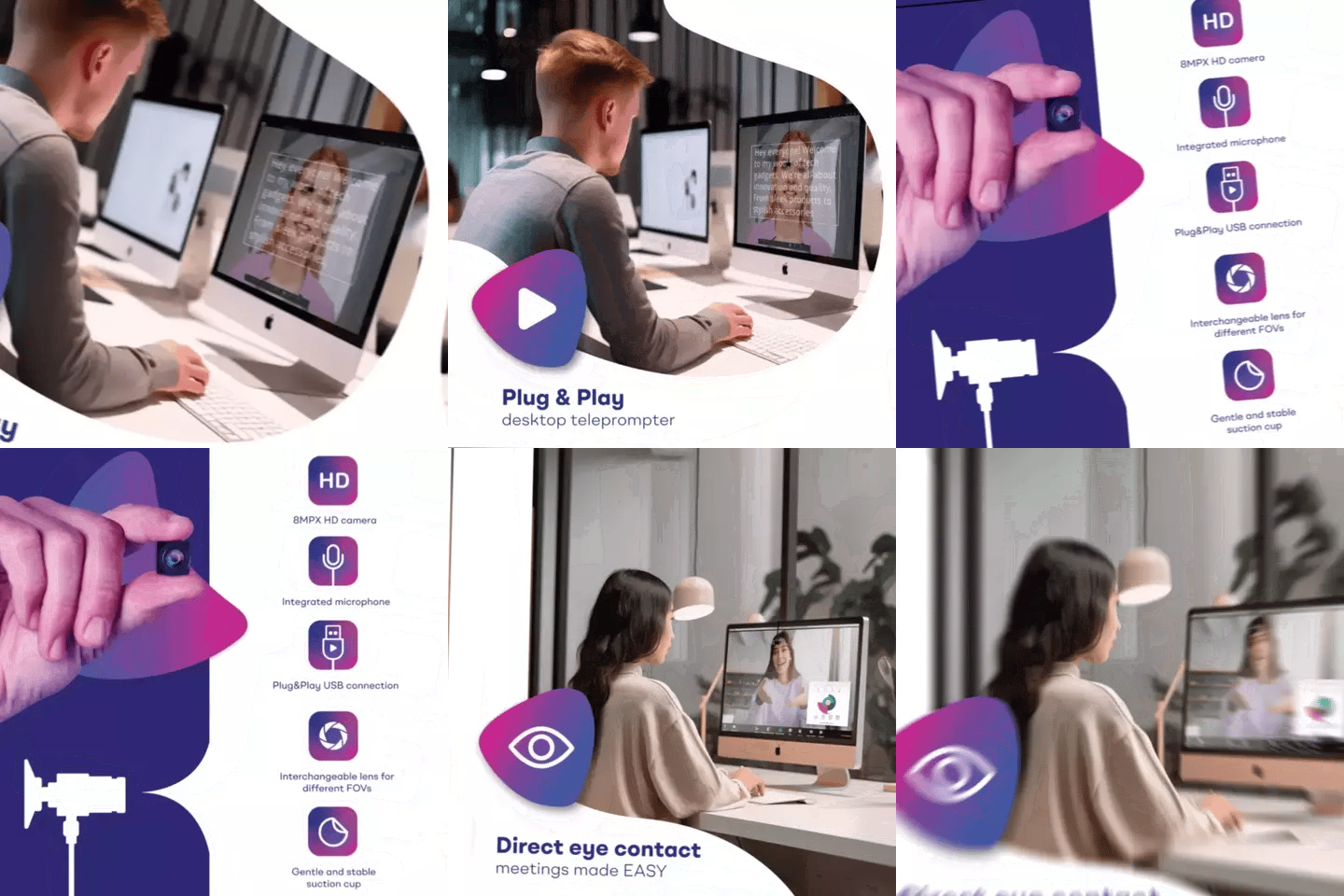
If your webinars are strictly live calls — no recording, no livestreaming — and budget is tight, the EyeMeeting Webcam at €99 is worth considering. It's a small USB camera that attaches to your monitor via suction cup, positioning the lens right where you naturally look at your screen. Pair it with Meeting Mode (transparent script overlay) and you get basic prompting during live calls.
But I'll be honest: it doesn't have a beam splitter glass, which means the prompting experience is less refined than the EyeMeeting Prompter. And it can't record to file. For corporate webinars where you'll want to repurpose the recording afterward — and according to industry data, repurposing webinar content is one of the top strategies B2B marketers rely on — the full EyeMeeting Prompter is the better investment.

Script Writing Tips for Corporate Webinars
Having a teleprompter doesn't help much if your script sounds like a white paper. I've seen this over and over with corporate clients — they paste their deck notes verbatim into the app and end up sounding robotic. Here's what works:
- Write for ear, not eye. Use contractions. Short sentences. The way you'd explain something to a colleague over coffee.
- Add pacing markers. The TeleprompterPAD app supports script markers — use them to insert [PAUSE], [SLOW DOWN], or [SHOW SLIDE] cues inline.
- Bold your key stats and transitions. Rich text formatting (bold, highlight, color) gives your eye anchor points as text scrolls. You'll sound more natural because your brain is pre-processing the next thought.
- Keep paragraphs to 2-3 sentences. In a scrolling script, dense text blocks are hard to track. White space is your friend.
- Use the app's margin setting. If you're presenting from a shorter distance, narrow the text margins so your eye movement stays close to the camera position.
Honest Pros and Cons of a Teleprompter for Corporate Webinars
| Pros | Cons |
|---|---|
| Maintains eye contact throughout full webinar | Adds a physical device to your desk setup |
| Cuts prep time — no memorizing, fewer retakes | HDMI cable routing can look messy without cable management |
| Works with Zoom, Teams, Webex, GoToWebinar | Not a broadcast-grade unit — won't replace a studio autocue |
| Script can be updated seconds before going live | Requires a couple practice runs to find your scroll speed |
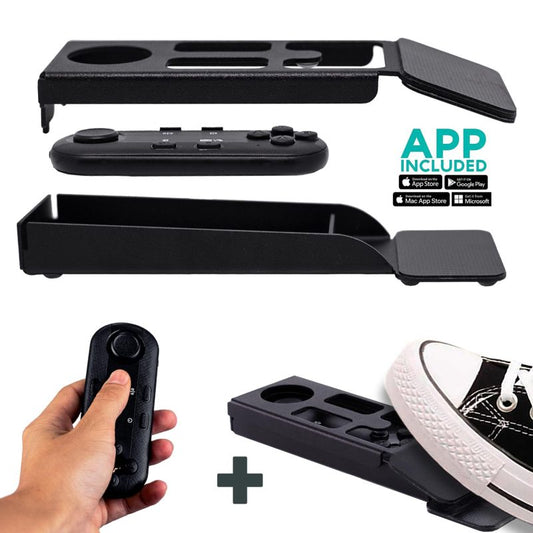
| Bluetooth remote lets you pause/resume hands-free | Glass can pick up overhead light glare if room isn't set up right |
| 1-to-1 multilingual support (EN, ES, DE, FR, IT) | 10.1-inch screen may feel small for very large font preferences |
I want to be upfront: the EyeMeeting Prompter is a prosumer product. It's perfect for corporate webinar presenters, marketing teams, and internal comms — but it won't replace a full broadcast autocue system with an operator. If you're a Fortune 500 running a televised investor day, this isn't it. For everything else — weekly webinars, product demos, training sessions, executive video updates — it's the right tool.

Lighting and Audio: The Two Things That Tank Corporate Webinars
A teleprompter fixes your eye contact. But if your lighting and audio are bad, the webinar still looks amateur. Here's the short version:
Lighting: Use three-point lighting. Key light at 45 degrees in front/side. Fill light opposite side, softer. Backlight behind you for separation from background. Critical rule: no overhead light directly above the teleprompter — it creates glare on the beam splitter glass.
Audio: Always use an external microphone. Your laptop mic picks up room echo, keyboard noise, and fan hum. A lavalier mic or desk-mounted condenser makes a night-and-day difference. At typical webinar distances, a built-in mic simply won't cut it.
Can You Use a Teleprompter for Webinar Recordings Too?
Yes — and this is where the EyeMeeting Prompter really earns its keep. Most corporate teams aren't just doing live webinars. They're also recording on-demand versions, creating evergreen training content, and producing video sales letters. The EyeMeeting Prompter works with DSLR cameras and webcams, so you can record high-quality video files directly while reading your script.
If you also need a traditional camera-mounted setup — say, for pre-recorded content with a cinema camera — our teleprompter for corporate training guide covers the iLight PRO setup in detail. Different tool, same core principle: read while looking at the lens.
Frequently asked questions
Does a teleprompter work with Zoom, Teams, and Webex?
Yes. The EyeMeeting Prompter connects as an HDMI second display for your script, while your camera (webcam or DSLR) feeds video to Zoom, Teams, Webex, or any other platform. The two systems are independent — the webinar software sees your camera, not the teleprompter script.
Will my audience know I'm using a teleprompter?
No. The beam splitter glass is transparent from the camera side. Your audience sees you looking directly at the lens. The only giveaway would be if your eyes scan left-to-right in an obvious pattern — which is why I recommend sitting at least 1.5 meters from the camera and narrowing text margins in the app.
Can multiple presenters use the same teleprompter during a webinar?
In most corporate webinar setups, each presenter has their own camera and mic. You could pass the physical teleprompter between presenters if they share a station. For multi-presenter webinars where everyone is remote, each speaker would need their own unit.
What's the difference between the EyeMeeting Prompter and the EyeMeeting Webcam?
The Prompter is a full beam splitter teleprompter with a 10.1-inch built-in monitor. It works for live calls AND recordings. The Webcam is a small USB camera that attaches to your monitor — it only works for live calls, has no beam splitter glass, and can't record to file. For corporate webinars, I recommend the Prompter.
Do I need a special app or software?
The TeleprompterPAD app is free and available for iOS, Android, Windows, and macOS. There's also a web-based lite version that runs in any browser with no install. The app handles script scrolling, formatting, speed control, and Meeting Mode for transparent overlays.
How long does setup take?
First-time setup is about five minutes. After that, the unit stays on your desk — you just connect the HDMI cable when it's webinar time and open the app. I keep mine permanently set up, and it takes under a minute to go from "off" to "ready to present."
What if I need help setting it up?
TeleprompterPAD offers personal 1-to-1 support in English, Spanish, German, French, and Italian. The help center at help.teleprompterpad.com also has video tutorials for every setup step. If you get stuck — glass angle, HDMI routing, app configuration — someone will walk you through it.
Is this suitable for large corporate events with a stage?
The EyeMeeting Prompter is a desktop unit designed for desk-based webinar presentations. For on-stage corporate events, you'd want a presidential teleprompter like the iPresent PRO or, for large venues, the XCue X1.
Corporate webinars aren't going anywhere — 85% of businesses consider them essential to their marketing strategy, and that number keeps climbing. If you're presenting regularly, a teleprompter for corporate webinars is one of the fastest ways to look more polished, stay on-message, and keep your audience engaged. Check out the EyeMeeting Prompter if you want to start presenting with eye contact from your next session.
Nos meilleures ventes
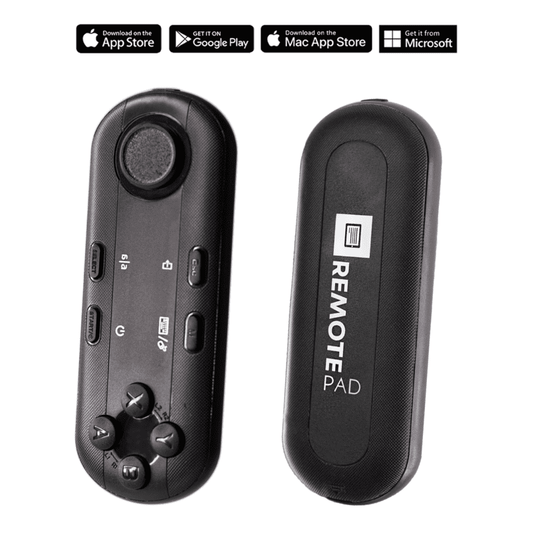
TELEPROMPTER PAD Télécommande Bluetooth pour téléprompteur – Comprend une application téléprompteur pour Apple, Android Windows et Mac – Contrôleur sans fil pour prompteur répartiteur de faisceau ou équipement de diffusion en direct
- 34.90€
39.90€- 34.90€
- Prix unitaire
- per
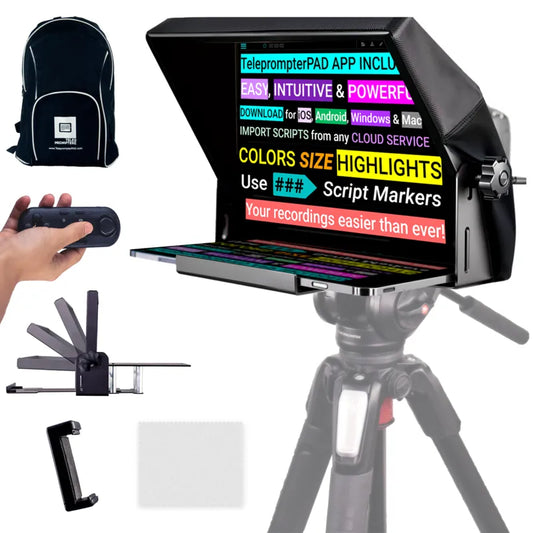
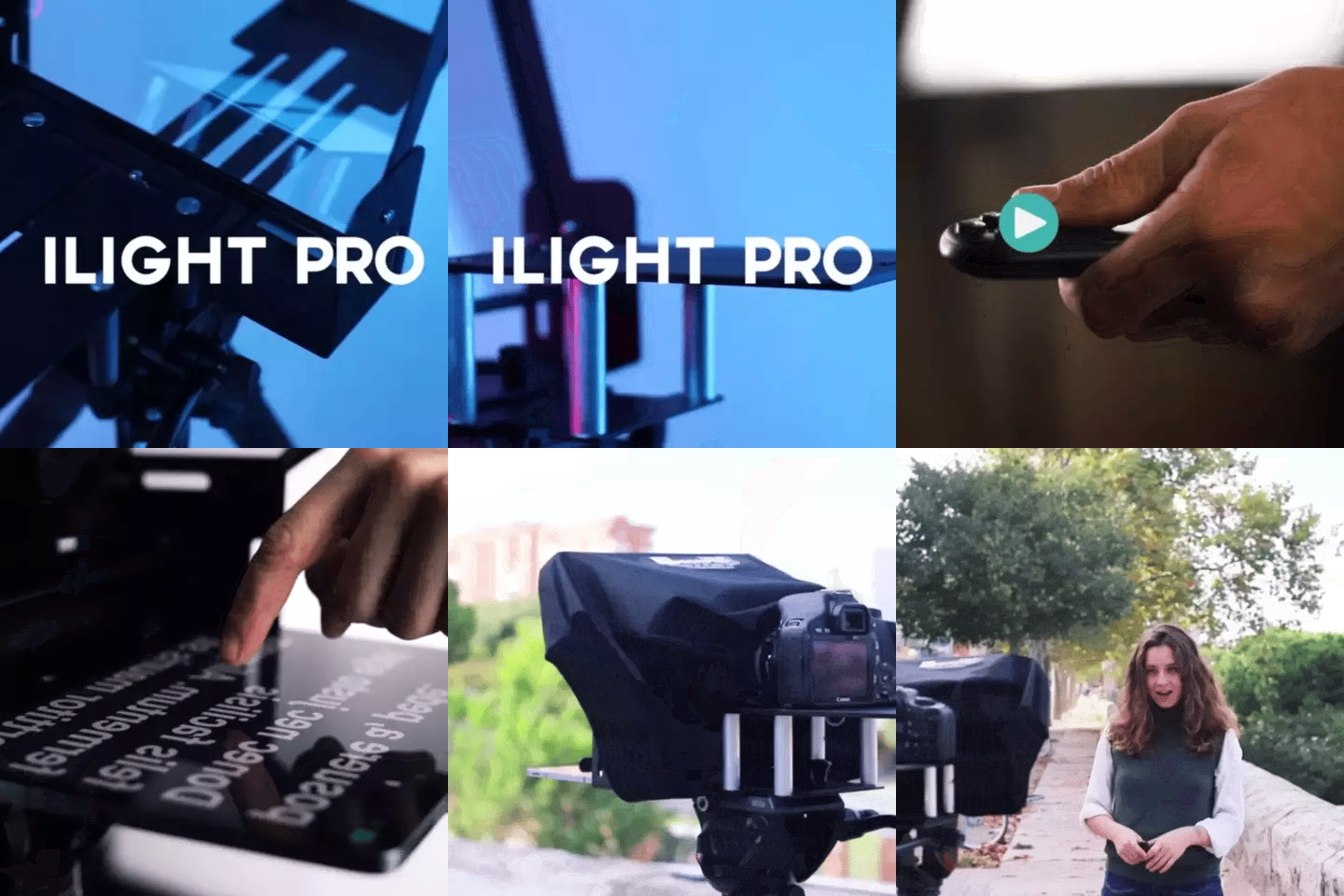
TELEPROMPTER PAD Téléprompteur iLight PRO 12'' pour tablette iPad - Kit téléprompteur pour vidéo avec télécommande, application et sac de transport - Prompteur répartiteur de faisceau Autocue DSLR, iPhone, APP pour Apple Android Mac Win
- 159.00€
199.00€- 159.00€
- Prix unitaire
- per
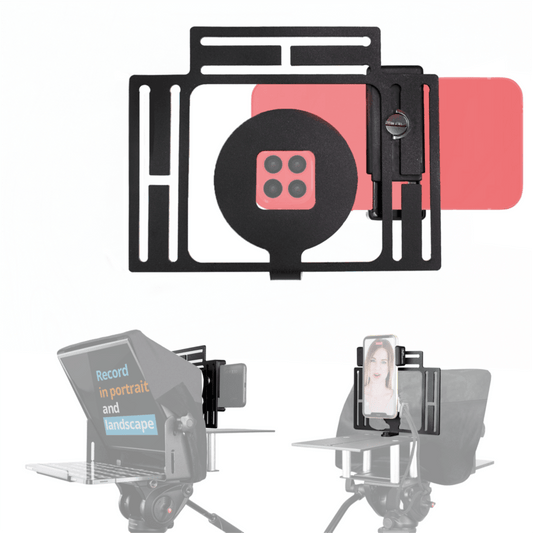
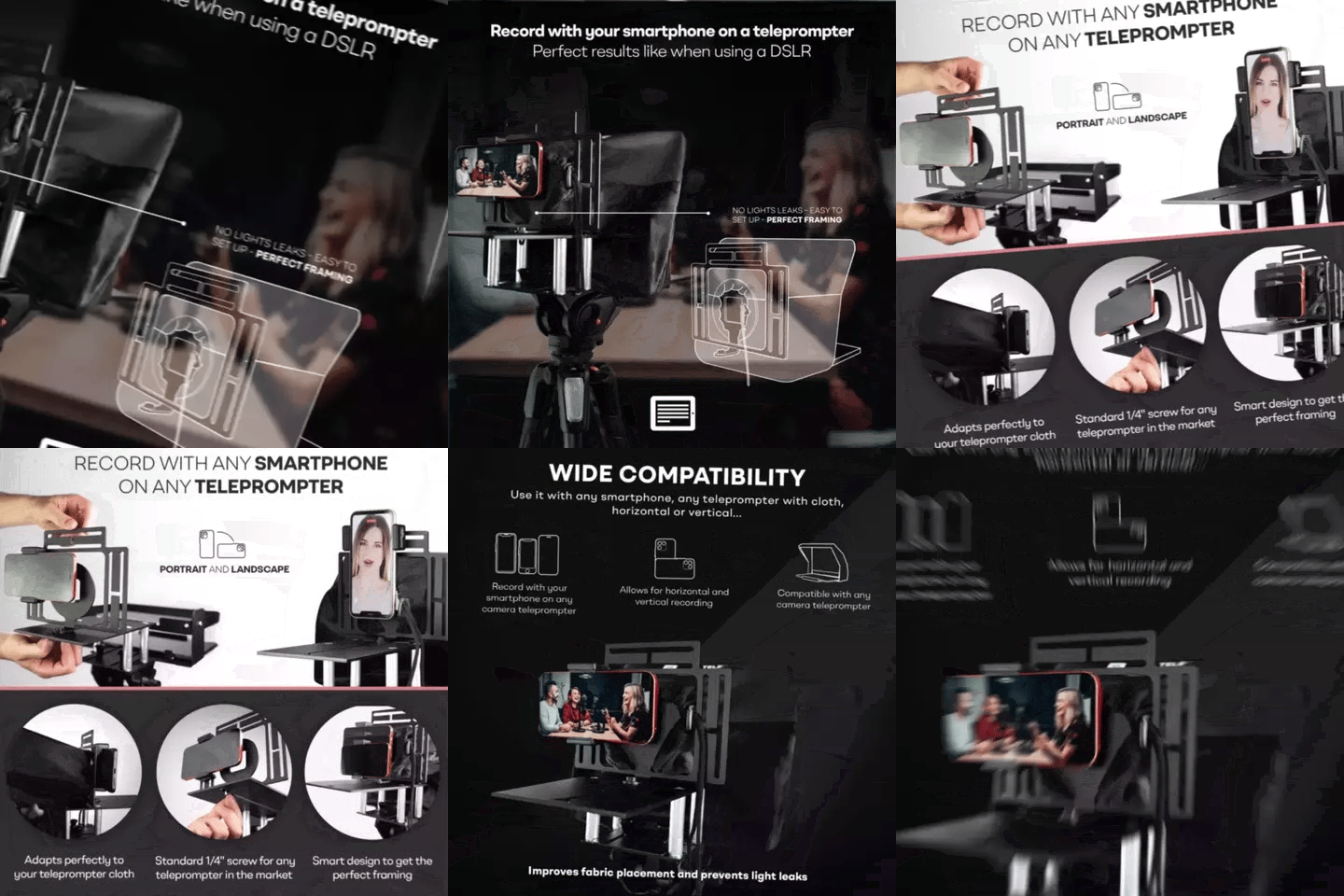
TELEPROMPTER PAD Smartphone Adaptor for teleprompter – Record with any iPhone, Android phone, compatible with any teleprompter, aluminum universal Rig for prompter with camera plate, snug cloth fit
- 29.90€
39.90€- 29.90€
- Prix unitaire
- per
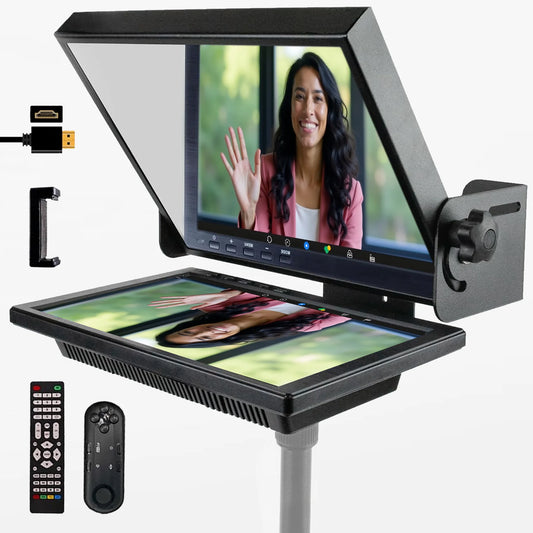
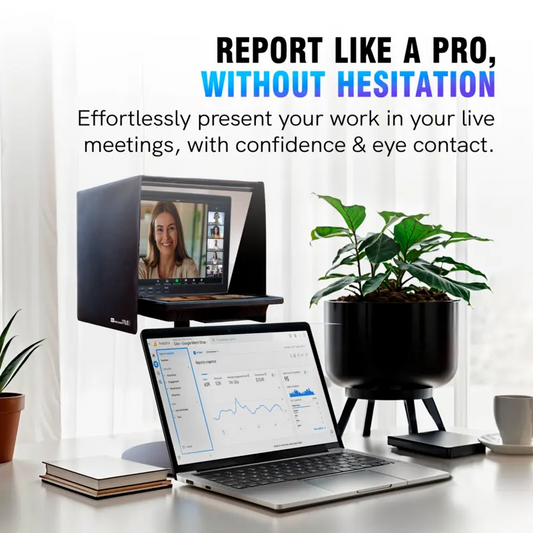
TELEPROMPTER PAD EyeMeeting Prompter pour streaming Twitch, Youtube, Zoom Eye Contact, pour Mac/PC DSLR Webcam iPhone avec logiciel, moniteur 10,1" et télécommande, Compatible avec Elgato Streamdeck
- 229.00€
299.00€- 229.00€
- Prix unitaire
- per