



Teleprompter for Webinars: Read Your Script, Keep Eye Contact
A teleprompter for webinars solves the single biggest problem presenters face on camera: reading from notes while trying to look your audience in the eye. You can't do both at once — unless the script is right behind the lens. Beam splitter teleprompters place scrolling text in front of your camera so your gaze stays locked on attendees, not a second monitor or a stack of index cards. With 73% of B2B marketers now calling webinars their top source of high-quality leads, your on-camera presence matters more than ever. I'll walk you through exactly how to set up a teleprompter for live or pre-recorded webinars, what gear you actually need, and the mistakes I see people make every week.

Over the last decade I've helped hundreds of webinar hosts — coaches, marketing teams, educators — set up their teleprompter rigs for live sessions. About 20% of our 50,000+ shipped orders go to coaches and info-product creators who present webinars weekly. I've debugged everything from laggy Bluetooth remotes mid-presentation to overheating tablets under studio lights, so the advice here comes from real support tickets, not theory.

Why does eye contact matter so much in webinars?
Your attendees can't shake your hand or read your body across a conference table. The camera is the only bridge. A peer-reviewed study in Frontiers in Psychology found that participants reported feeling more connected and less self-conscious when eye contact was possible during video calls, and that skewed visuality — where you look slightly off-camera — actively disrupted the sense of relationship. A separate review published on ResearchGate concluded that "eye contact makes communication richer and more efficient" and that "trust is improved" when it's present in video-mediated conversations.
In practice, that means a webinar host who's glancing at notes off to the side is unknowingly eroding audience trust. According to Cvent, 92% of marketing professionals say webinars are the most effective way to engage a large remote audience. But effectiveness collapses if you can't hold attention — and attention starts with where your eyes land.
How does a teleprompter work for webinars?
A beam splitter teleprompter places a piece of 60/40 glass at roughly 45 degrees between you and the camera. Your script appears reflected on the glass, facing you. The camera shoots straight through from behind. To the audience, you're looking directly into the lens. You're actually reading.
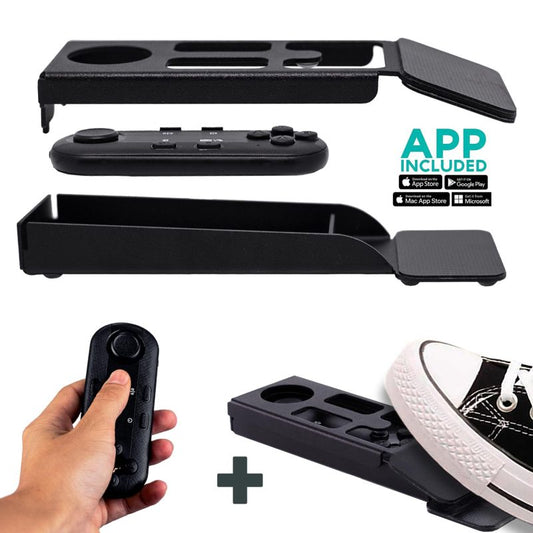
For webinar use, the setup is straightforward. You load your script into the TeleprompterPAD app (free, works on iOS, Android, Windows, Mac), place a tablet inside the teleprompter frame, and mount your camera behind the glass. The text scrolls at whatever speed you set. You control pacing with the included Bluetooth remote — or with a foot pedal if your hands are busy gesturing.
The whole point is invisible assistance. Your audience never sees the text, your tablet, or the glass. They just see a confident presenter who never breaks eye contact.
Live webinars vs. pre-recorded: which setup do you need?
There's a difference between hosting a live Zoom webinar and pre-recording a presentation you'll upload or schedule. Your teleprompter setup changes slightly for each.
| Factor | Live Webinar | Pre-Recorded |
|---|---|---|
| Camera | Webcam or DSLR behind glass | DSLR or mirrorless behind glass |
| Script flow | Loose bullet points + Q&A pauses | Full script, tightly edited |
| Scroll control | Foot pedal (hands-free for notes/chat) | Bluetooth remote or preset speed |
| Retakes? | No — it's live | Yes, record sections separately |
| Best teleprompter | iLight PRO 14-inch or EyeMeeting Prompter | iLight PRO 14-inch |
| Typical user | Coaches, educators, sales teams | Course creators, marketing teams |
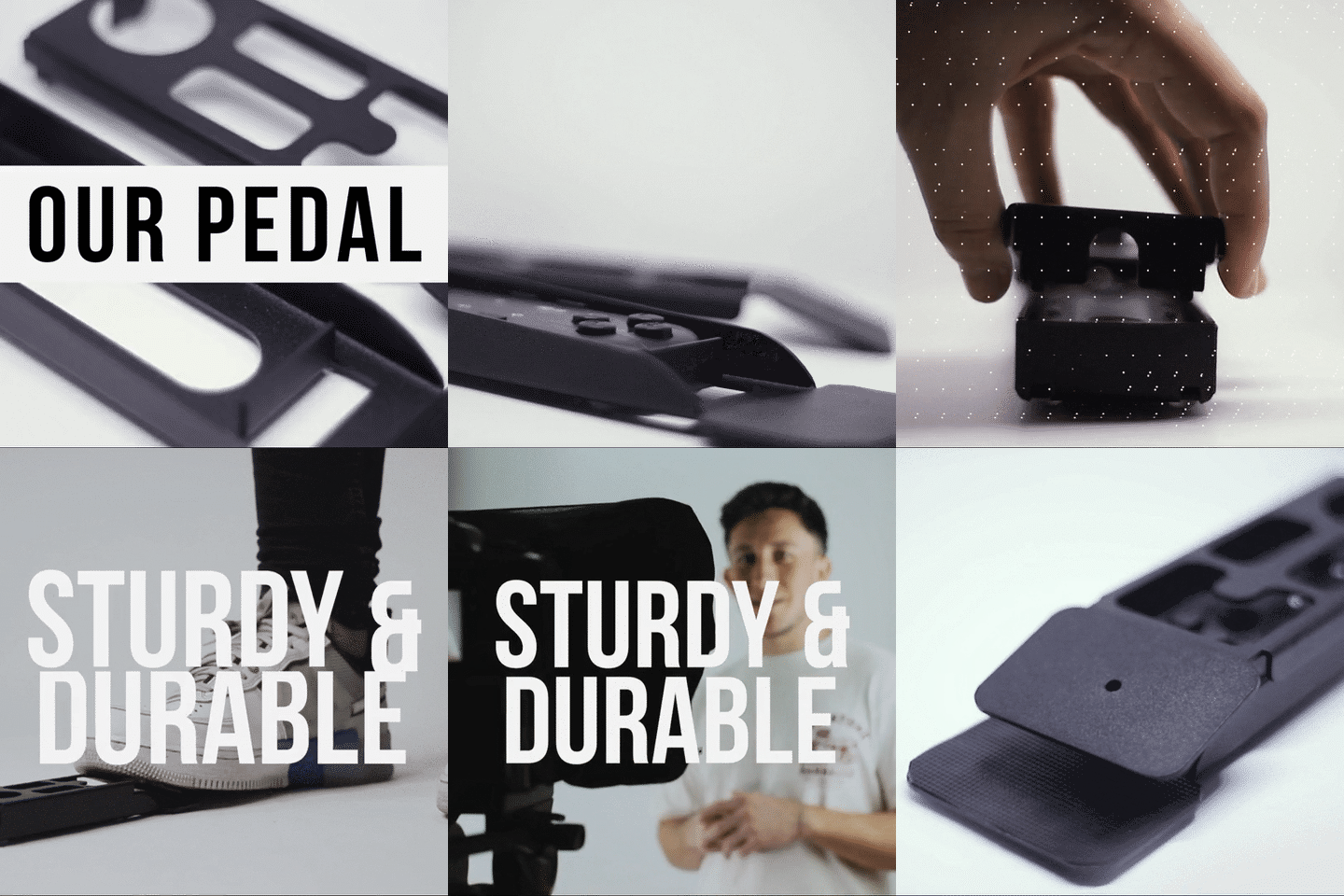
For live webinars, I strongly recommend a foot pedal. You'll need your hands to manage chat, answer questions, and gesture. The Wireless Kit (Pedal + Remote) has a silent capacitive sensor — zero click noise, so mics won't pick it up.
Why the iLight PRO 14-inch is my pick for webinar presenters
Most webinar presenters I work with use an iPad Pro 12.9" or a large Android tablet. The bigger the screen inside the teleprompter, the larger the text, and the easier it is to read at a comfortable distance. The iLight PRO 12-inch can't physically fit an iPad Pro 12.9" — it's too wide. The 14-inch model was built for exactly this.
The 14-inch glass also has reduced frame margins compared to the 12-inch model. That matters because wider margins can creep into frame if you're shooting at shorter focal lengths. For webinars, where your desk depth limits how far back you can place the camera, those extra millimeters of clearance help.
It comes pre-assembled. Setup takes under 2 minutes — pull it out of the hardcase (included), unfold, mount on tripod, drop in tablet, go. I've timed it. When you host weekly webinars, two-minute setup isn't a perk. It's the reason you actually use the gear instead of leaving it in the closet.


Step-by-step: setting up a teleprompter for your webinar
- Mount the teleprompter on a tripod at seated eye level. If you present from a desk, a short tripod or tabletop stand works. Make sure the glass is roughly at your eye height — not tilted up or down.
- Attach your camera behind the glass. Use the included 1/4" screw (or 3/8" for heavier rigs on the 14-inch model). Push the camera as close to the glass as possible to avoid vignetting.
- Import your script into the TeleprompterPAD app. You can paste text, import a file, or type directly. Bump up the font size — for webinars at 1.5m distance, I use 38-42pt. Use the margin-narrowing feature if your distance is shorter.
- Set the glass angle close to 45 degrees using the adjustment knob on the iLight PRO. This is critical for both reflection brightness and camera pass-through clarity.
- Seal the blackout hood. Velcro the hood around the tablet and camera mount. Any light leak will create a ghost image on the glass or wash out the text reflection.
- Pair your remote or pedal via Bluetooth. Test play/pause, speed adjustments, and forward/backward before going live. The remote auto-pairs after first use, but confirm it hasn't connected to another device in the room.
- Run a test take. Record 30 seconds, check framing, audio, and text readability. Adjust scroll speed until it matches your natural speaking pace.
One thing I tell every webinar host: use an external microphone. At 1.5m+ distance (which is the minimum I recommend for teleprompter use), your camera's built-in mic is nearly useless. A lavalier or shotgun mic makes a massive difference.
Scripting tips for webinar teleprompter use
The biggest mistake I see — and I see it weekly — is writing a webinar script like a white paper. Nobody talks the way they write a blog post. If your script reads like a formal document, your delivery will sound robotic no matter how good your gear is.
- Write the way you talk. Contractions, short sentences, incomplete thoughts — all fine. Read it out loud before loading it into the app.
- Use pacing marks. The TeleprompterPAD app supports bold, italic, underline, and highlight. I bold my key points and highlight transition cues like "[PAUSE — check chat]" or "[POLL TIME]".
- Don't script Q&A sections. Use bullet points for talking points you might hit, but let Q&A flow naturally. Have the pedal handy to pause scrolling.
- Break it into visual chunks. A wall of text on the teleprompter glass is as hard to read as a wall of text on a webpage. Blank lines between paragraphs, large font, high contrast.
- Vary your pacing deliberately. Monotone delivery is the #2 complaint attendees have about webinars. Write your script with speed cues — fast for enthusiasm, slow for emphasis.
Who actually uses teleprompters for webinars?
Based on our customer data, three segments dominate webinar-related teleprompter purchases:
Coaches and course creators (20% of our customers) run weekly or biweekly webinars as their primary sales and teaching channel. A coach selling a €2,000 program can't afford to seem unprepared during a live pitch. The teleprompter lets them hit every key point without notes visible on screen. Many of our coaching customers also use the same setup for course recording — one rig, two revenue streams.
SMBs, startups, and marketing teams (18%) use webinars for product demos, customer onboarding, and thought leadership. These teams often rotate presenters — the CEO one week, a product manager the next. Having a teleprompter means the less-polished speakers on the team can still deliver a clean, confident presentation. The ON24 2026 Benchmarks Report found that webinar attendance rose across every quarter of 2025 vs. 2024, so the pressure on marketing teams to deliver quality webinar content is only increasing.
Educators and universities (10%) run webinars for prospective students, alumni events, and faculty training. They often need a two-person setup — a speaker on camera and an operator managing the script. For this, the Inverted Monitor for iLight PRO 14-inch replaces the tablet with an HDMI-connected display, controlled from a laptop by the operator.
iLight PRO 14-inch vs. EyeMeeting Prompter for webinars
I get asked this one a lot. Both work for webinars. But they serve different scenarios.
| Feature | iLight PRO 14-inch | EyeMeeting Prompter |
|---|---|---|
| Screen size | Up to 14-inch (your tablet) | Built-in 10.1-inch monitor |
| Needs tablet? | Yes | No (HDMI from computer) |
| Camera | Your DSLR/mirrorless/webcam | Your webcam or camera |
| Best for | Pre-recorded + live webinars | Livestreaming + webinars |
| Portability | Foldable, hardcase included | Desktop, fixed setup |
| Price | €239 | €229 |
If webinars are your only use case and you always present from a desk, the EyeMeeting Prompter is a solid pick — it has its own screen, so no tablet needed. But if you also record YouTube videos, courses, or any content where you use a DSLR behind the glass, the iLight PRO 14-inch is far more versatile. Most of our webinar customers end up recording other content too, which is why the iLight is my default recommendation.

Honest pros and cons of using a teleprompter for webinars
Pros:
- Consistent eye contact throughout the entire presentation — no more looking down at notes.
- You hit every key point without memorizing. Especially valuable for data-heavy or compliance-sensitive webinars.
- Pre-assembled, foldable design means you can set up and tear down in minutes between meetings.
- The same rig works for course recording, YouTube content, and video sales letters.
- Free app across all platforms — iOS, Android, Windows, Mac — so the tablet you already own probably works.
Cons:
- A beam splitter teleprompter adds physical footprint to your desk. If you work in a tiny home office, the 14-inch model takes up space.
- You need to be at least 1.5m from the glass or eye scanning becomes visible on camera. For some desk setups, that distance isn't achievable.
- Reading from a script can sound flat if you don't practice. The gear doesn't fix bad writing or monotone delivery — it just holds the text in front of you.
- If you use a webcam as your camera, quality will be limited by the webcam itself. A DSLR or mirrorless gives drastically better results, but that's a separate investment.
- The Bluetooth remote occasionally auto-connects to the wrong device if you have multiple Bluetooth gadgets nearby. Quick fix, but annoying mid-webinar if you haven't pre-paired.

Lighting and audio tips for webinar teleprompter setups
Lighting is where most webinar setups fall apart. The #1 rule with a beam splitter: no overhead lights directly above the teleprompter. Overhead light creates glare on the glass, washing out the text reflection and sometimes even bouncing into the camera lens.
Use three-point lighting. A key light at roughly 45 degrees front/side, a fill light on the opposite side, and a backlight behind you for separation. Ring lights work for basic setups, but they tend to reflect a visible ring in the glass — panel lights at an angle are better.
For audio, always use an external mic. I've said this a hundred times and I'll say it again: your camera's built-in microphone is designed for 30cm, not 150cm+. A lavalier clipped to your shirt or a small shotgun on a boom just out of frame will transform your webinar quality. Attendees will forgive imperfect video. They won't forgive echoey, distant audio.
Can you use the teleprompter during screen-sharing segments?
Yes, and here's how. During screen-share portions of your webinar, you're probably not on camera — or you're in a small picture-in-picture window. You don't necessarily need the teleprompter scrolling during those segments.
But if you're in a "talking head + slides" split-screen layout (which many webinar platforms now support), the teleprompter stays useful. You're still on camera, and you still need to look engaged. Use the remote or pedal to pause scrolling during transitions, then resume when you're speaking to camera again.
The TeleprompterPAD app's script markers feature is handy here. Drop markers at the start of each section — intro, demo, Q&A, close — so you can jump forward or backward quickly without scrolling through the entire script.
Frequently asked questions
Can I use a teleprompter with Zoom, Teams, or Webex?
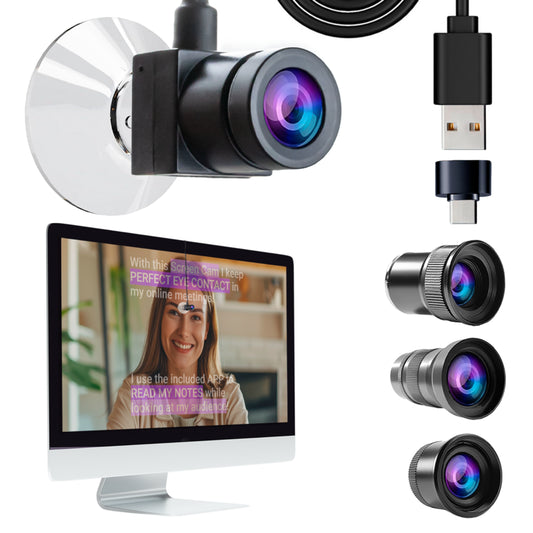
Absolutely. The teleprompter is a physical device between you and the camera. Your webinar platform doesn't know it's there. Whether you use Zoom Webinars, Microsoft Teams, Webex, GoTo Webinar, or any other platform, the setup is the same: your camera shoots through the glass, and the platform sees a normal camera feed.
Will the audience see the text on the glass?
No. The beam splitter glass reflects text toward you while letting the camera see through from behind. The blackout hood blocks external light from revealing the tablet or text. From the camera's perspective, the glass is invisible.
What tablet should I use for a webinar teleprompter?
Anything up to 25cm x 31cm (9.8" x 12.2") fits the iLight PRO 14-inch. iPad Pro 12.9", Galaxy Tab S7+, and most 12-inch-class tablets work. Bigger tablet = bigger text = easier to read at distance. I recommend an iPad Pro 12.9" if you're buying new.
How do I handle Q&A sections during a live webinar?
Pause the script with your Bluetooth remote or foot pedal, handle the Q&A naturally, and resume scrolling when you return to your script. Some hosts keep a separate monitor beside the teleprompter to view incoming questions — just make sure that monitor is close to the lens so your eye-line doesn't drift too far.
Is 1.5 meters really the minimum distance?
I recommend 1.5-2.0 meters as the minimum. Closer than that, and the camera picks up your eyes scanning left-to-right across the text. The app has a margin-narrowing feature that reduces the text width, which helps at shorter distances — but the closer you are, the more noticeable the eye movement becomes.
Do I need a separate operator for live webinars?
Not usually. Most webinar hosts self-operate with the foot pedal. You tap to scroll, tap to pause. If you're running a complex production with multiple speakers, an operator can control the script from a laptop using the Inverted Monitor accessory and the desktop app.
Can I use this for vertical/portrait webinar content?
If you're recording vertical content for social media alongside your webinar, the Smartphone Bracket lets you mount a phone in portrait mode behind the glass. Lock your tablet's rotation so the script stays readable. But traditional webinars are almost always landscape/horizontal, so this applies mainly to social clips you cut afterward.
What if I need help setting up?
TeleprompterPAD offers personal 1-to-1 multilingual support in English, Spanish, French, German, and Italian. There's also a full help center at help.teleprompterpad.com with video tutorials. If you're stuck mid-setup before a webinar, real humans respond — not chatbots.
Webinars aren't a trend — they're a permanent channel. The Cvent Blog reports the market is expected to grow at a CAGR of 13.9% through 2032. If you're hosting them regularly, a teleprompter pays for itself in better audience retention, stronger eye contact, and presentations that actually convert. The iLight PRO 14-inch is the rig I recommend to most webinar hosts. Two minutes of setup, years of better on-camera performance.
Lo más vendido
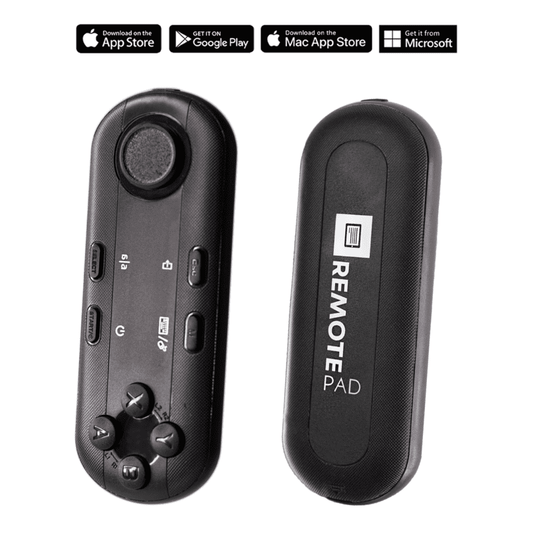
TELEPROMPTER PAD Mando Bluetooth para Teleprompter - Incluye APP Teleprompter para Apple, Android Windows y Mac - Control remoto inalámbrico para teleprompter beamsplitter o equipo de transmisión en vivo
- 34.90€
39.90€- 34.90€
- Precio por unidad
- per
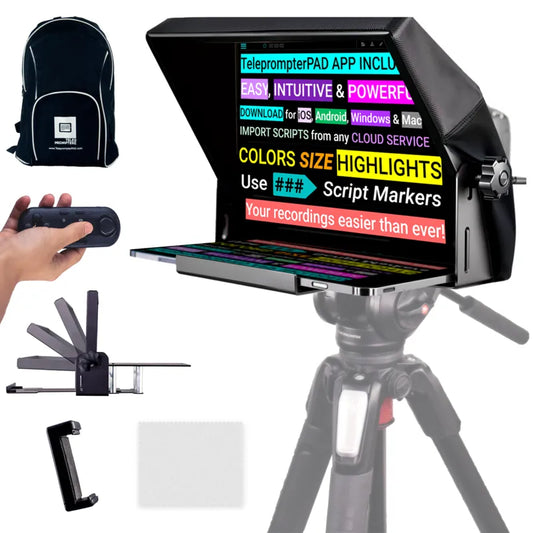
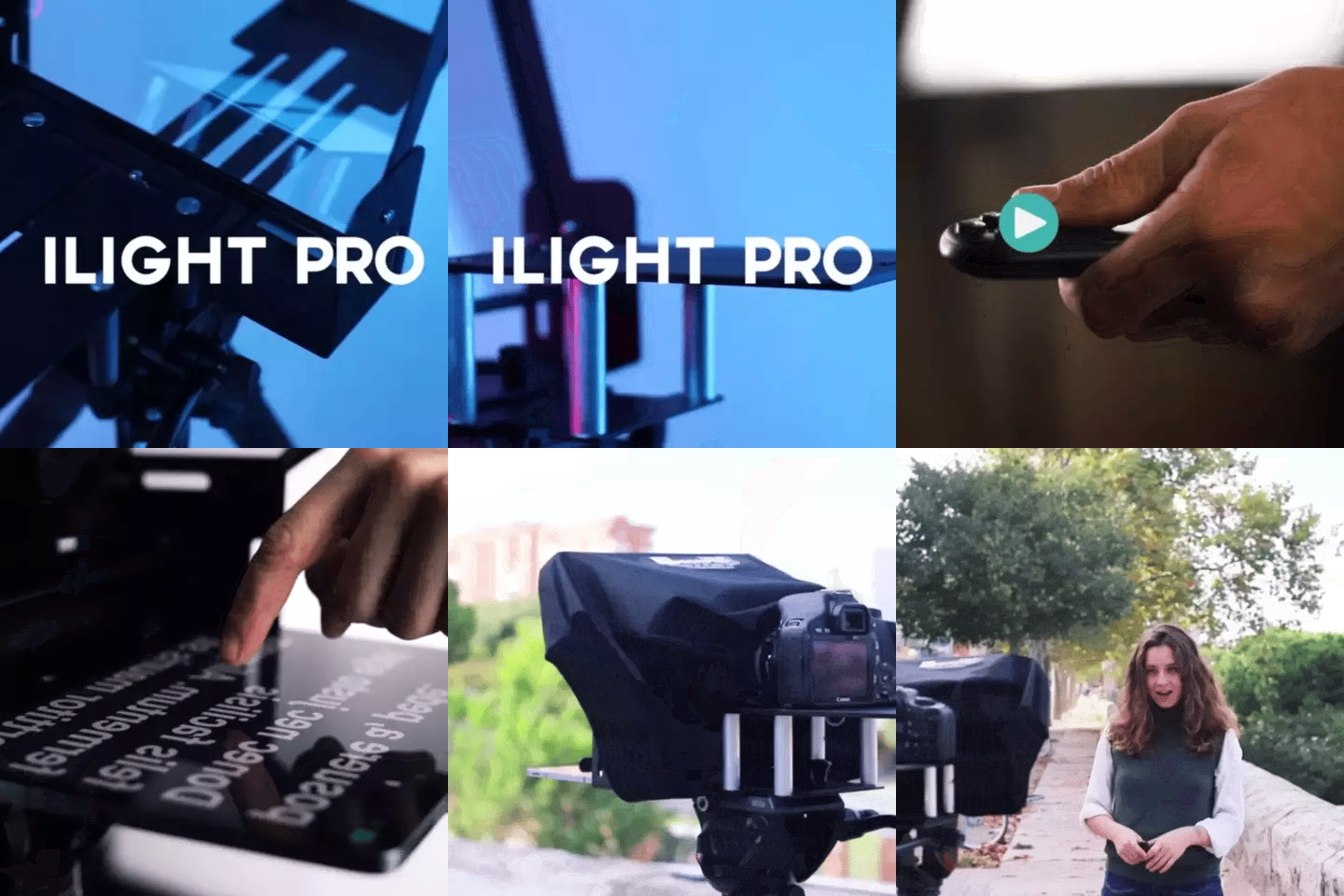
TELEPROMPTER PAD iLight Pro 12'' iPad Tablet iPhone Smartphone - Kit con Mando, Mochila y App Teleprompter Apple Android Windows Mac, Prompter Profesional Resistente Cristal Beamsplitter - Made in EU
- 159.00€
199.00€- 159.00€
- Precio por unidad
- per
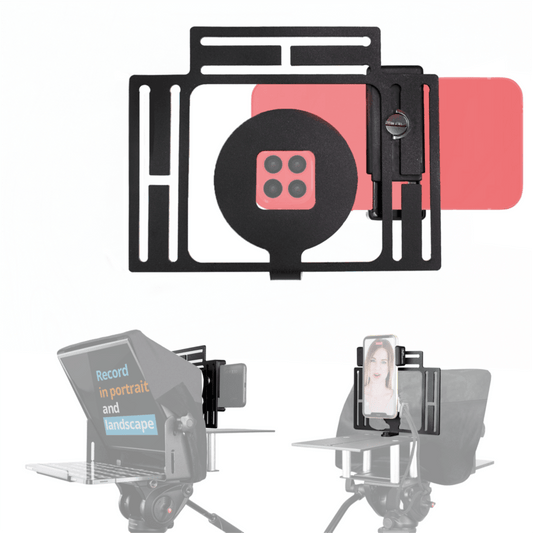
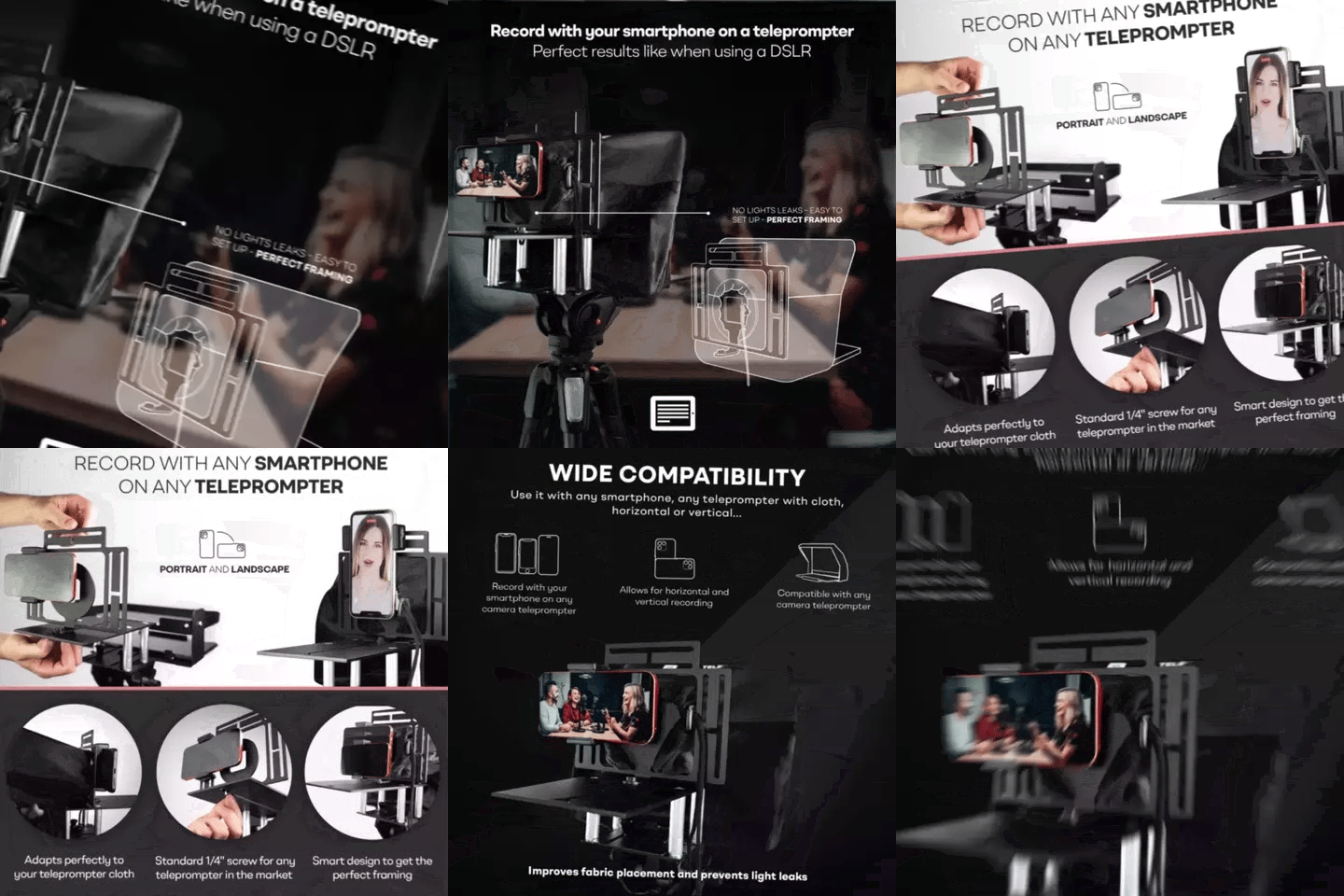
TELEPROMPTER PAD Adaptador Smartphone para teleprompter – Graba con cualquier teléfono iPhone, Android, compatible con cualquier teleprompter, rig universal de aluminio para prompter de cámara, ajuste cómodo de la tela
- 29.90€
39.90€- 29.90€
- Precio por unidad
- per
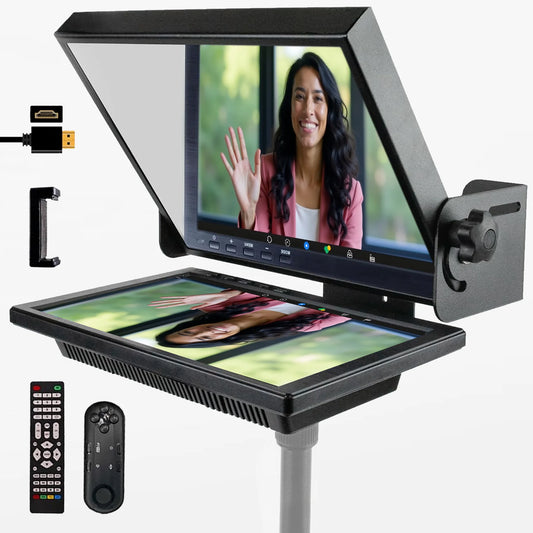
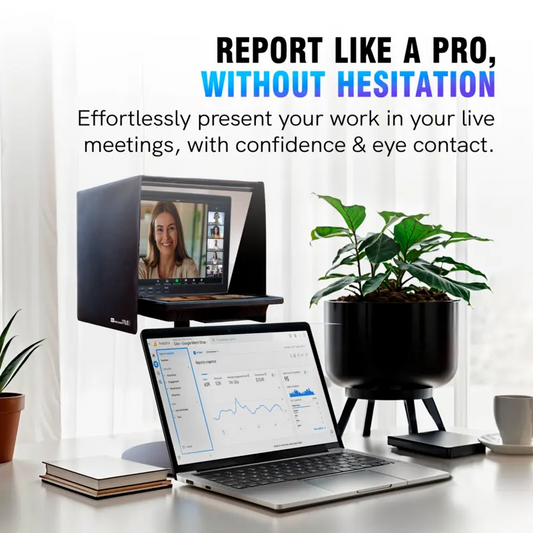
TELEPROMPTER PAD EyeMeeting Prompter, Teleprompter para Twitch Streaming, Youtube, Contacto Visual Zoom, para Mac/PC DSLR Webcam iPhone con Software y Monitor de 10.1" Compatible con Elgato Streamdeck
- 229.00€
299.00€- 229.00€
- Precio por unidad
- per