



Teleprompter for Video Calls: Keep Eye Contact Live
A teleprompter for video calls solves the single biggest problem with remote meetings: you can't read notes and maintain eye contact at the same time. The camera sits above your screen, your eyes drift down to your notes, and everyone on the other end watches you stare at your chin. A beam splitter or screen-mounted camera places the lens right where you're already looking — directly at your content. I've helped thousands of customers set this up over the past decade, and the difference in perceived professionalism is immediate.

Over the past 10+ years I've personally walked hundreds of remote workers and coaches through video-call teleprompter setups — from choosing the right device to troubleshooting the "why does my webcam show as black" panic five minutes before a client call. About 20% of TeleprompterPAD's 50,000+ orders come from coaches, therapists, and info-product creators who live on video calls daily, so this is territory I know well.

Why do video calls have an eye contact problem?
It's a hardware issue, not a you issue. Your webcam sits at the top of your monitor, but you look at the face on screen — which is at the center or bottom. The angle between your gaze and the lens creates what researchers call "skewed visuality." A Frontiers in Psychology study found that standard laptops and smartphones physically prevent simultaneous bi-directional eye contact, meaning neither person in a video call can truly look the other in the eyes at the same time.
The effects are measurable. Research reviewed on ResearchGate shows that averted gaze in video — not looking into the camera — "was found to decrease perceived empathy, perspective-taking, trustworthiness and emotional closeness." That matters whether you're closing a deal, coaching a client, or teaching a class.
A teleprompter for video calls fixes this by placing the camera directly behind a semi-transparent glass or by mounting it at screen center. You read your notes and see the other person's face while the camera captures your direct gaze.
Two types of teleprompter for video calls
There are two fundamentally different hardware approaches, and which one fits depends on what you're actually doing on those calls.
| Feature | EyeMeeting Webcam | EyeMeeting Prompter |
|---|---|---|
| Type | Screen-mounted USB webcam | Beam splitter with 10.1-inch monitor |
| Primary use | Live video calls only | Calls, recording, livestreaming |
| Camera | 8MP integrated (3 lenses) | Your own webcam or DSLR |
| Own screen? | No — suction-cups to your monitor | Yes — 10.1-inch HDMI second monitor |
| Script overlay | Meeting Mode (transparent overlay) | Full beam splitter reflection |
| Setup time | ~1 minute | ~2 minutes |
| Portability | Very portable (tiny USB device) | Desk-based, stand included |
| Remote included? | No | Yes |
| Price | €99 | €229 |
Here's the short version. If you just need better eye contact on Zoom, Teams, or Google Meet and you don't record video content, the EyeMeeting Webcam is the simpler, cheaper option. If you also record courses, do livestreams, or want a dedicated prompter screen, the EyeMeeting Prompter is the better investment.
Who actually needs a teleprompter for video calls?
More people than you'd think. About 20% of our customer base are coaches, therapists, and info-product creators. Another 18% are SMBs and marketing teams. A growing slice of our 10% educators segment uses these for live online lectures. All of them spend hours each week on video calls where eye contact directly affects trust and outcomes.
And the numbers back that up industry-wide. According to The Network Installers, roughly 73% of professionals admit to multitasking during meetings — often because the call experience itself is disengaging. When you're looking off-camera at notes, you're part of that problem. Fixing your gaze direction is one of the simplest ways to hold attention.
Meanwhile, video continues to dominate business communication. Wyzowl's 2026 report found that 91% of businesses now use video as a marketing tool. If you're on camera regularly, your eye contact matters more than ever because the bar for professional video presence keeps going up.
The EyeMeeting Prompter: how it works for live calls
The EyeMeeting Prompter is a desktop beam splitter with its own 10.1-inch inverted monitor. You connect it via HDMI as a second display. Your webcam (or DSLR) sits behind the glass. Because the glass reflects your script text while staying transparent to the camera, you read your talking points while looking directly into the lens.
For video calls specifically, the free TeleprompterPAD app has a Meeting Mode that overlays a transparent, scrollable script on top of your call window. You see your script and the other person's face simultaneously. The Bluetooth remote lets you control scroll speed without touching your keyboard — which is a huge help when you're gesturing or holding a product on screen.

What I like about this setup is its versatility. During a Zoom call you use Meeting Mode. After the call, you can switch the app to standard prompter mode, put your DSLR behind the glass, and record a polished video for your course or YouTube channel. One device, two workflows. That's why it's popular with the 20% of our customers who create info products and the 18% who run marketing teams — they're doing both activities regularly.

The EyeMeeting Webcam: simplest possible fix
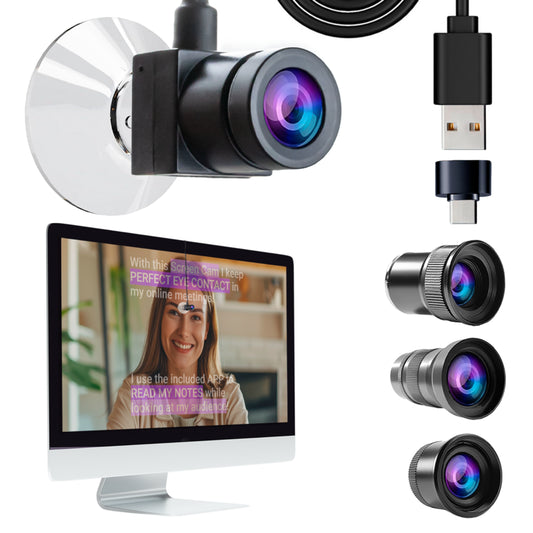
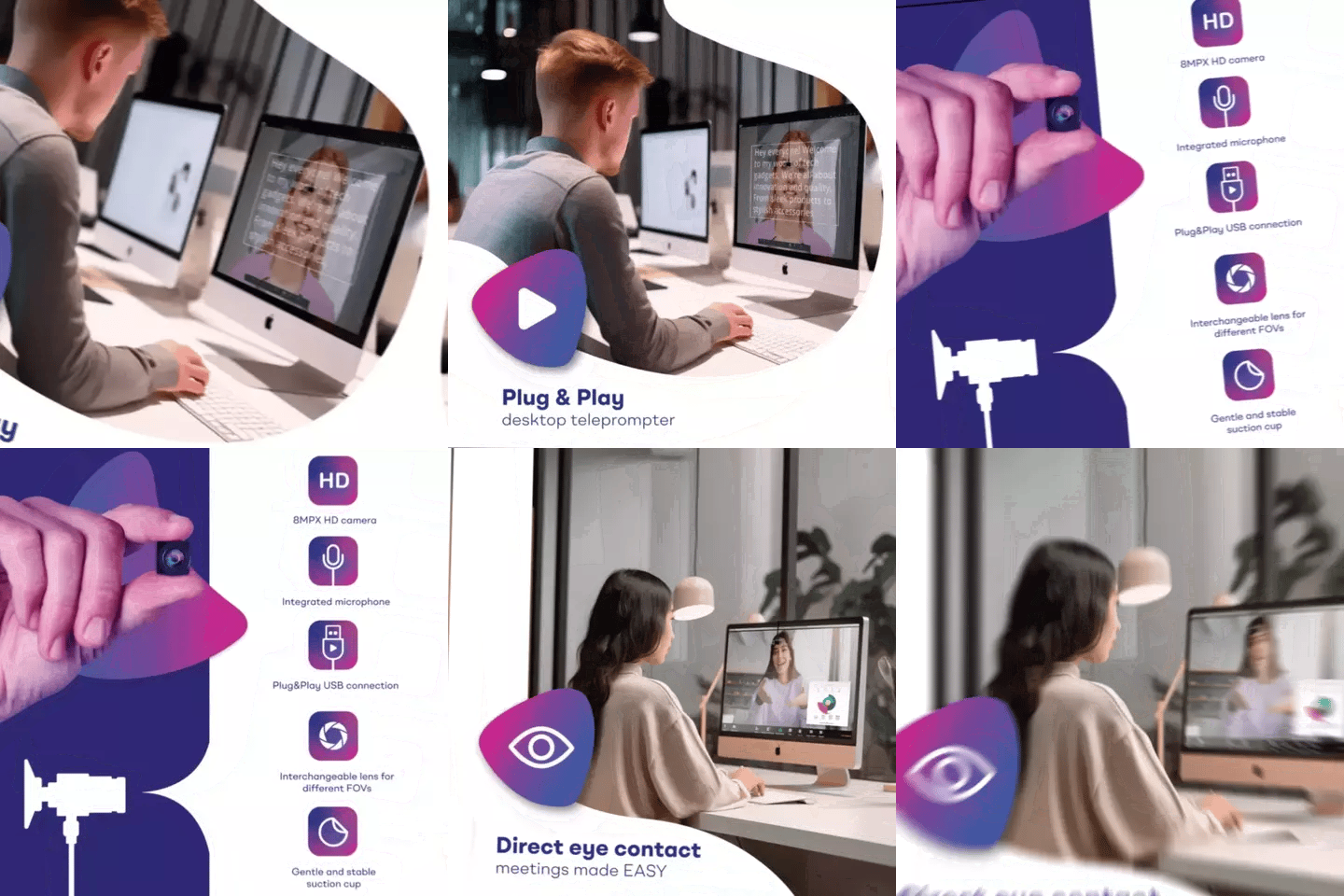
Maybe you don't need a full beam splitter. Maybe you just need to stop looking off-camera during client calls. The EyeMeeting Webcam suction-cups to the center of your monitor, placing the camera right where you already look.
It's an 8MP camera with three swappable lenses (wide-angle, natural, portrait). The built-in mic works fine for casual calls but I'd recommend a dedicated mic for anything client-facing. Setup is literally: suction cup, USB cable, select "USB Camera 2" in your call app. One minute, done.
Important caveat: this device is designed for live calls, not for recording video files. If you need recordings, the EyeMeeting Prompter or an iLight PRO 12-inch is a better fit. Also, plug the webcam directly into your computer's USB port — USB hubs cause detection issues about 40% of the time in my experience.
Setup steps: teleprompter for video calls in 5 minutes
Here's the actual workflow I recommend for the EyeMeeting Prompter, which is the more versatile option for calls and content:
- Connect the HDMI cable from the EyeMeeting Prompter's 10.1-inch monitor to your computer. Your OS should detect it as a second display automatically.
- Position your webcam (or phone camera, or DSLR) behind the beam splitter glass. Center the lens behind the glass for the best eye-line.
- Open the TeleprompterPAD app on your main computer. Import your script or talking points. Activate Meeting Mode for transparent overlay during calls.
- Select the correct camera in your call software (Zoom, Teams, Meet). If using the EyeMeeting Webcam, choose "USB Camera 2."
- Test before the call. Open a test meeting, check framing, check audio. This takes 30 seconds and has saved me from embarrassment more times than I can count.
If you get stuck, TeleprompterPAD offers personal 1-to-1 support in English, Spanish, French, German, and Italian. There are also video tutorials at help.teleprompterpad.com. I'm not saying that because I have to — I'm saying it because I've seen how much faster people get set up when they just ask for help instead of guessing.
Real-world use cases
Coaches and therapists (20% of our customers)
A coaching session over Zoom lives or dies on connection. If you're glancing at your session notes on a second monitor, your client sees your eyes drift sideways. With the EyeMeeting Prompter, your notes appear on the glass right where the camera is. You're reading your client intake form and making eye contact at the same time. Several therapist customers have told me their clients comment on how "present" they seem on camera.
SMBs and marketing teams (18% of our customers)
Sales calls, investor pitches, partner meetings. The stakes are high and the margins for trust-building are thin. Having your pitch deck talking points visible while maintaining eye contact is the kind of small edge that compounds over dozens of calls per week. A few marketing teams I've worked with also use the same Prompter to record short-form social videos between meetings — dual purpose from a single device.
Educators and university lecturers (10% of our customers)
Lecturing to a Zoom room of 60 students while reading from complex source material is miserable without a prompter. You're either reading your slides (eyes down) or winging it (students sense you're unprepared). The beam splitter setup lets you have your lecture notes reflected on glass while looking directly into the camera. Students feel addressed personally even in a large virtual class.
Honest pros and cons
EyeMeeting Prompter — pros
- Full beam splitter with its own 10.1-inch screen — no tablet needed
- Works for calls AND recording AND livestreaming
- Bluetooth remote included for hands-free scroll control
- Free app with Meeting Mode specifically designed for video calls
- Adjustable height monopod keeps it at eye level
EyeMeeting Prompter — cons
- At €229, it's a real investment for someone who only does casual calls
- Not portable — this is a dedicated desk device
- Requires an HDMI port (or adapter) on your computer
- The 10.1-inch screen is fine for scripts but won't replace your main monitor for detailed work
EyeMeeting Webcam — pros
- Dead simple setup — suction cup and USB
- Three lenses for different framing needs
- At €99, lowest entry point for fixing eye contact
- Tiny and portable — throw it in a bag
EyeMeeting Webcam — cons
- Live calls only — cannot record video to a file
- No beam splitter glass, so no traditional prompting (relies on Meeting Mode overlay on your main screen)
- Built-in mic is passable but not great for professional calls
- Suction cup placement on curved monitors can be tricky
- Must use direct USB — USB hubs cause frequent detection failures


Tips to get the most from your video call teleprompter
- Write conversationally. Bullet points and fragments, not formal paragraphs. You're prompting yourself, not reading a speech.
- Use large font sizes. 28pt minimum in the app. If you squint, your eyes narrow and your gaze looks strained on camera.
- Kill overhead lights. Any light source directly above the beam splitter creates glare on the glass. Use side lighting or ring lights at 45 degrees.
- Narrow your margins if you're sitting closer than 1.5m. The app supports margin adjustment so your eyes don't visibly scan side to side.
- Close other apps. Meeting Mode overlays on your call window, so stray notifications popping up underneath can shift focus.
- Practice for 5 minutes. Your first time using a prompter feels weird. By your third call, it's muscle memory.
If you also do recorded video content — courses, YouTube, marketing — check out our guides on teleprompters for coaches and teleprompters for online courses for workflows specific to those use cases.
When a teleprompter for video calls isn't the right move
I'd be dishonest if I didn't say this: not everyone needs dedicated hardware. If you do one or two casual calls a week and never read from a script, a sticky note next to your webcam with three bullet points is probably enough. The ROI on a teleprompter for video calls kicks in when you're on camera frequently — multiple calls per day, scripted demos, coaching sessions, webinars, or any situation where looking polished and maintaining trust matters financially.
Also, if your primary need is recording pre-produced video content (not live calls), the iLight PRO 12-inch is purpose-built for that at €159. It's our most popular product for a reason — but it's a camera teleprompter, not a video-call device.
Frequently asked questions
Does a teleprompter for video calls actually improve eye contact?
Yes. A beam splitter places the camera directly behind the glass you're reading from, so your eyes point at the lens. Research published in Frontiers in Psychology confirms that standard video call setups on laptops and smartphones physically prevent real eye contact because the camera and the face on screen are in different positions. A teleprompter eliminates that gap.
Can I use the EyeMeeting Prompter with Zoom, Teams, and Google Meet?
Yes. The webcam or camera behind the glass shows up as a standard video input in any call software. Just select the correct camera source in your call app's settings. The TeleprompterPAD app's Meeting Mode runs independently as a transparent overlay, so it works alongside any platform.
What's the difference between the EyeMeeting Webcam and the EyeMeeting Prompter?
The Webcam (€99) is a small USB camera that suction-cups to your monitor — it's for live calls only. The Prompter (€229) is a full beam splitter with its own 10.1-inch HDMI monitor, remote, and stand. It handles live calls, recording, and livestreaming. If you only do calls, the Webcam is enough. If you also create content, the Prompter pays for itself.
Do I need a separate tablet for the EyeMeeting Prompter?
No. The EyeMeeting Prompter has its own 10.1-inch built-in monitor. You connect it via HDMI to your computer and it acts as a second display. No tablet or phone required.
Will people on the call see my teleprompter text?
No. The beam splitter glass reflects text toward you but is transparent from the camera side. The camera only captures your face, not the script. It's the same principle broadcast news anchors have used for decades.
Can I control scroll speed during a live call?
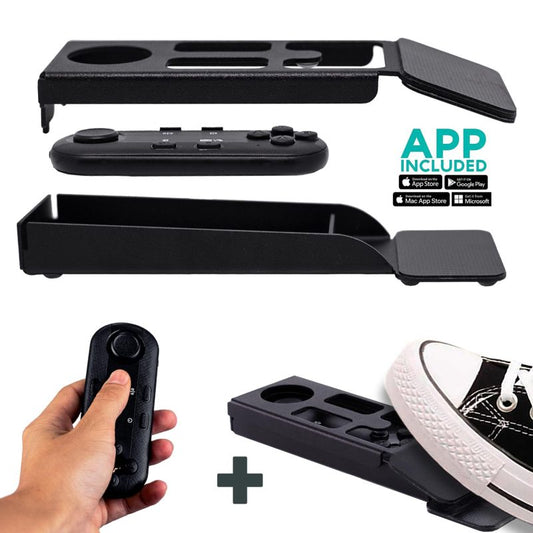
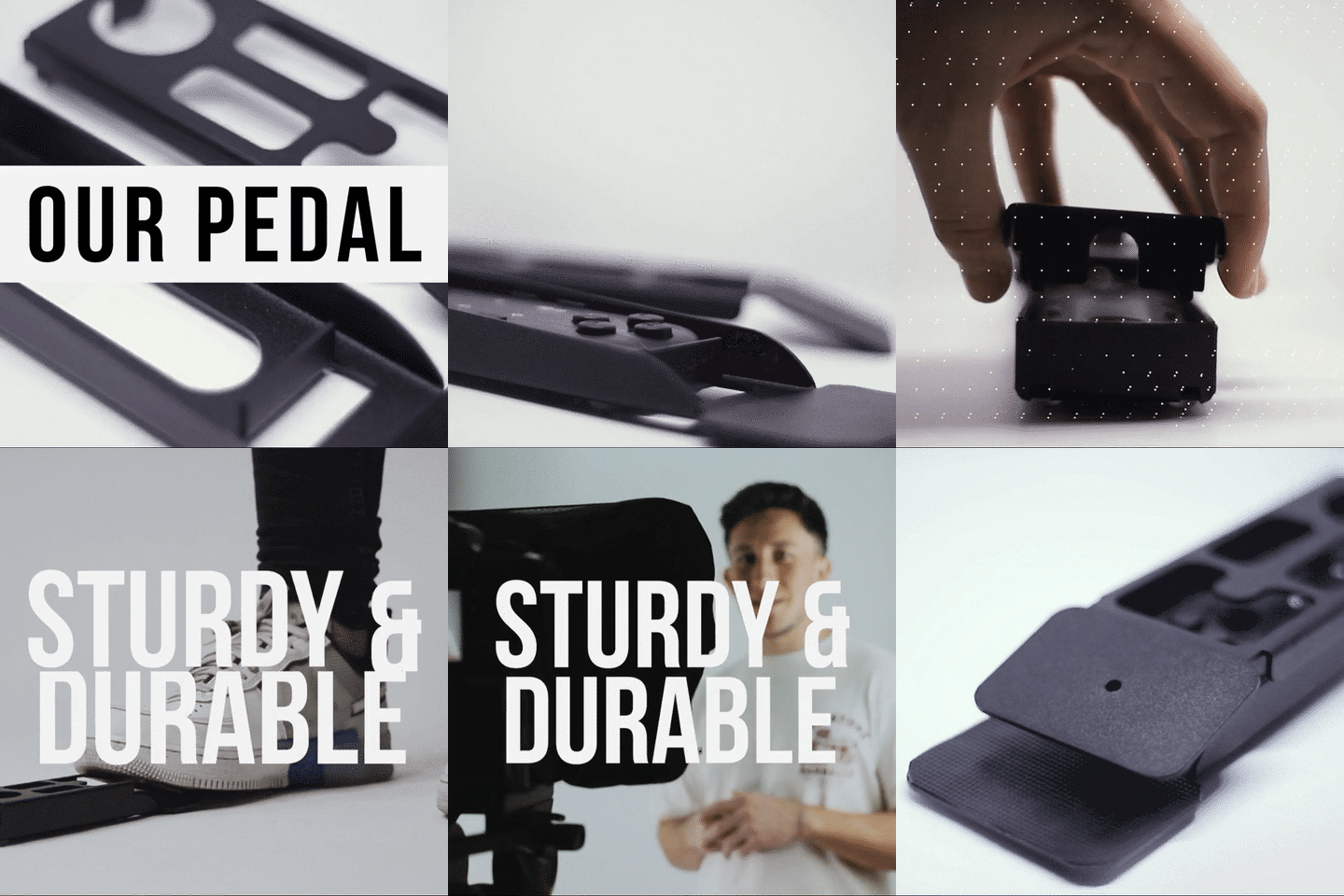
Yes. The included Bluetooth remote lets you play, pause, speed up, or slow down scrolling without touching your keyboard. You can also pair the remote with a Foot Pedal Case for completely hands-free control — popular with coaches who gesture a lot.
Is TeleprompterPAD a professional broadcast brand?
No, and I won't pretend otherwise. We make consumer and prosumer gear — EU-manufactured, shipped globally, with personal multilingual support. If you need a setup for a major TV studio, we're not the right fit. If you're a coach, creator, educator, or small business that wants to look genuinely professional on video calls, we're exactly the right fit.
What if I need help setting it up?
TeleprompterPAD offers personal 1-to-1 support in English, Spanish, French, German, and Italian. There are also video tutorials at help.teleprompterpad.com. We're an EU-based team, not a chatbot, and we've helped thousands of customers get running.
If you're on video calls daily and want to make a visible improvement in how you come across, the EyeMeeting Prompter is the most versatile option — it handles calls, recording, and streaming from one desk setup. Your eye contact is the first thing people notice, and the last thing they remember.
Lo más vendido
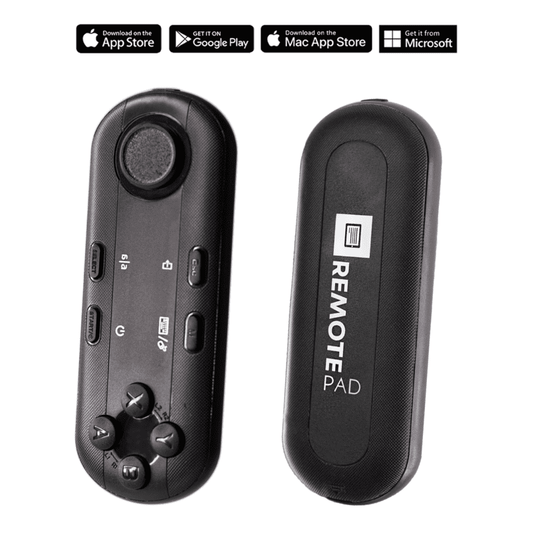
TELEPROMPTER PAD Mando Bluetooth para Teleprompter - Incluye APP Teleprompter para Apple, Android Windows y Mac - Control remoto inalámbrico para teleprompter beamsplitter o equipo de transmisión en vivo
- 34.90€
39.90€- 34.90€
- Precio por unidad
- per
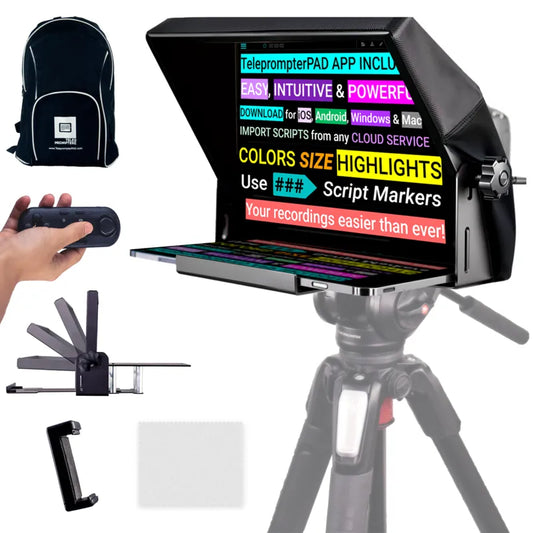
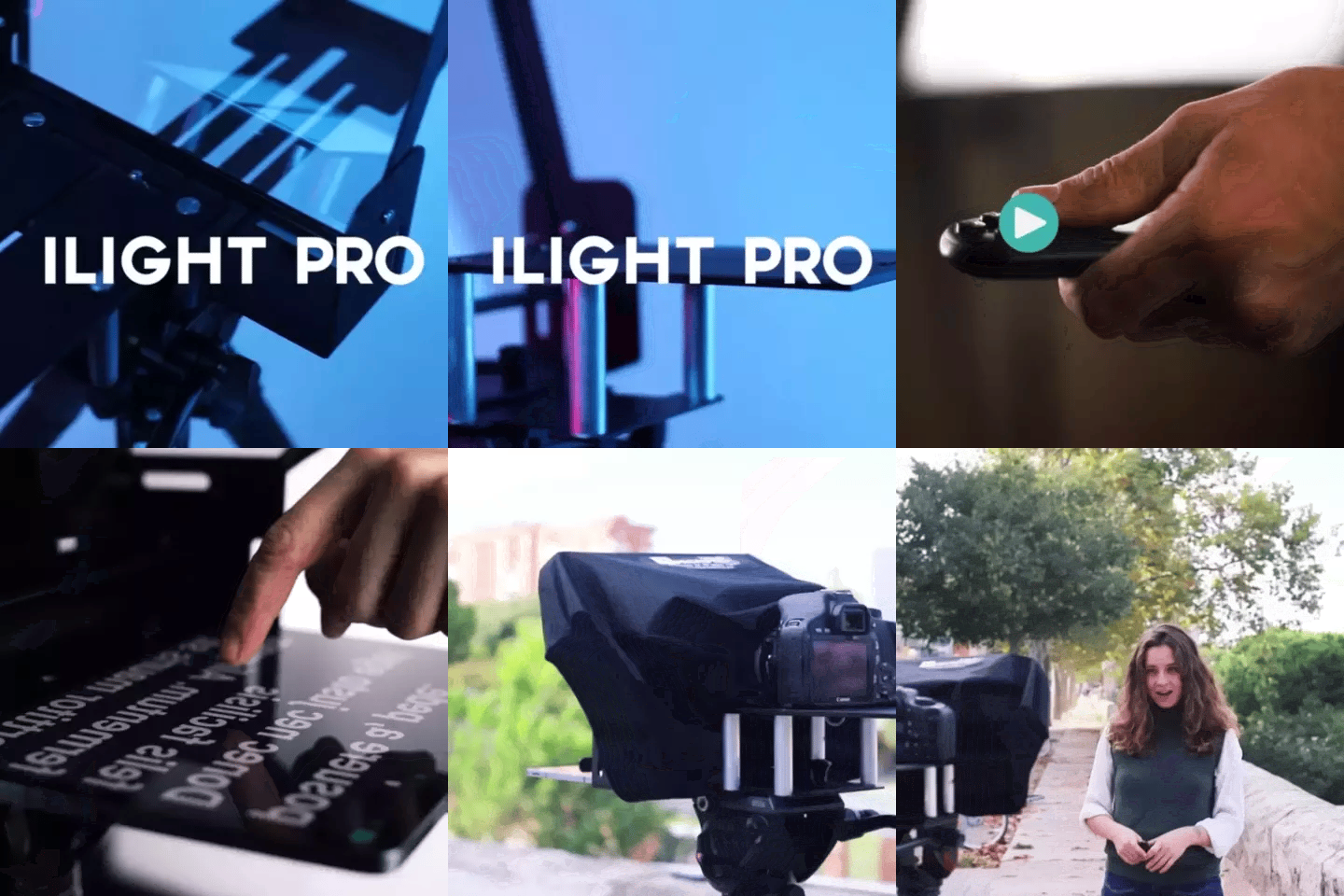
TELEPROMPTER PAD iLight Pro 12'' iPad Tablet iPhone Smartphone - Kit con Mando, Mochila y App Teleprompter Apple Android Windows Mac, Prompter Profesional Resistente Cristal Beamsplitter - Made in EU
- 159.00€
199.00€- 159.00€
- Precio por unidad
- per
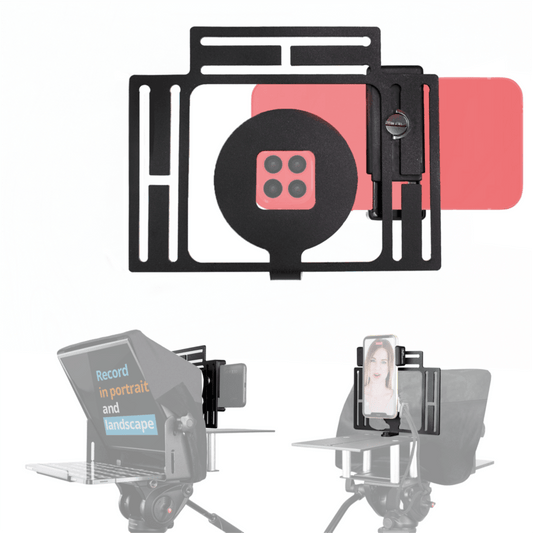
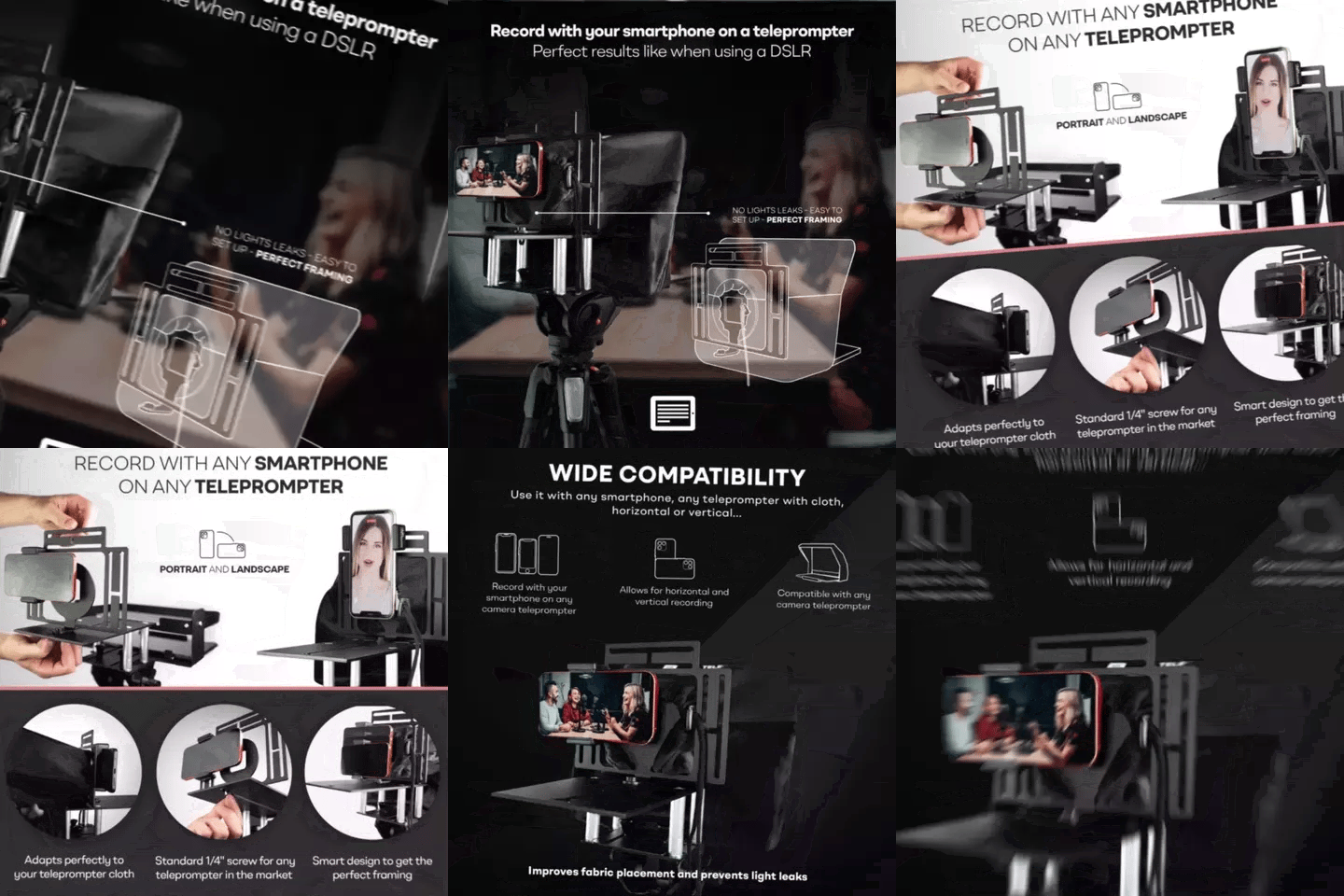
TELEPROMPTER PAD Adaptador Smartphone para teleprompter – Graba con cualquier teléfono iPhone, Android, compatible con cualquier teleprompter, rig universal de aluminio para prompter de cámara, ajuste cómodo de la tela
- 29.90€
39.90€- 29.90€
- Precio por unidad
- per
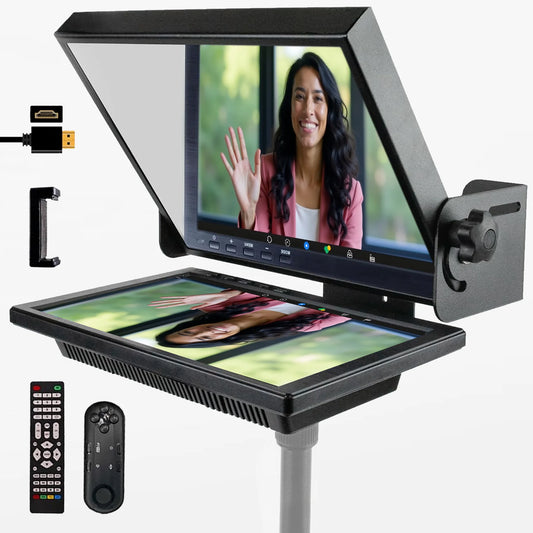
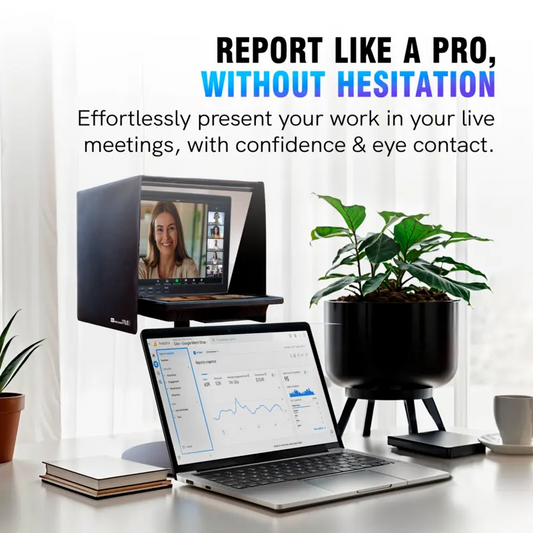
TELEPROMPTER PAD EyeMeeting Prompter, Teleprompter para Twitch Streaming, Youtube, Contacto Visual Zoom, para Mac/PC DSLR Webcam iPhone con Software y Monitor de 10.1" Compatible con Elgato Streamdeck
- 229.00€
299.00€- 229.00€
- Precio por unidad
- per