



Teleprompter for Corporate Training Online: Setup Guide
A teleprompter for corporate training online solves the biggest problem trainers face on camera: reading a script while still looking learners in the eye. If your company delivers onboarding, compliance, or skills training through video — whether live or recorded — a beam splitter teleprompter puts your script directly in your line of sight so you can deliver polished content without memorization. I've helped hundreds of L&D teams and corporate trainers get their setup right, and in this guide I'll walk you through exactly what hardware you need, how to set it up, and the mistakes that kill engagement.

Over the past three years alone I've personally set up teleprompter systems for 200+ corporate training teams — from startup onboarding squads to 5,000-employee compliance departments. Corporate comms and L&D teams make up roughly 21% of our customer base when you combine SMBs, marketing teams, and dedicated corporate comms buyers. Every setup tip below comes from real support tickets and real video calls with real trainers.

Why Does Eye Contact Matter So Much in Online Training?
Here's the hard truth: when a trainer reads from notes just below the camera, learners notice. The gaze drops by only a few degrees, but on screen it looks like you're checked out. Research published in Applied Ergonomics by Fullwood and Doherty-Sneddon (2006) found that looking into the camera during a video presentation significantly improved information recall among viewers. That's not a marginal effect — it's the difference between a training session that sticks and one that gets skipped.
A 2022 study published in Frontiers in Psychology by Kaiser, Henry, and Eyjólfsdóttir took this further. They found that lack of eye contact in video conversations creates a sense of emotional and physical distance, lowering participants' sense of connectedness. For corporate trainers, that distance translates directly into disengagement. And disengaged learners don't retain information.
The numbers back this up at scale. According to Research.com, 77% of U.S. companies now use virtual classrooms, webcasting, or video broadcasting for training. Meanwhile, a Moodle study revealed that 46% of employees let training videos play while multitasking. Your delivery quality — especially eye contact — is one of the few levers you actually control to fight that stat.
What Type of Teleprompter Works for Corporate Training Online?
This depends on whether you're recording modules for an LMS, delivering live sessions over Zoom/Teams, or doing both. There are two fundamentally different setups, and picking the wrong one is the most expensive mistake I see teams make.
| Feature | EyeMeeting Prompter | iLight PRO 12-inch |
|---|---|---|
| Primary use | Live sessions + recording + streaming | Pre-recorded training modules |
| Display | Built-in 10.1-inch inverted monitor (HDMI) | Your own tablet/iPad (up to 10.2") |
| Camera | Webcam or DSLR behind glass | DSLR/mirrorless behind glass |
| Eye contact on Zoom/Teams | ✅ Yes — script overlays via Meeting Mode | ❌ Not designed for live calls |
| Tablet required | No — own screen included | Yes |
| Price | €229 | €159 |
| Included | 10.1-inch monitor, glass, monopod, HDMI cable, remote, app | Glass, tablet holder, smartphone clamp, remote, app, hood, bag |
For most corporate trainers delivering content online — especially live webinars, virtual workshops, or hybrid sessions — the EyeMeeting Prompter is the better fit. It's a full beam splitter teleprompter with its own 10.1-inch inverted monitor, so you don't need a spare tablet. You plug it into your computer via HDMI, position your webcam or camera behind the glass, and your script appears right in front of the lens.

How to Set Up a Teleprompter for Online Corporate Training
The EyeMeeting Prompter comes pre-assembled, so setup is genuinely quick. Here's the step-by-step workflow I walk every corporate client through:
- Connect the HDMI cable from your computer to the EyeMeeting Prompter's 10.1-inch monitor. Your system should detect it as a second display.
- Mount your webcam or camera behind the beam splitter glass. The glass sits at ~45°, so your camera shoots through it while the reflected script faces you.
- Adjust the monopod height so the glass is at your eye level when seated. This is non-negotiable — even 5cm off and you'll break the eye-contact illusion.
- Open the TeleprompterPAD app on your computer. Import your training script. Drag the app window to the second display (the EyeMeeting monitor).
- For live sessions: Switch the app to Meeting Mode. This creates a transparent overlay so you can see your Zoom/Teams call and your script at the same time.
- Test audio separately. Use an external mic — your laptop mic or built-in camera mic won't cut it at the distance you'll be sitting.
The whole thing takes about five minutes the first time. After that, you'll have it running in under two. I always tell teams to leave it set up permanently if they can. Having to assemble gear before every session adds friction, and friction kills consistency.
Script Writing Tips for Corporate Training Videos
Most L&D professionals write training scripts like they're writing documentation. Dense paragraphs, formal language, passive voice. That works on paper. On camera, it makes you sound like a robot reading terms of service.
- Write how you talk. Read every sentence out loud before you finalize it. If it sounds awkward spoken, rewrite it.
- One idea per sentence. Corporate scripts tend to pack three concepts into a single sentence. Break them apart.
- Use pacing marks. Add "//" or "[PAUSE]" where you want to breathe or let a concept land. The TeleprompterPAD app supports rich text formatting — bold your key terms so they jump out as you read.
- Keep modules short. Research shows the average completion rate for non-interactive training videos dropped to 60% in 2024. Shorter modules — 5-10 minutes — fight that trend.
- Front-load the value. Tell learners what they'll be able to do after watching, not what the module "covers."
The teleprompter won't fix a bad script. But a good script delivered with direct eye contact? That's what turns a compliance checkbox into actual behavior change.

The Engagement Problem: Numbers You Need to Know
Corporate training is a massive investment. Organizations increased training expenditures to $102.8 billion in 2025, according to industry data. But throwing money at content creation means nothing if learners aren't paying attention.
Here's what the data says about the current landscape:
| Statistic | Source |
|---|---|
| 77% of U.S. companies use virtual classrooms/video for training | Research.com (2025) |
| 83% of people prefer video for instructional content | TechSmith (2024) |
| 46% of employees multitask during training videos | Moodle (2025) |
| 60% average completion rate for non-interactive training videos | LMS Insights (2024) |
| 69% of learners are more engaged with video-based learning | eSkilled (2026) |
The tension is clear: learners prefer video, but they zone out fast. A teleprompter can't fix boring content, but it directly addresses the eye-contact gap that makes video training feel impersonal and easy to tune out.
Real-World Use Cases: Who Actually Uses This Setup?
I'll be specific. About 18% of our customers are SMBs and marketing teams, and a good chunk of those are using teleprompters specifically for internal training content. Another 20% are coaches, therapists, and info-product creators — many of whom build corporate training programs under contract.
HR and L&D Teams Recording Onboarding Videos
This is the most common setup I see. A single HR manager with the EyeMeeting Prompter on their desk, recording 10-15 onboarding modules that every new hire watches in their first week. The teleprompter lets them batch-record all modules in a single afternoon rather than spreading it across weeks of retakes.
External Trainers Delivering Live Virtual Workshops
Freelance trainers and consulting firms running live sessions over Zoom or Teams. Meeting Mode on the TeleprompterPAD app is specifically designed for this — it overlays your script transparently over the video call window, so you see participant faces and your talking points simultaneously.
Compliance Officers and Safety Trainers
Compliance content demands precision. You can't ad-lib regulatory language. These trainers need word-for-word accuracy, and reading from a teleprompter while maintaining eye contact is the only way to deliver that without sounding like a hostage reading a statement. About 10% of our customers are educators and universities, and many of them face this same word-accuracy requirement.
Honest Pros and Cons
I sell these products, but I'm not going to pretend they're perfect for every situation. Here's my honest assessment of using the EyeMeeting Prompter for corporate training online:
| Pros | Cons |
|---|---|
| Built-in 10.1-inch screen — no tablet needed | Requires desk space (~30cm depth minimum) |
| Meeting Mode for live Zoom/Teams sessions | Not as portable as iLight models — it's a desk setup |
| HDMI input works with any computer | HDMI cable reach can be limiting — plan your cable routing |
| German lab-grade beam splitter glass | Not a broadcast-grade solution for large TV studios |
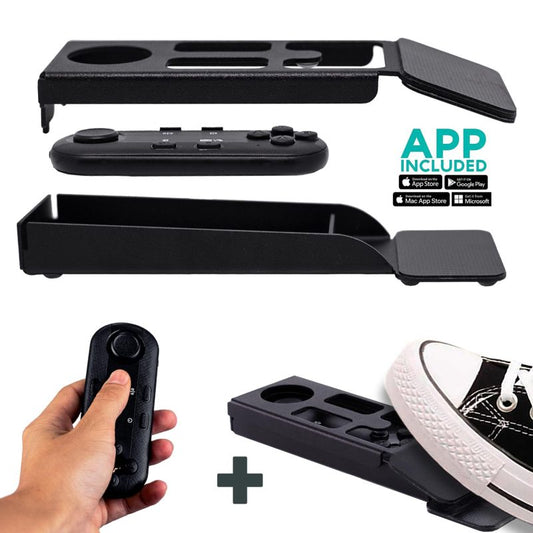
| Bluetooth remote included for speed/pause | Webcam image quality depends on your webcam — not included |
| 1-to-1 multilingual support (EN, ES, DE, FR, IT) | Learning curve for Meeting Mode takes 1-2 practice sessions |
The biggest con I hear from teams is the initial learning curve for Meeting Mode. It takes a practice run or two to get comfortable with the transparent overlay. But once you're past that? Every trainer I've worked with says they can't go back to reading sticky notes taped around their webcam.

What If You Need Pre-Recorded Modules Instead?
If your training program is 100% pre-recorded (no live delivery at all), and you're shooting with a DSLR or mirrorless camera for higher production quality, the iLight PRO 12-inch is often the better choice. It mounts directly on a tripod, holds your iPad or tablet, and puts the glass right in front of the camera lens.

The iLight PRO 12-inch is our most popular model overall — roughly 60% of our sales — and it works beautifully for pre-recorded training. Just remember: minimum 24mm focal length on your lens, and keep your recording distance at 1.5m or more to avoid visible eye scanning. If you need more detail on that setup, we've written a full corporate training setup guide that covers the iLight workflow specifically.
Common Mistakes That Kill Training Video Quality
After 10+ years and 50,000+ orders shipped globally, I've seen every mistake in the book. Here are the ones that corporate trainers hit most often:
- Overhead lighting directly above the teleprompter. This creates glare on the beam splitter glass. Use three-point lighting: key light from the front/side, fill on the opposite side, backlight behind you.
- Using the laptop mic. At any distance beyond arm's reach, built-in mics pick up room reverb, fan noise, and keyboard tapping. Get a lavalier or a shotgun mic pointed at your face.
- Skipping test takes. Record 30 seconds, play it back, check framing and audio. This catches 90% of problems before you commit to a full session.
- Scripts that are too long. A 30-minute monologue is a 30-minute test of willpower. Break it into 5-8 minute modules. Your learners — and your voice — will thank you.
- Forgetting mirror mode. The TeleprompterPAD app has a mirror mode that flips the text so it reads correctly when reflected off the beam splitter glass. Forget this and you'll see backwards text on the glass.
For a deeper dive into training-specific teleprompter techniques, our virtual training delivery guide covers advanced tips including multi-camera setups and operator-controlled workflows.
Frequently asked questions
Can I use a teleprompter for live Zoom training sessions?
Yes. The EyeMeeting Prompter is specifically designed for this. Its Meeting Mode overlays your script transparently over your video call window, so you can read your talking points while seeing participants' faces and maintaining eye contact through the camera.
Do I need a separate tablet to use the EyeMeeting Prompter?
No. The EyeMeeting Prompter includes a built-in 10.1-inch inverted monitor that connects to your computer via HDMI. You don't need an iPad or any other tablet — just your computer and a webcam or camera.
What's the difference between the EyeMeeting Prompter and the EyeMeeting Webcam?
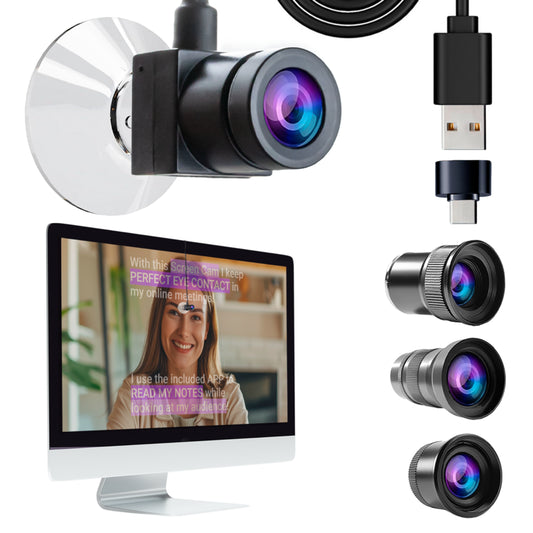
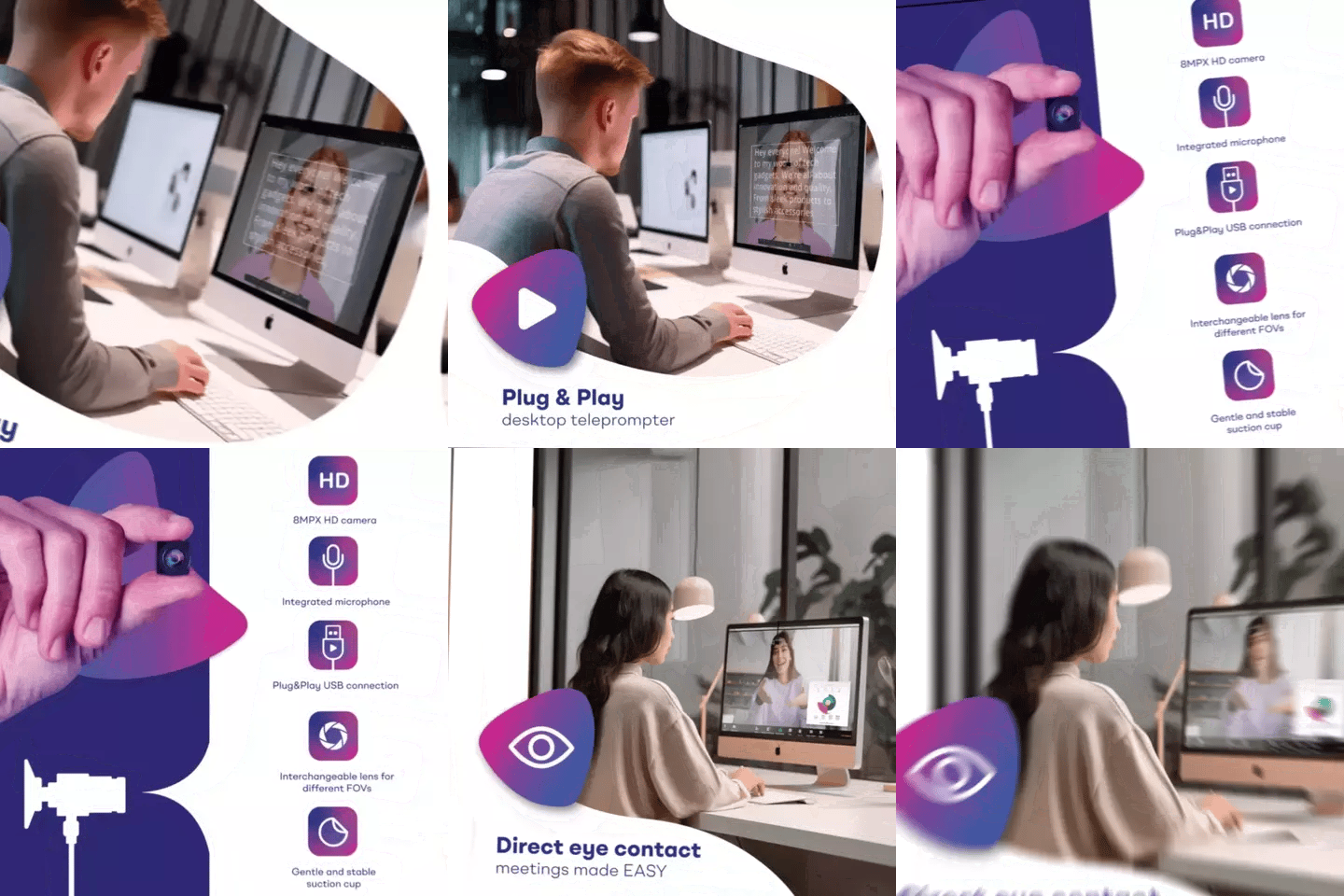
The EyeMeeting Webcam is a small USB camera for simple video calls only — it attaches to your monitor with a suction cup. The EyeMeeting Prompter is a full beam splitter teleprompter with its own 10.1-inch screen, designed for both live sessions and recording. For corporate training, the Prompter is almost always the right pick.
How close to the camera do I need to sit?
For the EyeMeeting Prompter on a desk, most trainers sit about 60-80cm from the glass. For the iLight PRO 12-inch on a tripod, the recommended recording distance is 1.5m-2.0m. Sitting too close causes visible eye scanning on camera — your viewers can see your eyes tracking the text.
Will my IT department have issues setting this up?
Unlikely. The HDMI connection is plug-and-play. The TeleprompterPAD app is available on the Microsoft Store, Mac App Store, and as a browser-based web app (no install needed). No admin permissions are required for the web app version. If anyone gets stuck, we offer personal 1-to-1 support in English, Spanish, German, French, and Italian.
Can multiple trainers share one teleprompter?
Absolutely. The EyeMeeting Prompter sits on your desk via its adjustable monopod — the height is easily adjustable between users. Scripts are managed in the app on your computer, so each trainer can have their own script files ready to go.
Is this suitable for a professional broadcast studio?
No. Our products are consumer/prosumer grade. We don't serve professional broadcasters or top-tier TV studios. But for corporate training teams, coaches, HR departments, and small production setups, the quality is more than sufficient — and the price reflects that difference.
What if I need both live and pre-recorded training?
The EyeMeeting Prompter handles both. Use it with a webcam for live sessions (Meeting Mode) and with a DSLR or mirrorless camera behind the glass for higher-quality pre-recorded modules. One device, two workflows.
A teleprompter for corporate training online isn't a luxury anymore — it's the tool that separates polished, engaging training from content employees skip through. If you're running live sessions, the EyeMeeting Prompter is the setup I'd recommend. For pure pre-recorded modules, go with the iLight PRO 12-inch. Either way, your learners will notice the difference the first time they see you actually looking at them.
Lo más vendido
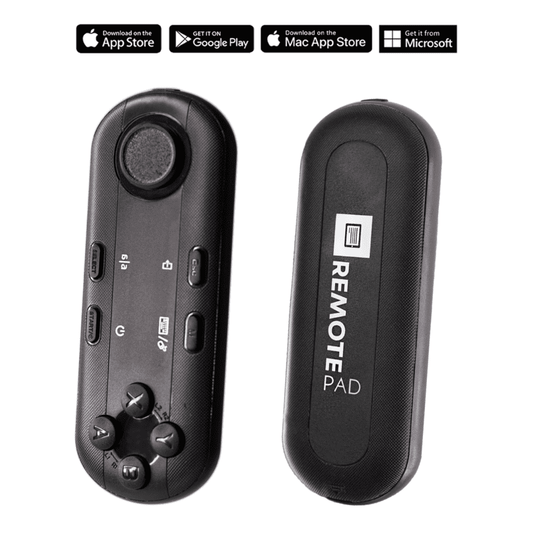
TELEPROMPTER PAD Mando Bluetooth para Teleprompter - Incluye APP Teleprompter para Apple, Android Windows y Mac - Control remoto inalámbrico para teleprompter beamsplitter o equipo de transmisión en vivo
- 34.90€
39.90€- 34.90€
- Precio por unidad
- per
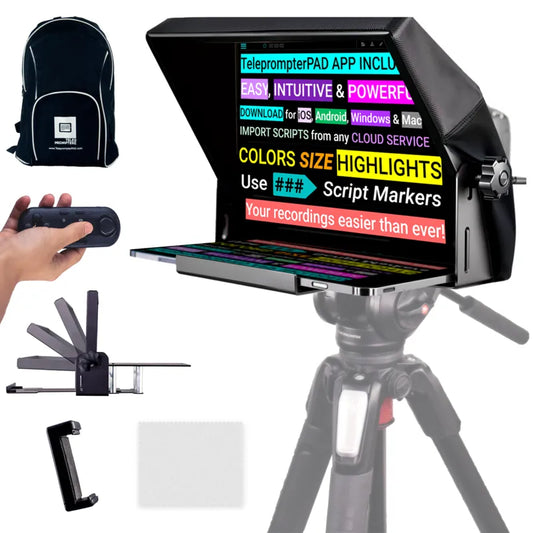
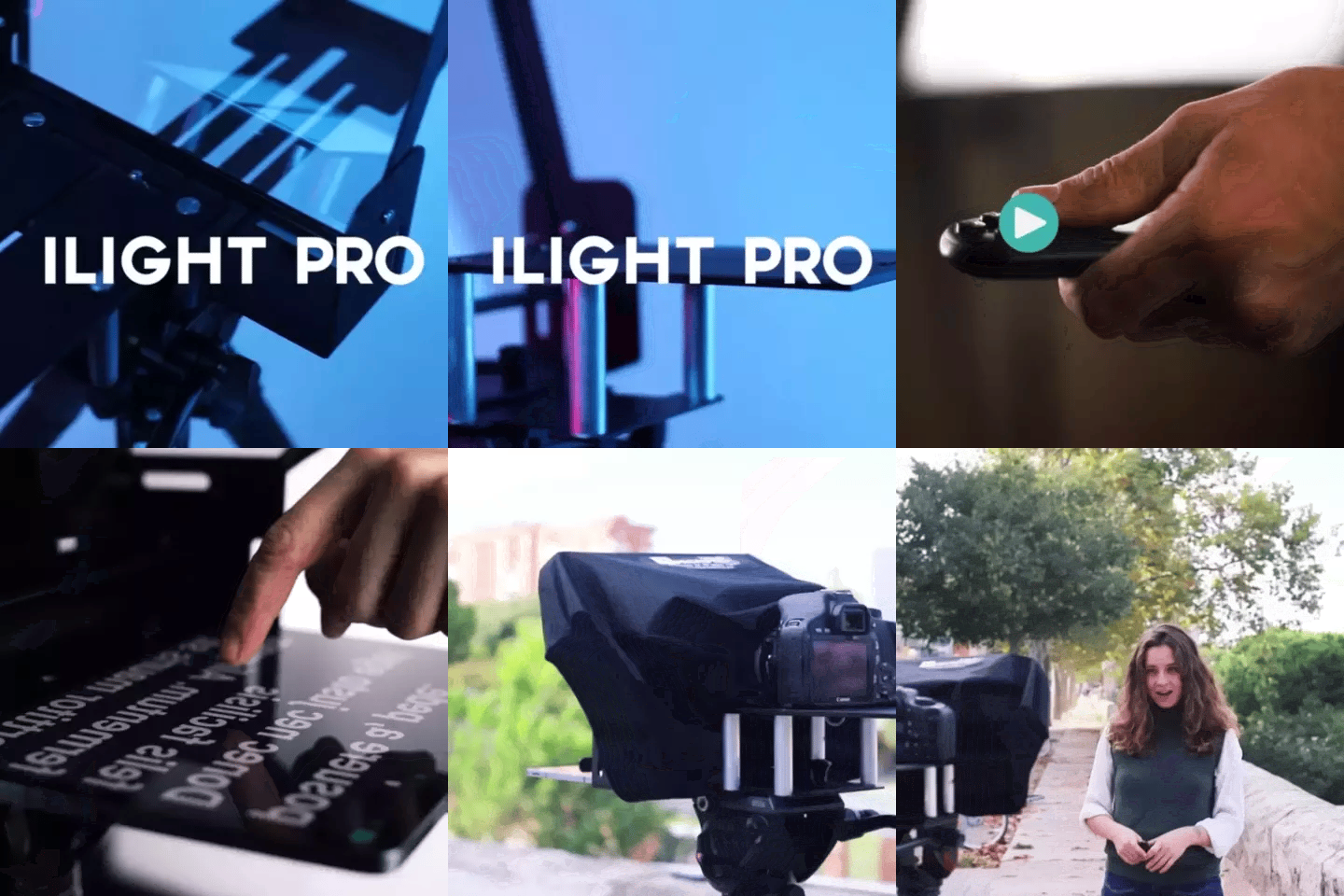
TELEPROMPTER PAD iLight Pro 12'' iPad Tablet iPhone Smartphone - Kit con Mando, Mochila y App Teleprompter Apple Android Windows Mac, Prompter Profesional Resistente Cristal Beamsplitter - Made in EU
- 159.00€
199.00€- 159.00€
- Precio por unidad
- per
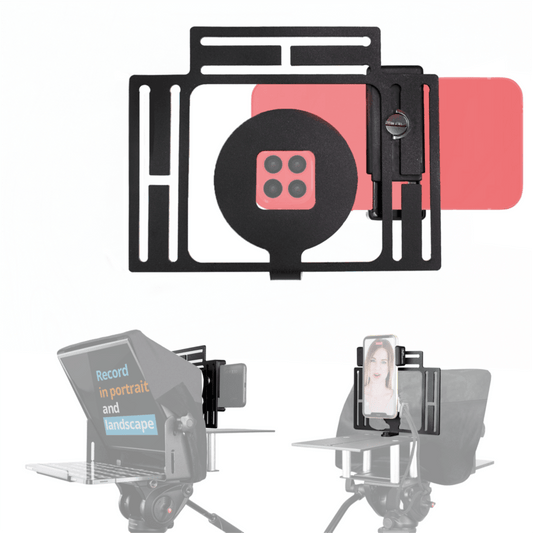
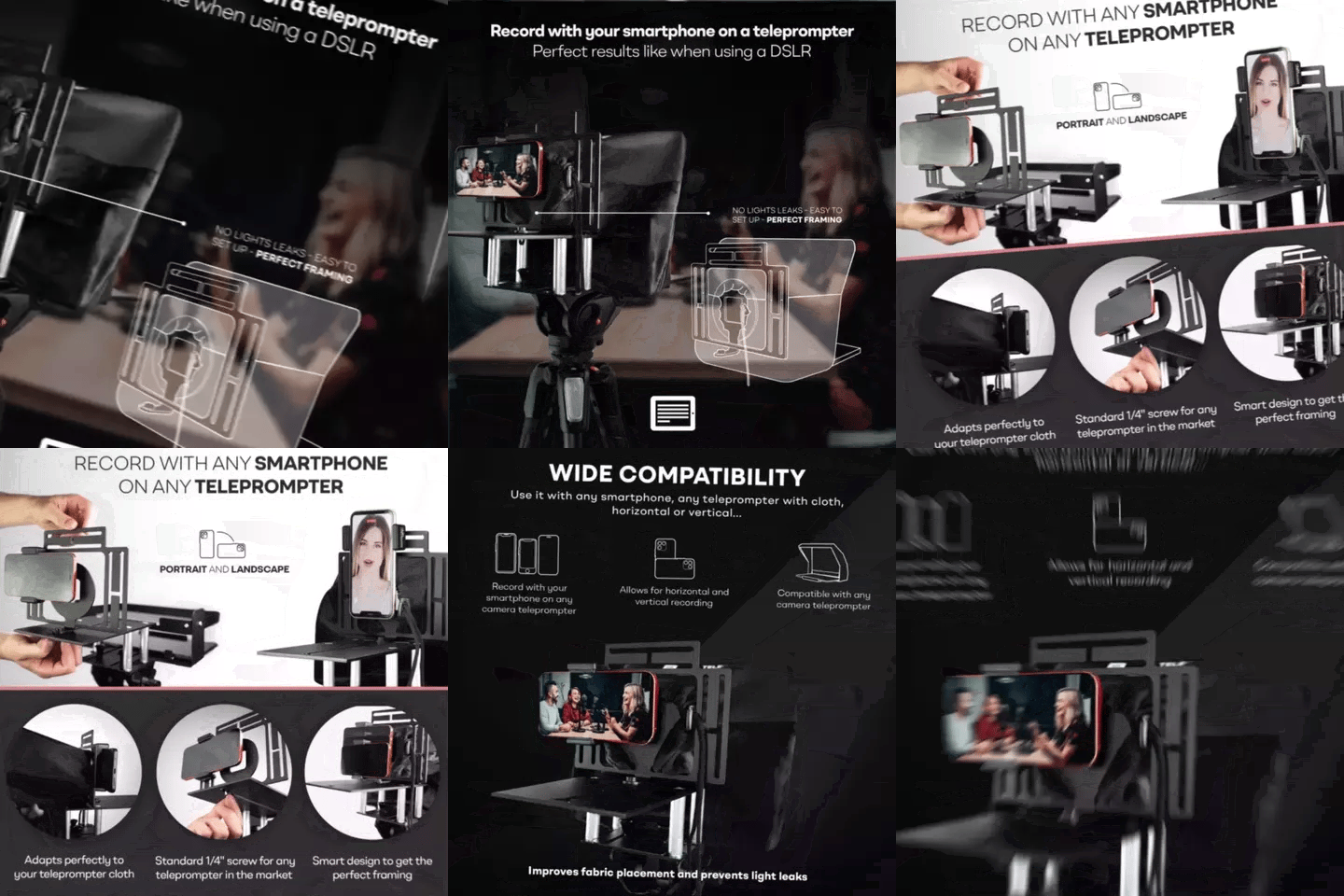
TELEPROMPTER PAD Adaptador Smartphone para teleprompter – Graba con cualquier teléfono iPhone, Android, compatible con cualquier teleprompter, rig universal de aluminio para prompter de cámara, ajuste cómodo de la tela
- 29.90€
39.90€- 29.90€
- Precio por unidad
- per
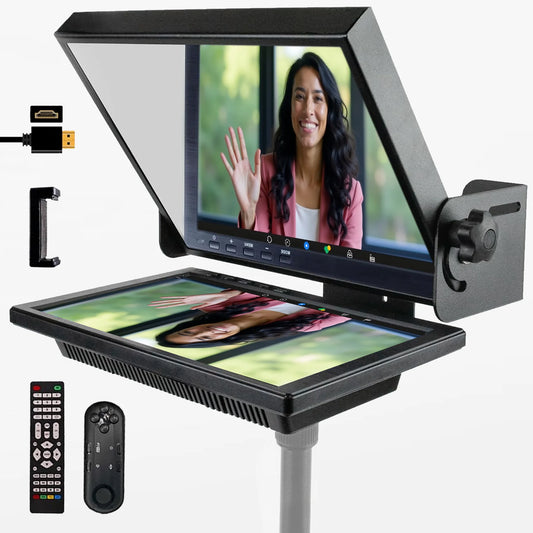
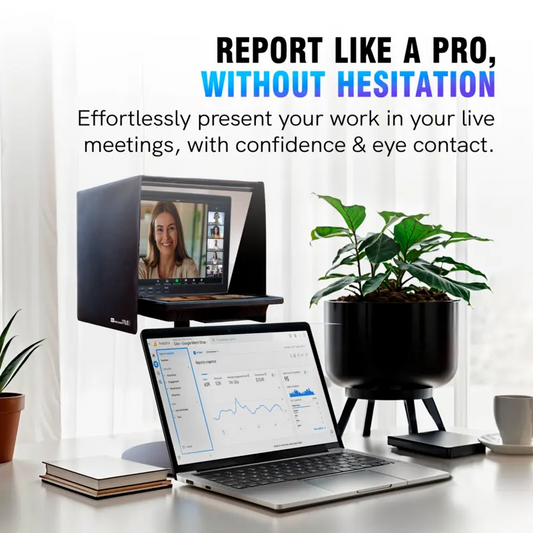
TELEPROMPTER PAD EyeMeeting Prompter, Teleprompter para Twitch Streaming, Youtube, Contacto Visual Zoom, para Mac/PC DSLR Webcam iPhone con Software y Monitor de 10.1" Compatible con Elgato Streamdeck
- 229.00€
299.00€- 229.00€
- Precio por unidad
- per