



Teleprompter for Corporate Training Seminars: What Works
A teleprompter for corporate training seminars solves the biggest problem L&D teams face when recording video: the presenter either reads from notes off-camera or memorizes the script and sounds robotic. A beam splitter teleprompter places the scrolling text directly over the camera lens, so the trainer looks straight at the viewer while delivering the material word-for-word. The result is consistent, on-message content that actually holds attention. I've helped hundreds of corporate teams set this up, and the difference in viewer engagement is immediate and measurable.

Over the past decade I've configured teleprompter setups for corporate L&D teams across 18 countries, from 3-person startups to 500-seat seminar halls. About 18% of TeleprompterPAD's 50,000+ shipped orders come from SMBs and marketing teams producing internal training content. This guide distills real production lessons from those deployments — not theory.

Why corporate training seminars need a teleprompter
The short answer: consistency and credibility. When a compliance officer or department head records a training module from memory, they ramble, skip sections, and lose eye contact checking their notes. Viewers notice all of it.
The data backs this up. Research.com reports that the average completion rate for non-interactive training videos dropped to just 60% in 2024 — meaning nearly half of your learners bail before the end. Meanwhile, Wyzowl's 2026 State of Video Marketing report found that 91% of businesses now use video as a marketing and communication tool, matching the all-time high. The stakes are real: if your training video looks or sounds unprofessional, people check out.
A teleprompter forces discipline into your production. The script scrolls at a controlled pace. The presenter reads while looking directly into the lens. No wandering eyes, no filler words, no "uh, let me find my place." For corporate training seminars — where compliance accuracy and brand voice matter — that's exactly what you need.
What type of teleprompter fits a seminar production workflow?
It depends on whether you're recording video for on-demand modules or presenting live in front of an audience. Most L&D teams do both, which is why I typically recommend a beam splitter model first. It handles the recording side, and you can add a presidential prompter later for live events.
Here's how the main formats compare for corporate training use:
| Feature | iLight PRO 14-inch | iLight PRO 12-inch | iPresent PRO |
|---|---|---|---|
| Use case | Recording & streaming | Recording & streaming | Live stage / keynote |
| Glass size | 14-inch (60/40 HD) | 12-inch (60/40 HD) | Standard panel |
| iPad Pro 12.9" fits? | ✅ Yes | ❌ No (too wide) | ❌ No (too wide) |
| Camera max length | 25 cm / 10" | 20 cm / 8" | N/A (no camera mount) |
| Tripod mount | 1/4" + 3/8" | 1/4" | Built-in stand |
| Hardcase included | ✅ Yes | ❌ Sold separately | ✅ Yes |
| Price | €239 | €159 | €449 |
For corporate training seminars being recorded on camera, the iLight PRO 14-inch is the model I recommend most. The larger 14-inch glass gives your presenter more readable text area, which matters when scripts run long — think 20-minute compliance modules or multi-section onboarding videos. It also fits iPad Pro 12.9", which is the tablet many IT departments already have on hand.

The eye contact problem — and why it matters for training
Here's something most L&D producers don't think about enough: eye contact drives trust, and trust drives learning retention. A 2022 study published in Frontiers in Psychology found that participants felt "more connected and less intimidated" during video calls when eye contact was maintained, versus skewed camera angles where gaze was off-center.
That's exactly the scenario you face in training videos. When your presenter reads from a laptop to the side of the camera, the viewer's brain registers averted gaze — and engagement drops. Research published on ResearchGate confirms that averted gaze in video decreases perceived trustworthiness and emotional closeness. Your subject matter expert might be brilliant, but if they're looking 10 degrees to the left, the learner subconsciously trusts them less.
A beam splitter teleprompter eliminates this by placing the script directly over the lens. The presenter reads naturally while maintaining direct eye contact with the camera. No software gaze correction needed, no AI artifacts — just optics.
How to set up a teleprompter for a corporate training shoot
I've run through this workflow with L&D teams, marketing departments, and external production crews. After 10+ years, I've boiled it down to a repeatable 5-step process that gets you from zero to recording in under 10 minutes.
- Mount the teleprompter on your tripod. The iLight PRO 14-inch has both 1/4" and 3/8" screw mounts, so it fits standard photo tripods and heavier video tripods without adapters. Position the unit at eye level for your presenter.
- Attach your camera behind the glass. Slide your DSLR or mirrorless camera onto the built-in camera plate. Maximum camera body length is 25 cm (10") from the front of the lens to the tripod screw. Keep the lens as close to the back of the glass as possible.
- Load your script into the TeleprompterPAD app. Import your script file or paste it directly. Set mirror mode ON (the glass flips the text). Adjust font size, scrolling speed, and text color. The app runs on iOS, Android, Windows, and macOS.
- Seal the blackout hood. The included Velcro hood blocks ambient light from washing out the reflected text. Make sure it's snug — any light leak on the glass kills contrast and readability.
- Run a 30-second test take. Check framing, audio levels (always use an external mic at 1.5m+ distance), and scroll speed. Adjust font size if the presenter squints or if you see their eyes scanning.
Total setup time: under 2 minutes for the hardware, another 5-8 minutes for script loading and lighting adjustments. I tell teams to pre-arrange everything the night before and use a single power strip — one switch, and you're live.

Scripting tips that make corporate training videos watchable
The teleprompter is only as good as the script on it. The most common mistake I see from corporate teams? Writing scripts that sound like internal memos. Formal, dense, jargon-heavy paragraphs that nobody would actually say out loud.
- Write how you talk. Read each sentence aloud before adding it to the script. If it sounds stiff, rewrite it.
- Keep sentences short. 12-18 words max. Long compound sentences cause stumbles on camera.
- Add pacing marks. Use bold text or highlight colors in the TeleprompterPAD app to flag natural pause points. The app supports rich text — bold, italic, underline, highlight, colors — so use it.
- Break into modules. A 20-minute compliance lecture should be five 4-minute segments. Each segment = one clear objective. This aligns with microlearning research showing shorter modules lift retention by up to 17% over longer formats.
- Include verbal cues for visuals. If you're cutting to a slide or b-roll, write "[PAUSE — show diagram]" so the presenter knows to stop and look natural during the transition.
The TeleprompterPAD app also lets you set script markers — bookmarks within the text where you can jump forward or backward. Very handy when you're recording 12 segments in a single session and need to skip between scripts.
Who actually uses teleprompters for corporate training seminars?
Based on our order data, here are the segments I see most often in this specific use case:
SMBs, startups, and marketing teams (18% of our customer base). These teams produce onboarding videos, product training for new hires, and customer education content. They typically don't have a dedicated video team — it's the marketing manager or founder recording in a conference room. The iLight PRO 14-inch works well here because setup is fast and they can use the iPad they already own.
Coaches, therapists, and info-product creators (20%). Many corporate trainers are contractors or consultants who deliver seminar-style content under a client's brand. They need portable gear that travels between offices. The hardcase that ships with the 14-inch model makes that practical. If you're in this category, I'd also point you to our guide for coaches for additional scripting advice.
Educators and universities (10%). Lecture capture, continuing education modules, and faculty development videos. These teams often use iPad Pro 12.9" because of university tablet programs — and the 14-inch model is the only one in our lineup that fits that tablet.
Scaling up: when you need a second operator
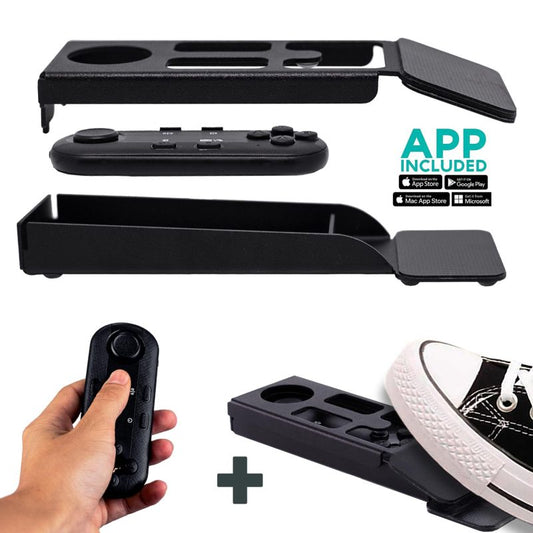
For solo presenters, the Bluetooth remote control (included with every iLight PRO) handles play/pause and speed adjustments. The presenter holds it out of frame or hands it to a colleague nearby.
But some corporate training setups call for a dedicated operator — a producer or AV tech who controls the script while the presenter focuses entirely on delivery. For that, we offer the Inverted Monitor for iLight PRO 14-inch. It replaces the tablet with a plug-and-play HDMI monitor connected to the operator's computer. The text is pre-inverted, so no software mirror mode needed. The operator controls scroll speed from their laptop while the talent just reads.
This is the setup I recommend for production companies and small TV stations (about 4% of our customer base) who shoot corporate training content for clients. It separates the roles cleanly and reduces retakes.

Honest pros and cons of using a teleprompter for seminars
I'm not going to pretend this is a magic bullet. Here's the real picture:
Pros:
- Consistent delivery across multiple modules — no script drift between takes
- Direct eye contact maintained throughout, building viewer trust
- Faster production (fewer retakes, no memorization sessions)
- Scripts can be reviewed and approved by legal/compliance before recording
- The iLight PRO 14-inch comes pre-assembled — non-technical staff can set it up in under 2 minutes
- 1-to-1 multilingual support (English, Spanish, French, German, Italian) if your team gets stuck during setup
Cons:
- Presenters new to teleprompters need 2-3 practice takes to find a natural rhythm — the first take almost always sounds "read-y"
- Minimum focal length of 24mm on the camera. Use a wider lens and you'll see the glass frame edges in shot
- Recording distance should be at least 1.5m (ideally 2m). Closer than that and viewers can see the presenter's eyes scanning left to right
- The 14-inch model is bigger than the 12-inch — less ideal if you're constantly moving between offices and need maximum portability
- This is prosumer gear, not broadcast-grade equipment. If you need broadcast studio specs, you'll need to spend significantly more
- Body language can suffer if the presenter locks into "statue mode" — they need coaching to gesture naturally while reading

Common mistakes that kill corporate training video quality
I've audited hundreds of corporate training videos over the years. These are the errors I flag most:
| Mistake | Why It Happens | Fix |
|---|---|---|
| Overhead lights above the teleprompter | Conference room ceiling lights reflect on the glass | Turn off overheads; use three-point lighting (key, fill, backlight) |
| No external microphone | Team uses DSLR built-in mic at 1.5m+ | Clip-on lav mic or shotgun mic — always external |
| Tablet rotation unlocked | Presenter bumps the tablet; screen rotates mid-take | Lock rotation in tablet settings before placing it in the holder |
| Hood not sealed properly | Light leaks wash out the reflected text | Check all Velcro edges; no gaps at the bottom or sides |
| Font too small on the tablet | Presenter squints or scans visibly | Increase font size in app; narrow margins if close distance |
| Skipping the test take | "We're short on time, let's just go" | Always record 30 seconds and review before the real take |
The ROI case for video in corporate training
If you're building a business case for your manager, here are real numbers. According to Research.com, 90% of L&D professionals report that video content significantly improves learner engagement and knowledge retention. And the investment is massive: U.S. corporate training expenditures reached $102.8 billion in 2025, according to Training Magazine's industry report.
At the same time, Wyzowl's 2026 data shows that 91% of businesses now use video in their communications strategy. The gap between companies producing professional training video and those who aren't is closing fast. If your competitors are delivering polished, on-camera training content and you're still doing screen-share-with-voiceover, learners will notice the difference.
A teleprompter at €239 is a one-time investment that reduces retakes, speeds production, and improves the perceived quality of every video you produce going forward. For most L&D budgets, it pays for itself in the first recording session.
Frequently asked questions
What size teleprompter do I need for corporate training videos?
For most corporate training seminars, a 14-inch beam splitter model is the sweet spot. It gives the presenter enough readable text area for long scripts and accommodates tablets up to iPad Pro 12.9". The 12-inch model works fine for shorter scripts or tighter budgets, but the larger glass reduces eye scanning — especially important for formal corporate content.
Can multiple presenters use the same teleprompter setup?
Yes. Between takes, just adjust the tripod height so the glass sits at eye level for the next presenter. Script changes take seconds in the app — you can import multiple scripts and switch between them using the script markers feature. I've seen teams cycle through five presenters in a single morning.
Does the presenter need training to use a teleprompter?
Expect 2-3 practice takes for someone who's never used one. The biggest hurdle is reading without sounding like they're reading. Coach them to slow down, vary their tone, and pause naturally. Most people find their rhythm within 10 minutes.
What camera should I use with the iLight PRO 14-inch?
Any DSLR or mirrorless camera with a body length under 25cm (10") works. The minimum focal length is 24mm — go wider and you'll see the frame edges. Popular choices include the Sony A7 series and Canon EOS R line. Webcams also work if you're recording for internal use only.
Can I use this for live webinars, not just recordings?
Absolutely. Connect your camera to your streaming software, load the script, and present live. For dedicated webinar setups, you might also check our corporate webinars guide. The TeleprompterPAD app also has a Meeting Mode that overlays transparent text during video calls.
Is TeleprompterPAD gear professional enough for corporate use?
It's prosumer-grade: lab-grade German beam splitter glass, aluminum frame, anti-ghosting coating. It's not a $10,000 broadcast rig. But for the 18% of our customers who are SMBs and marketing teams — and the 10% who are universities — it handles every corporate training scenario I've seen. We also offer 1-to-1 multilingual support if your IT team has questions during setup.
How do I handle scripts that need legal or compliance approval?
Write the script in your normal document workflow (Google Docs, Word, etc.), get sign-off, then import the final version into the TeleprompterPAD app. The app supports file importing, so you don't need to retype anything. Once it's loaded, the presenter reads it verbatim — no improvisation, no off-script risk.
What if I need a teleprompter for a live stage seminar, not a camera?
That's a presidential teleprompter use case. The iPresent PRO (€449) handles live presentations with one or two glass panels for the speaker. For large venues with dual-panel setups, the XCue Speech Prompter X1 is the professional option. The iLight PRO models are specifically designed for camera-based recording, not live stage use.
Corporate training video quality directly affects learner retention, brand perception, and compliance accuracy. If your team is producing seminar-style content on camera, a teleprompter removes the biggest friction point — keeping the presenter on-script while looking the viewer in the eye. The iLight PRO 14-inch is the setup I'd put in any L&D team's conference room tomorrow. Pre-assembled, hardcase included, free app, and real support if you need it.
Unsere Bestseller
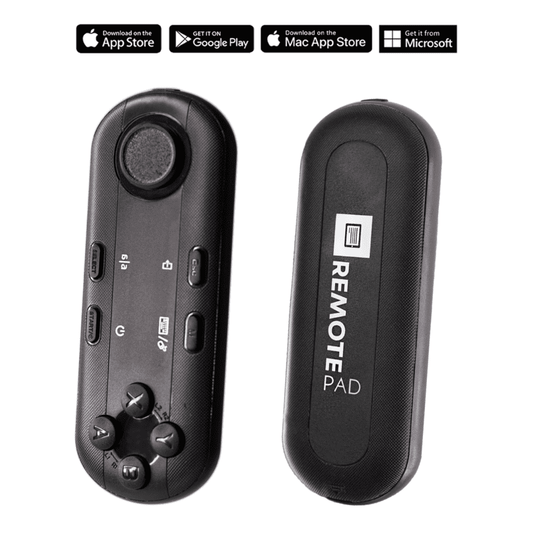
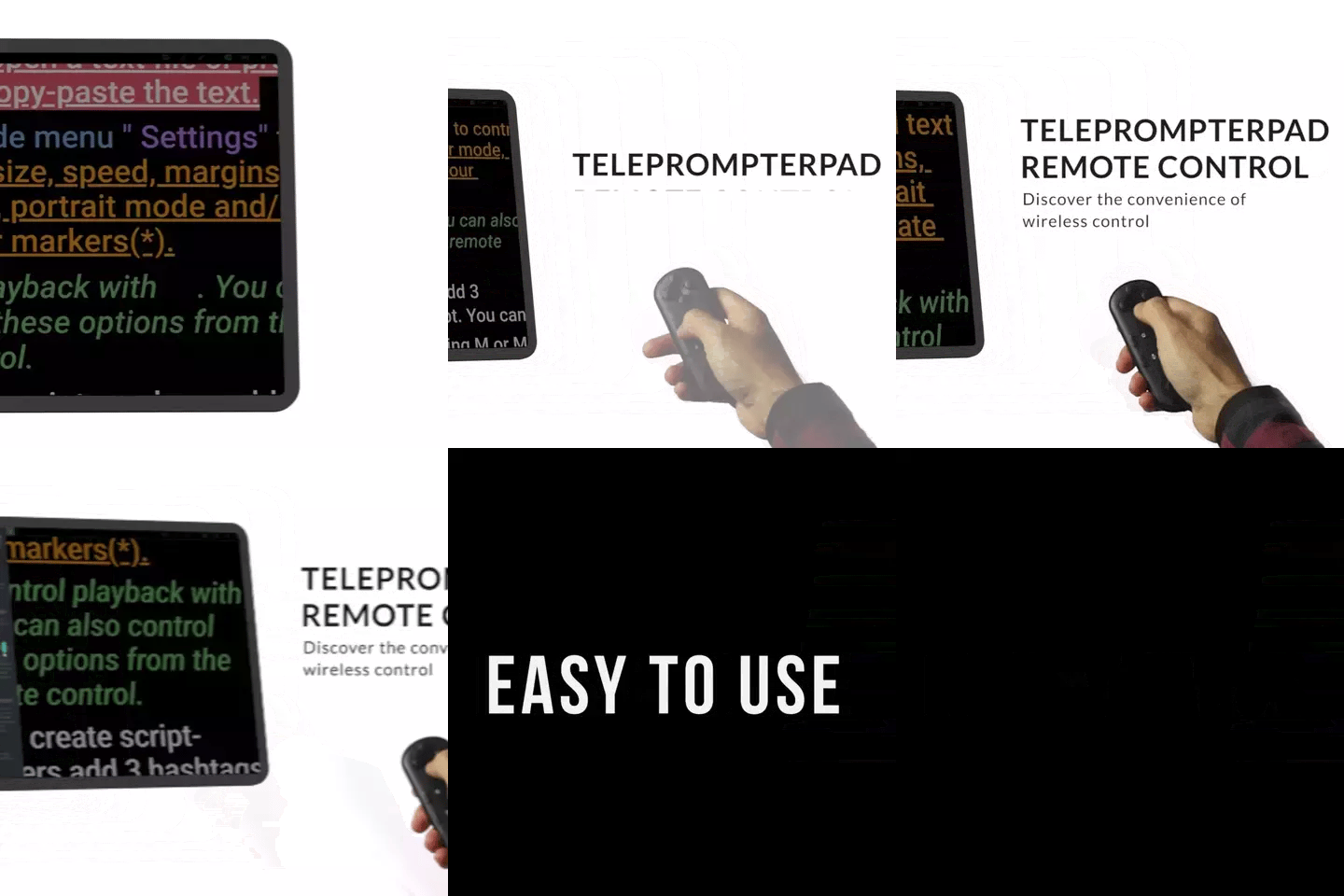
TELEPROMPTER PAD Bluetooth-Fernbedienung für Teleprompter – inklusive Teleprompter-App für Apple, Android Windows und Mac – kabelloser Controller für Beam Splitter Prompter oder Live-Streaming-Geräte
- 34.90€
39.90€- 34.90€
- Einzelpreis
- per
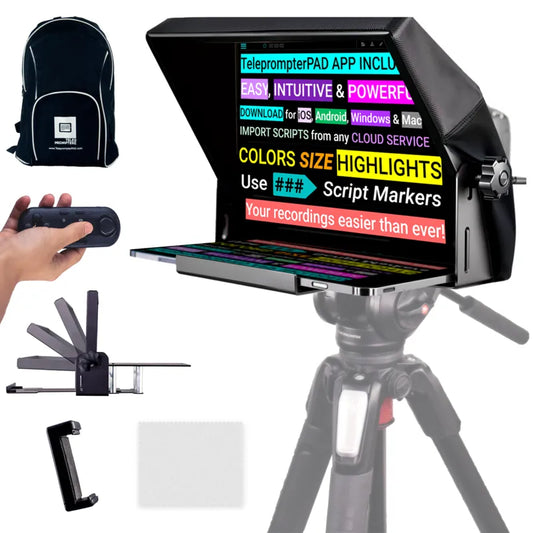
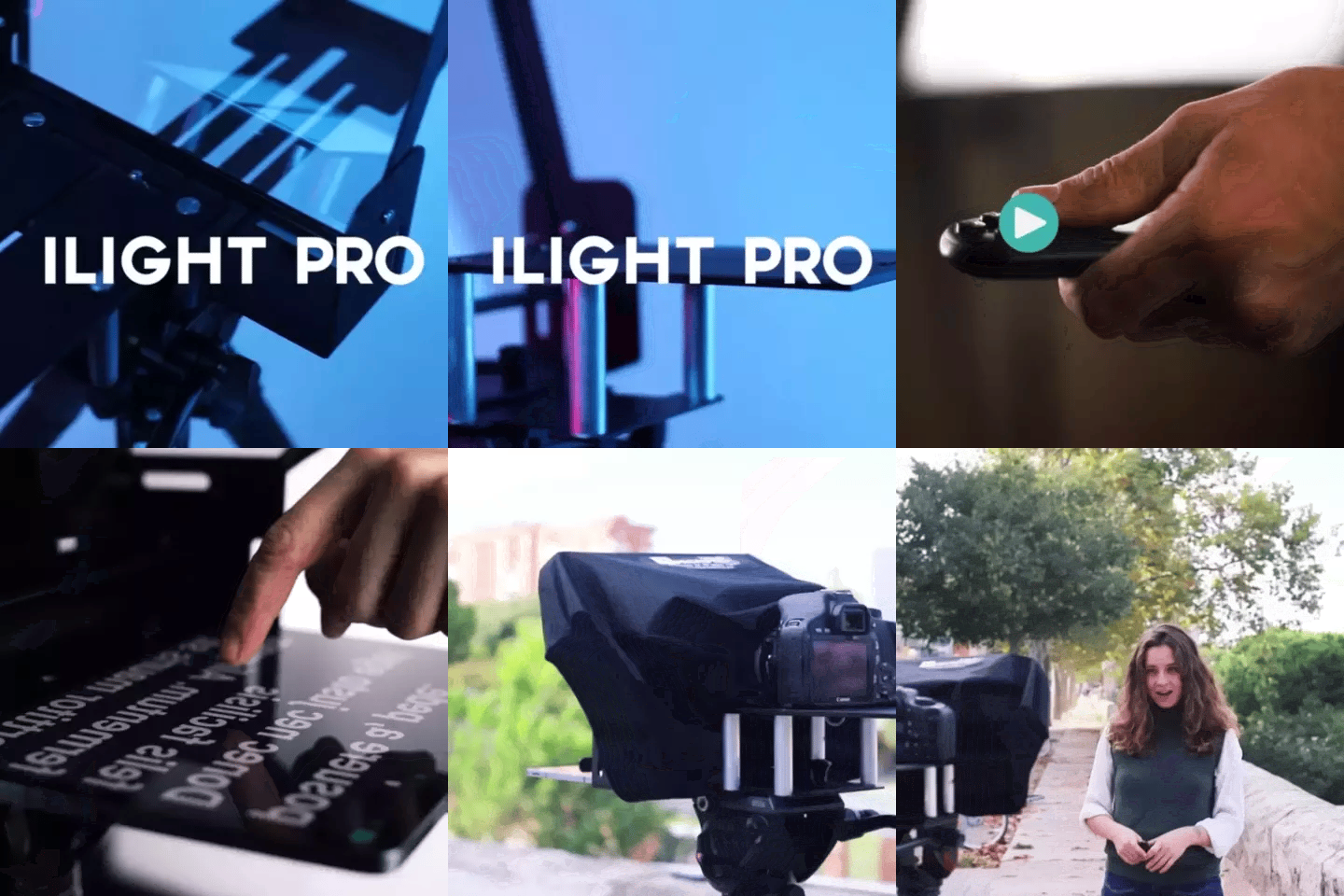
TELEPROMPTER PAD iLight PRO 12'' Teleprompter für iPad Tablet – Kit-Teleprompter für Video mit Fernbedienung, APP und Tragetasche – Beam Splitter Prompter Autocue DSLR, iPhone, APP für Apple Android Mac Win
- 159.00€
199.00€- 159.00€
- Einzelpreis
- per
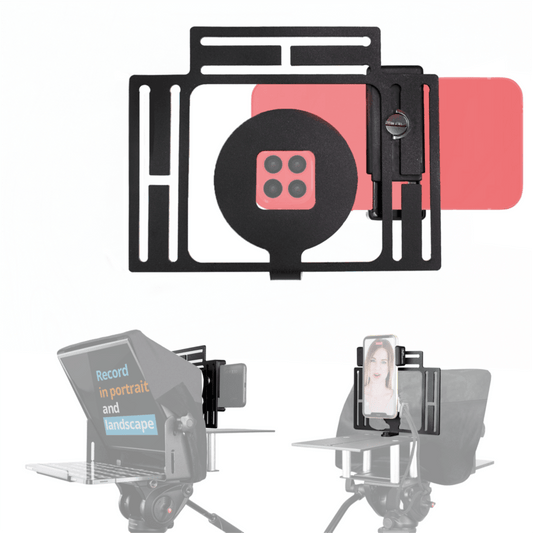
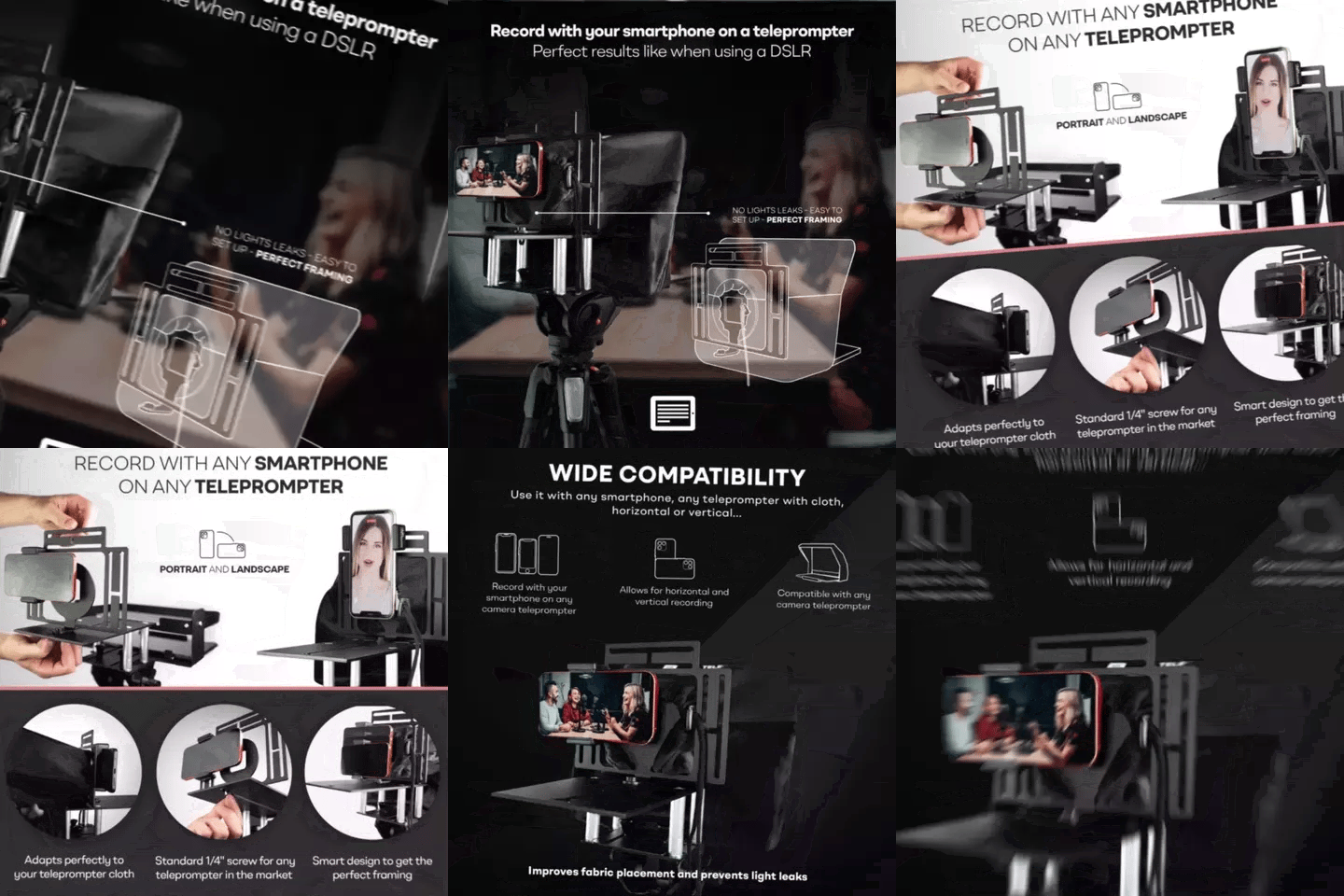
TELEPROMPTER PAD Smartphone-Adapter für Teleprompter – Aufnahme mit jedem iPhone, Android-Telefon, kompatibel mit jedem Teleprompter, Universal-Rig aus Aluminium für Prompter mit Kameraplatte, passgenauer Stoffsitz
- 29.90€
39.90€- 29.90€
- Einzelpreis
- per
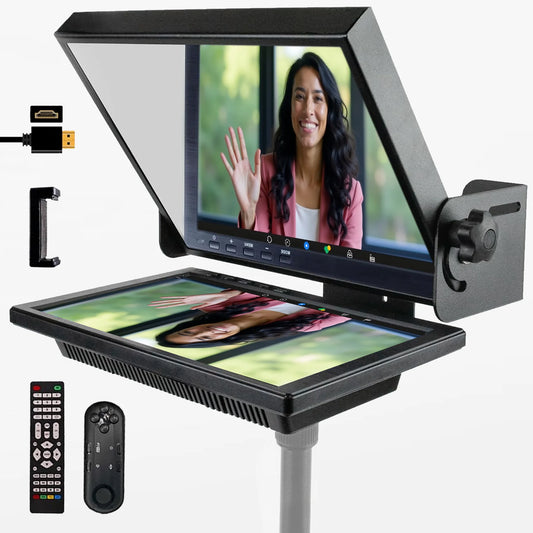
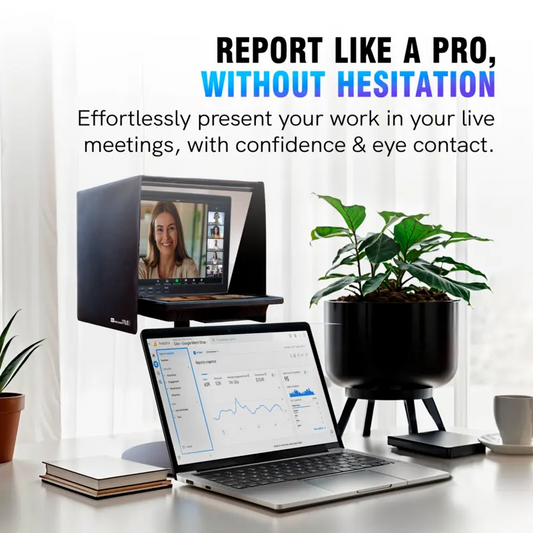
TELEPROMPTER PAD EyeMeeting Prompter für Twitch-Streaming Youtube und Zoom-Augenkontakt für Mac/PC DSLR Webcam iPhone, mit Fernbedienung Software und 10,1-Zoll-Monitor Kompatibel mit Elgato Streamdeck
- 229.00€
299.00€- 229.00€
- Einzelpreis
- per